
Introduction:
Background: I was previously running DSM 6.1.7 on a DS3617xs build. My setup included a RAID 5 array with five drives, five NICs, and a SATA expansion card, supporting dozens of Synology packages and Docker containers. Recently, I hit a wall where most packages couldn’t be updated and my Docker engine was so outdated that many newer images were incompatible. After days of research and a full data backup, I decided it was time to bite the bullet.
Current Status: Successfully upgraded to DSM 7.2.1 (modeled as a DS920+). All disks are recognized, network interfaces are working, and most of my original apps and Docker containers are running smoothly. The process was relatively painless, so I’m documenting the steps and the solutions to a few common pitfalls.
Disclaimer:
1. This guide is for reference purposes only. I assume no responsibility for any consequences. Hardware and environments vary, so proceed with caution. Remember: hardware is replaceable, but data is priceless—always perform a full backup before starting!
2. I am just a hobbyist who loves to tinker. If you are running a mission-critical production environment, I strongly recommend purchasing legitimate Synology or QNAP hardware.
The Upgrade Process:
1. Prepare a USB flash drive (4GB or larger) and ensure your important data is backed up.
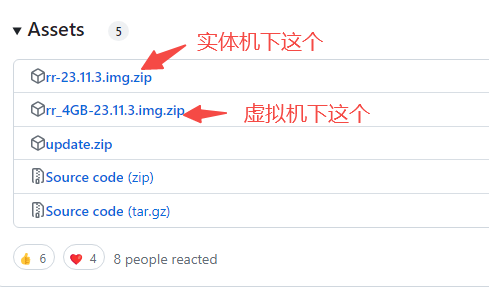
2. Download ARPL. Since the original ARPL project is no longer updated, I recommend wjz304’s enhanced, localized version available on [GitHub]. As of version 23.11.3, there are two versions: ‘rr’ for bare metal and ‘rr-4G’ for virtual machines. If you are installing on a physical machine, download the ‘rr’ version.
3. Extract the file and use a tool like Rufus to write the image to your USB drive. [Rufus Download]. Note: This will wipe all data on the USB drive, so back it up if necessary.
4. Shut down your NAS and insert the bootable USB drive. If you were already using a USB boot drive, simply replace it with the new one. I recommend having a monitor and keyboard connected for troubleshooting.
5. Boot the system and wait for the screen to display the assigned IP address and port number.
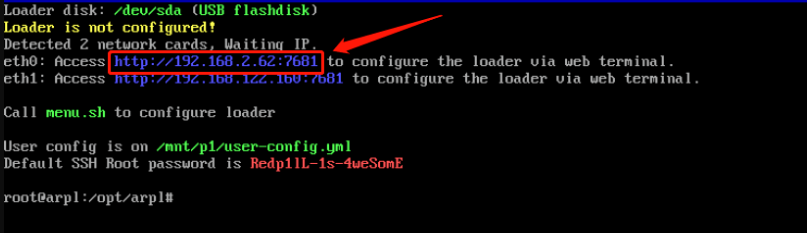
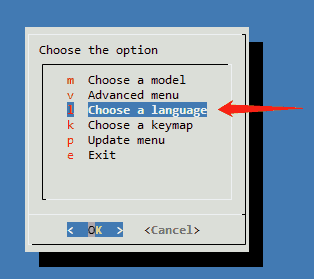
6. On another computer on the same network, open the IP and port in a web browser. You should see the following interface:
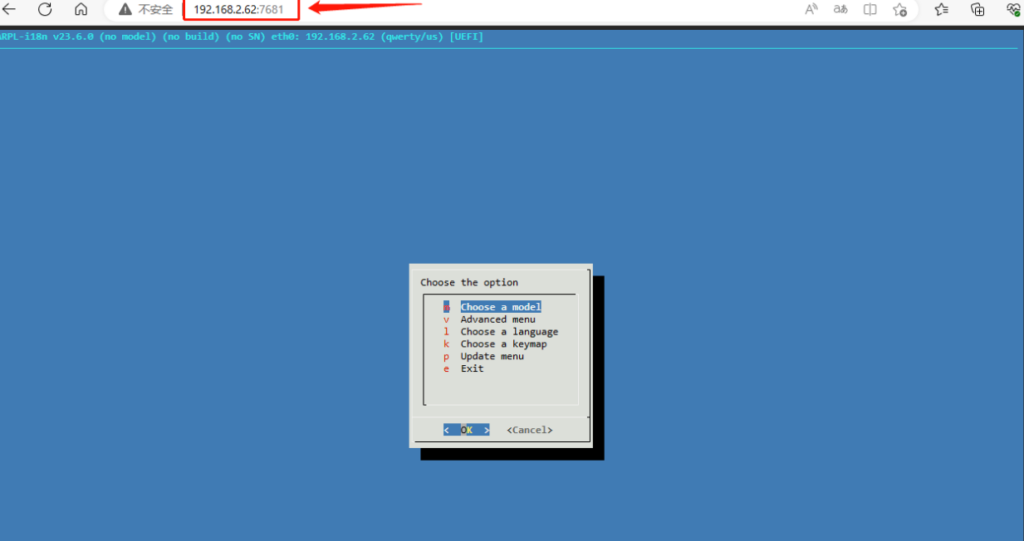
7. You can adjust the language settings here.
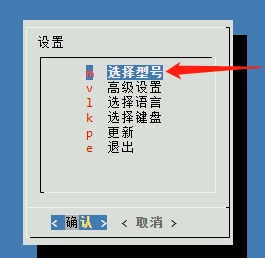
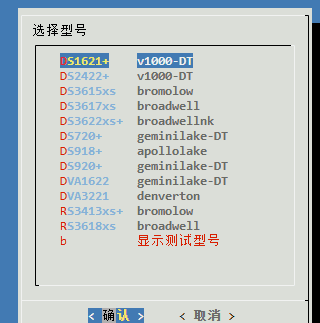
8. Select your target device model.
9. Select the version. You can check the official Synology website for the corresponding build number and download the PAT file beforehand. [Synology Download Center]
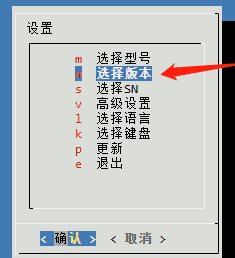
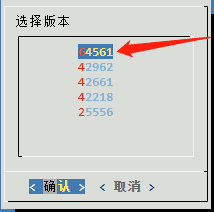
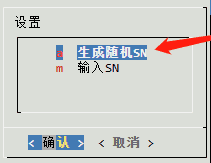
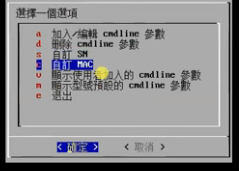
10. Configure the SN (Serial Number). If you have a valid SN for ‘patching’ (xilubai), select the second option to enter it. Otherwise, select the first option to generate a random one.
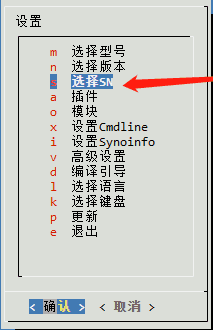
11. Select the option to compile the loader. This may take some time depending on your internet speed. You will return to this menu once the compilation finishes.
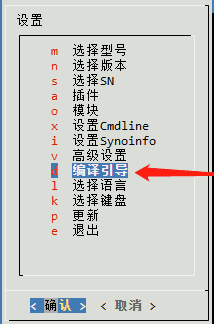
12. Once finished, select the boot option to restart your system.
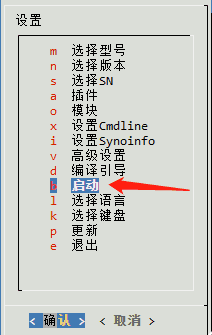
13. After rebooting, follow the on-screen prompts to start the Synology installation via the provided address.
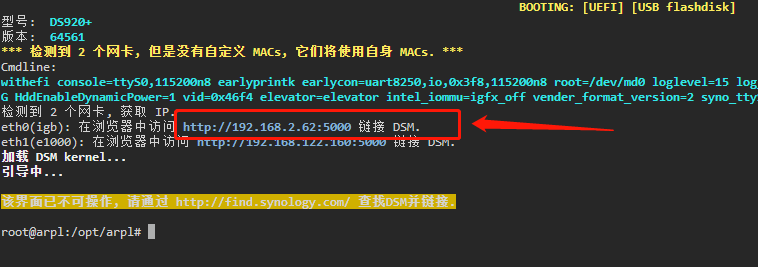
Input the IP+port into your browser to begin the installation.
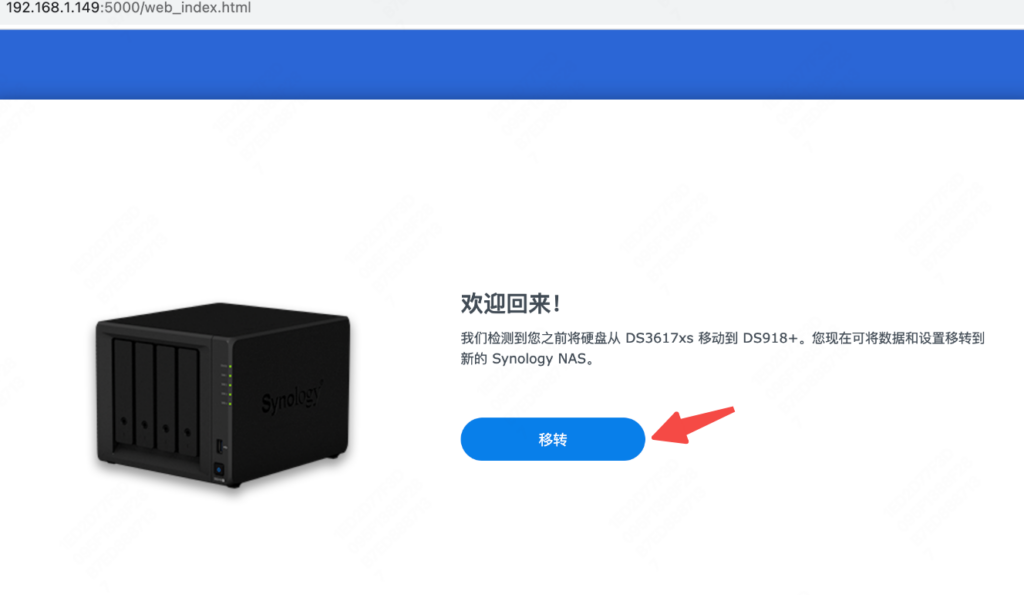
14. Under normal conditions, you will see a ‘Migration’ option. Select ‘Retain System Settings’. If it prompts you to format your drives, STOP immediately!
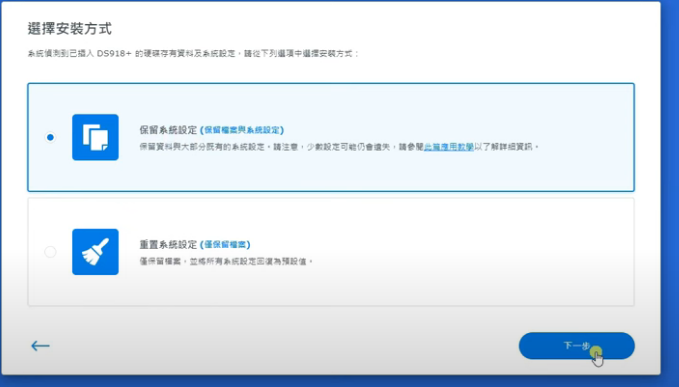
15. Upload the system file we downloaded earlier, or choose the automatic download option.
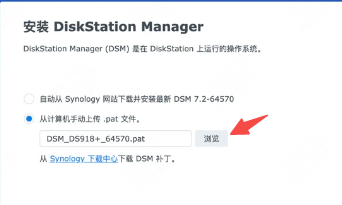
16. The system will estimate about 10 minutes. Be patient. Your connection might drop momentarily; don’t panic, just wait.
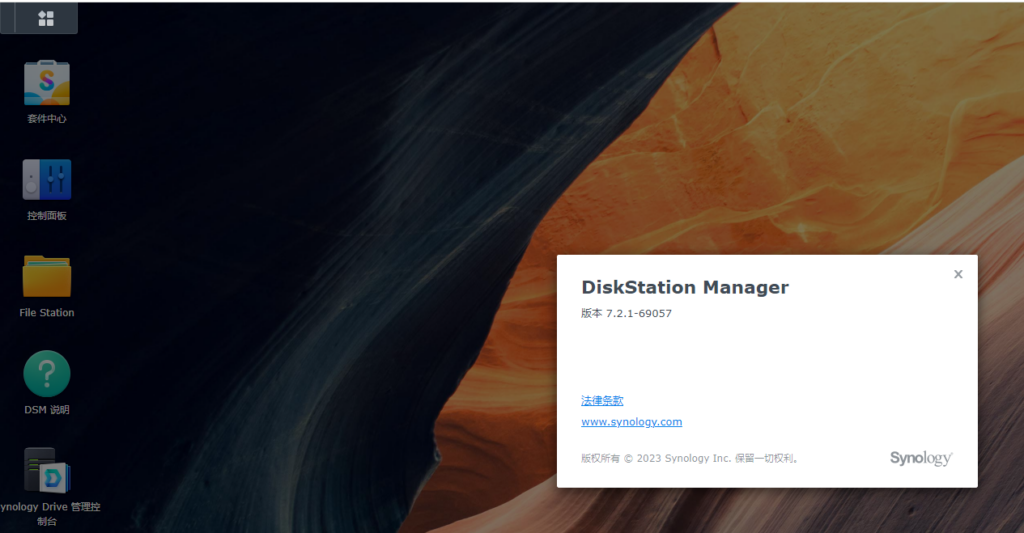
17. After the long, nervous wait, you’ll reach the login screen. Log in with your original credentials, and it will prompt you to update your packages.

18. Wait for the update to complete. Once finished, you’ll be back in the familiar DSM interface. That’s it! Now just reconfigure your system settings and apps.
Notes & Troubleshooting:
Q: The drives are not recognized after the upgrade.
A: Since DSM 7.0, Synology dropped support for IDE mode. Enter your BIOS and ensure the SATA mode is set to AHCI.
Q: Some packages are missing.
A: DSM 7.2 has consolidated some package functions; you may need to re-download or re-configure them.
Q: How do I change my SN or patching settings after install?
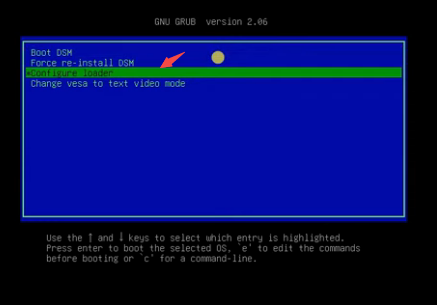
A: Reboot the NAS and select the third option from the ARPL menu.
Conclusion:
Pros:
The interface is polished and responsive, supports the latest package versions, and Docker is much more powerful, now natively supporting Docker Compose for one-click deployments. Synology Photos also added support for WebP images.
Cons:
Stricter limitations, such as issues with AME (Advanced Media Extensions). Reconfiguring some packages after the update is tedious. The biggest factor remains the risk—if this is a production environment, proceed with extreme caution. Stability is everything.