
I. Introduction:
Recently, a friend asked me for advice on managing their child’s screen time. They were concerned that while the kid was supposed to be doing homework, they were actually getting distracted by other apps. While many people look for third-party software, I always recommend sticking to built-in tools first. Microsoft Family Safety is an incredibly robust, native solution that gives parents granular control over computer access, ensuring both online safety and privacy without needing extra bloatware.
First off, Microsoft Family Safety allows you to curate which applications your child can access. You can tailor permissions based on their age and interests, effectively blocking access to inappropriate content like violence or adult material. Beyond just blocking, you can set hard screen time limits, ensuring your child maintains a healthy balance between their digital activities and schoolwork.
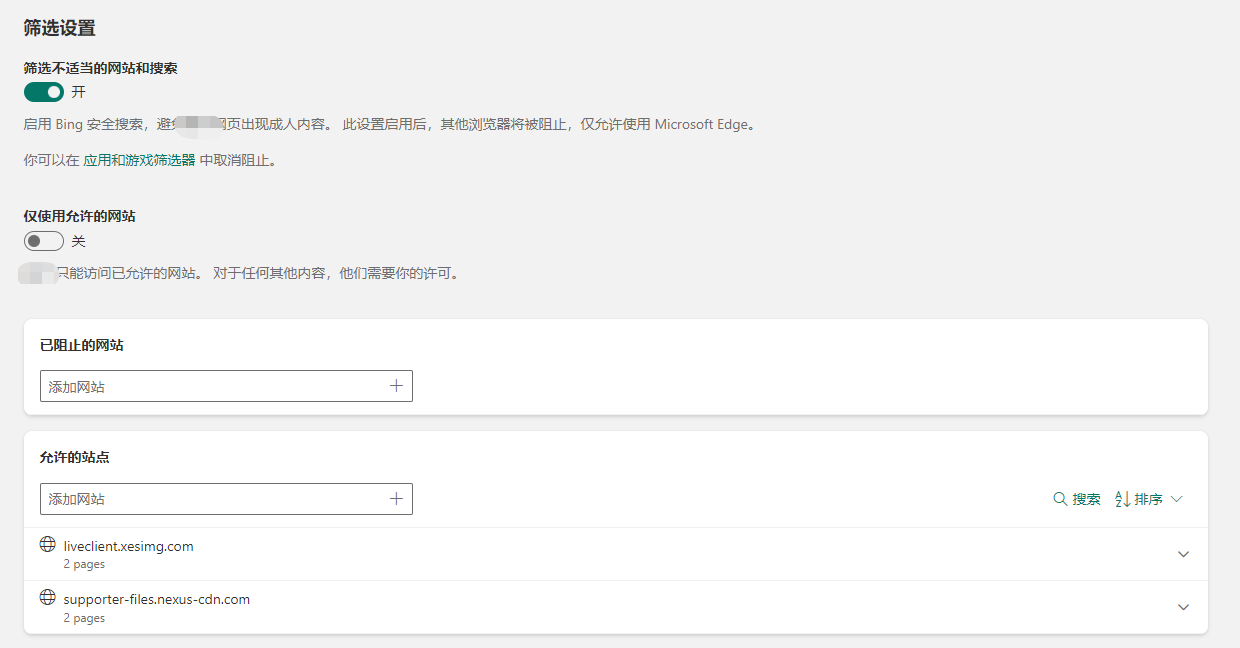
Second, it offers powerful web filtering. You can enable safe search filters to strip out adult content and maintain specific allow-lists or block-lists for websites, giving you peace of mind that their browsing habits remain age-appropriate.
Moreover, the activity reporting feature is a game-changer. You get a clear, detailed overview of how your child is using the machine—which sites they visit and which apps they spend time in. This transparency helps you spot potential issues before they become real problems.
Finally, it’s a great tool for privacy management. You can configure how information is shared between family members, keeping profiles and personal media protected from unauthorized eyes.
In short, Microsoft Family Safety is an essential utility for any tech-savvy parent. It balances control, monitoring, and privacy without the hassle of third-party subscription traps. If you haven’t set this up yet, I highly recommend giving it a go.
II. Step-by-Step Setup:
1. Creating a Family Group
First, head over to family.microsoft.com.
Log in or create a Microsoft account. Once signed in, select the option to create a new family group.
You can then invite other family members via email or phone number to round out your family group.
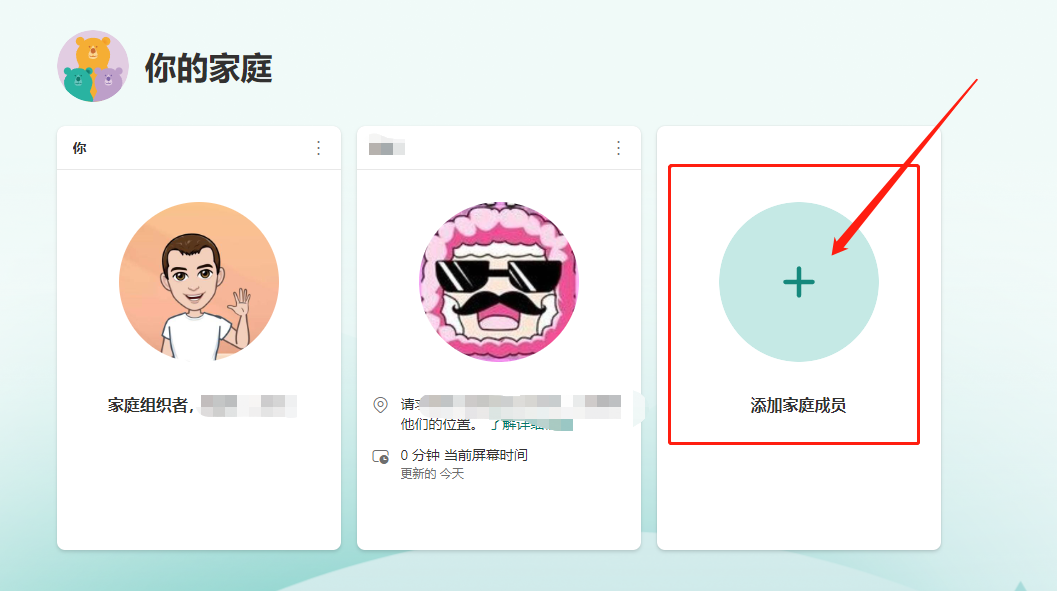
2. Adding Your Child’s Account
Next, you’ll need to add your child’s account to the group. If they don’t have one, go ahead and create a Microsoft account for them first. On Windows 10 or Xbox, navigate to Settings > Accounts > Family & other users, and select “Add a family member.” This is where you’ll define their specific account and permission levels.
3. Configuring Safety Settings
With the account added to your family group, you can manage everything remotely. On Windows or Xbox, go to Settings > Accounts > Family & other users > Family Safety settings. Here’s what you can control:
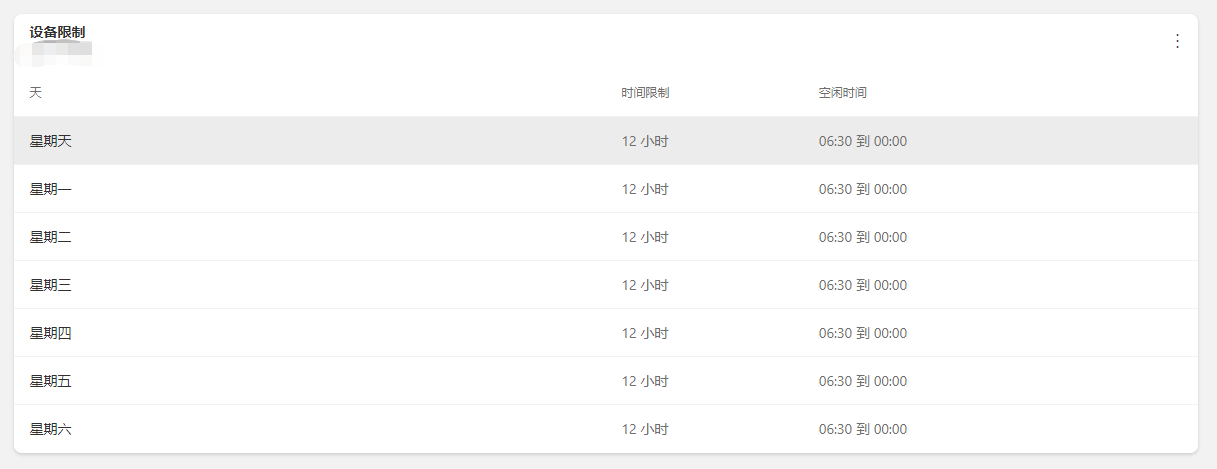
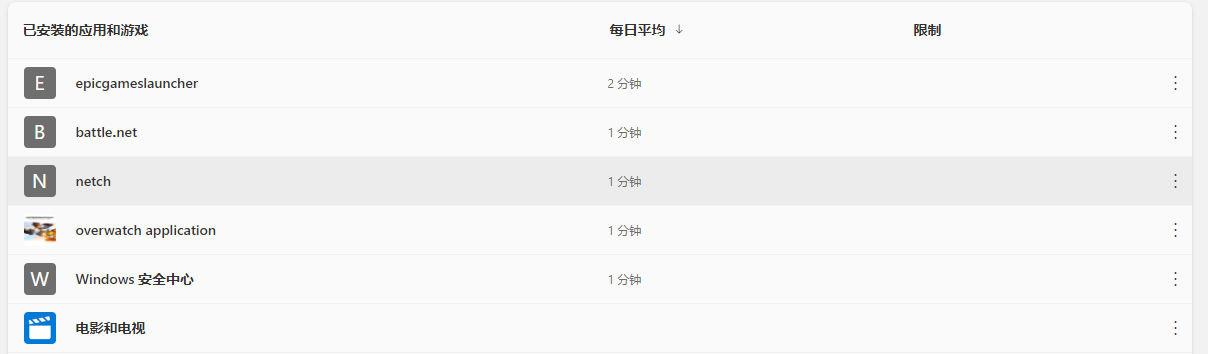
Apps and Games: You can whitelist or blacklist specific applications and games. You can also set hard daily limits on how many hours they can use the machine.
Websites: Restrict specific URLs and toggle the “Safe Search” filter to avoid inappropriate search results.
Activity Reports: Enable this to receive email summaries of your child’s digital footprint.
Privacy: Manage data-sharing settings to ensure sensitive personal information remains private.
Remember: You must be logged in with your parent account to apply these configurations.
Microsoft Family Safety is a powerful, built-in way to keep your child’s environment secure. I hope this guide helps you feel more confident in managing your home digital infrastructure.
4. Looking Beyond Native Tools
While Microsoft’s native tools are excellent, you might want to consider additional layers of security:
Third-Party Parental Control Suites
If you need even more advanced monitoring, solutions like Kaspersky Safe Kids, Norton Family Premier, or Qustodio offer granular control over social media monitoring and real-time alerts. These often have both free and premium tiers.
Network-Level Security
Consider investing in hardware-level protection. A dedicated firewall, a prosumer-grade router with filtering capabilities (like PFSense or UniFi), or even DNS-level filtering (like Pi-hole with Family-friendly blocklists) can protect every device on your network at once.
Open Communication
At the end of the day, no tool replaces conversation. Regularly discussing internet safety, checking in on their browsing habits, and being transparent about why you use monitoring software builds trust and teaches your kids how to navigate the web safely on their own.
Combining the right tools with an open dialogue is the best strategy for any modern parent.