
Suno V5 is the premier tool for AI music creation in 2025, supporting both text-to-music generation and audio-to-audio remixing. This tutorial focuses on the Custom mode to help beginners get up and running quickly. Whether you’re a music enthusiast or a content creator, you can easily use Suno V5 to craft high-quality songs. Once you’re in the Suno dashboard, head straight to the Custom Tab to configure your parameters.
Suno V5 Interface Basics: Advanced Prompt Engineering Tips
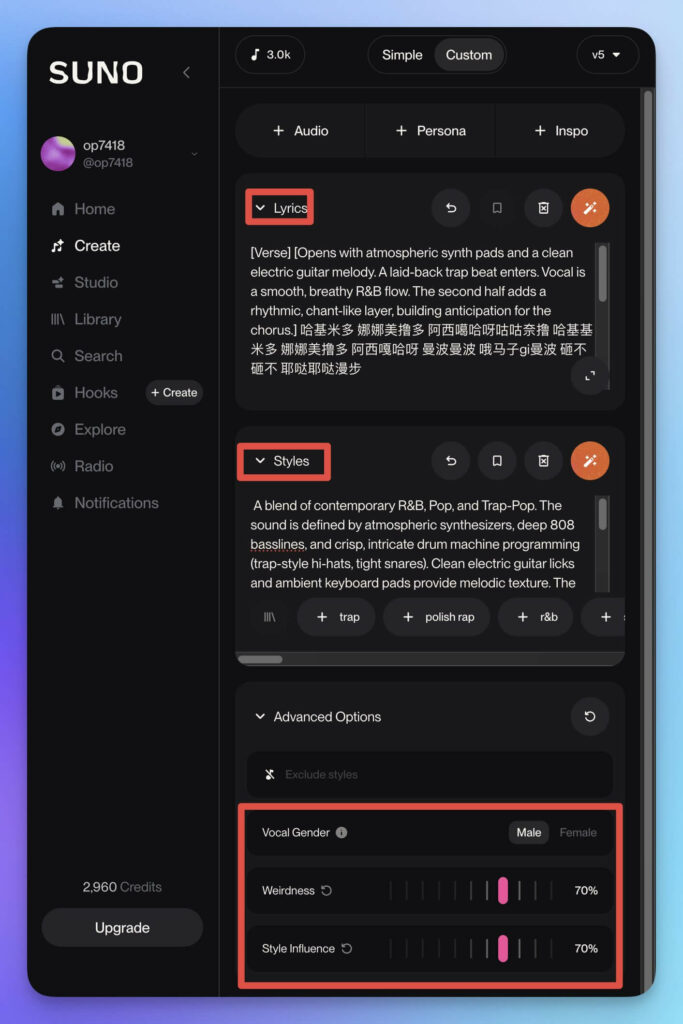
In Suno V5’s Custom mode, mastering the core parameters is the key to successful generations. Here are the essential settings for beginners:
- Lyrics: Enter your lyrics here. You can use square brackets [] to insert structural tags (like vocal style or arrangement cues). The AI won’t sing the text inside the brackets—this is the secret to professional-grade Suno V5 prompt optimization.
- Styles: Describe your overall genre, instrumentation, and vocal techniques. I recommend writing these in English and including core keywords like “Mandopop fusion” to improve accuracy.
- Vocal Gender: Choose male, female, or non-binary to match your musical vision.
- Weirdness (0-100): The higher the value, the more experimental or avant-garde the music becomes. For Suno V5 beginners, I suggest starting at 50 to avoid over-complicating the track.
- Style Influence (0-100): Higher values force the AI to strictly adhere to your prompt; lower values give it more creative freedom. I recommend keeping this at 70 or above to ensure Suno V5 captures your specific vision.
Combining these parameters with refined prompts allows for much tighter control over your AI compositions. Let’s dive into the two main generation methods.
Method 1: Text-to-Music Generation (No Audio Required)
Pure prompt-based generation is the most popular way to create music in Suno V5. You only need lyrics and a style description to generate an entirely new track. It’s perfect for original songwriting or capturing a specific vibe.
Step 1: Using LLMs for Suno V5 Prompt Templates
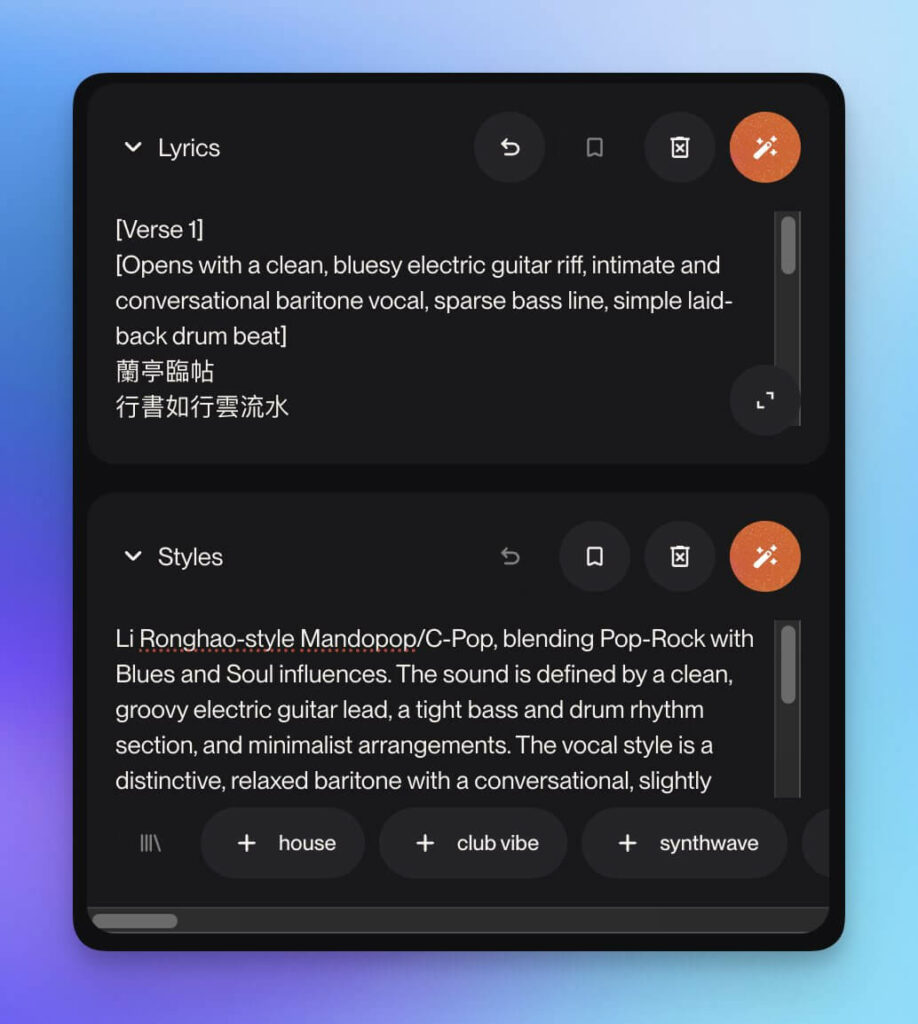
Prompt engineering is everything. Use an LLM like Gemini or ChatGPT with the following template to generate professional global styles and sectional cues. The key to high-quality results in 2025 is detailed instructions. Copy and paste this template:
You are a professional AI music prompt engineer. Your task is to create a structured prompt for models like Suno V5 based on the user-provided [Artist] and [Lyrics].

Part 1: Global Style Prompt
Be detailed: include Core Genre (e.g., "Neo-Soul R&B"), Signature Instrumentation (e.g., "piano-driven"), Vocal Timbre & Technique (e.g., "emotive vibrato"), and Production/Rhythmic feel (e.g., "cinematic production"). Use objective English descriptions.

Part 2: Sectional Cues + Lyrics
Segment the lyrics into [Verse 1], [Chorus], etc. Add English tags in [] for each section describing instrumentation and mood (e.g., [Verse 1][soft piano intro, intimate vocal]). Tags above, lyrics below.

[Artist Name]: {Input artist, e.g., JJ Lin}
[Lyrics]: {Input lyrics}Example LLM Output:
Global Style Prompt
JJ Lin-style Mandopop/C-Pop, blending Pop-Rock with R&B and Ballad influences. The sound is defined by a highly melodic, piano-driven foundation, often accompanied by lush string arrangements and modern synth pads. His vocal style is a clear, powerful high tenor, known for its exceptional control, wide range, and signature emotive vibrato. Focus on polished, cinematic production and delivering a soaring, emotionally charged vocal performance.

Sectional Cues + Lyrics
[Verse 1][soft piano intro, clean and intimate vocal delivery, sparse instrumentation]
...
[Chorus][driving pop-rock drum beat enters, signature string section swells, powerful layered lead vocals, building emotional intensity]
...Step 2: Input and Generate
- Lyrics: Paste your formatted lyrics with the [] cues.
- Styles: Paste the global style prompt.
- Configure Vocal Gender, Weirdness (50), and Style Influence (70).
- Click Generate. Suno V5 allows for multiple iterations; pick the best one!
Method 2: Audio Overlay (AI Remastering)
Audio overlay allows you to use Suno V5 like a professional sound engineer, uploading an original track to reinterpret the melody or vocal style.
Step 1: Source Material
Suno V5 has built-in copyright detection. To avoid issues: use your own original recordings or royalty-free audio.
Step 2: Upload and Settings
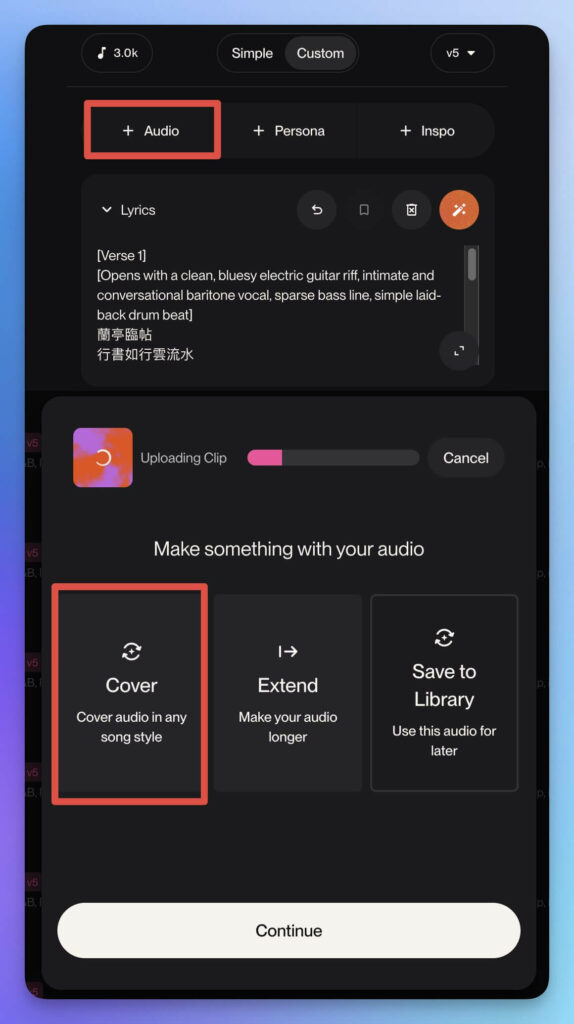
- Click “+Audio” in Custom mode and upload your file.
- Choose “Cover” or “Extend”.
- Audio Influence (0-100): Set to 30-50 to use the melody as a reference without copying the tone.
- Proceed with Lyrics and Style prompts as you did in Method 1.

FAQ and Pro Tips (2025 Advanced Guide)
- Struggling with output? Lower “Weirdness” to 30 and increase “Style Influence” to 90.
- Mandarin Support: Suno V5 is excellent with Mandarin. Add “Mandarin vocals” in your styles to ensure natural pronunciation.
- Credits: High-quality generations cost 500-1000 credits; using precise prompts will save you resources.
Suno V5 is ushering in a new era of AI music creation. From text generation to intelligent editing, the creative freedom is unprecedented. Try it out today and create your first AI-generated masterpiece!