

Introduction:
If you love testing out new software or experimenting with unverified apps, I highly recommend using the Windows Sandbox feature. It is far simpler and faster than setting up a dedicated virtual machine, while providing excellent isolation to keep your host system stable and secure. Let’s dive into how you can get it up and running.
1. Why Use Windows Sandbox?
- Built-in Component: Everything you need is already included in Windows 10/11 Pro and Enterprise. No massive VHD downloads required.
- Native Environment: Every time you launch Windows Sandbox, it starts as a pristine, fresh installation of Windows.
- Disposable: Nothing is persistent. Once you close the application, everything inside is wiped instantly.
- Secure: Uses hardware-based virtualization for kernel isolation. It leverages the Microsoft hypervisor to run a separate kernel, keeping the sandbox strictly partitioned from your host.
- Efficient: Features an integrated kernel scheduler, smart memory management, and virtual GPU acceleration.
2. Prerequisites
- Windows 10/11 Pro or Enterprise (Note: Windows Home edition does not support Sandbox).
- Virtualization enabled in your BIOS/UEFI.
- At least 4GB of RAM (8GB recommended).
- At least 1GB of free disk space (SSD highly recommended).
- A CPU with at least two cores (hyper-threading recommended).
3. Installation
1. Ensure you are running Windows 10 (build 18305 or higher) or Windows 11.
2. Enable Virtualization:
- On physical hardware: Ensure virtualization is enabled in your BIOS.
- Inside a VM: You need to enable nested virtualization. Run these PowerShell commands on the host to update your VM settings:
Set-VMProcessor -VMName <VMName> -ExposeVirtualizationExtensions $true
Update-VMVersion -VMName <VMName>
3. Search for “Turn Windows features on or off” in your Start menu. Check the “Windows Sandbox” box, click OK, and restart your computer when prompted.
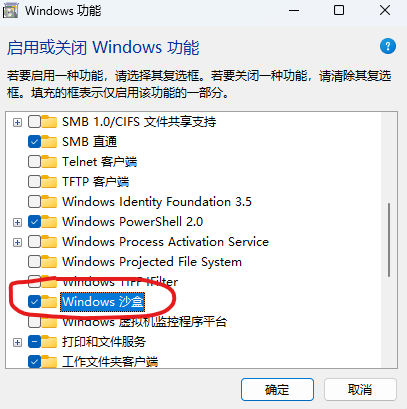
If the option is missing, your system does not meet the hardware requirements.
Alternatively, you can enable it via PowerShell:
Enable-WindowsOptionalFeature -FeatureName "Containers-DisposableClientVM" -All -Online
4. Launch “Windows Sandbox” from the Start menu. By default, networking is enabled. You can customize this by using a Windows Sandbox configuration file.
4. Usage:
1. Simply copy the executable file from your host and paste it into the Windows Sandbox window.
2. Run or install the application inside the sandbox.
3. Once you’re done, close the sandbox. You’ll see a prompt confirming that all data inside will be permanently deleted. Click “OK”.
4. Rest easy knowing your host system remains completely untouched.