
Introduction: Turn your voice into a powerful AI model for videos, voiceovers, or song covers.
Prerequisites:
1. A clean, high-quality vocal recording of yourself, captured in a quiet environment. Aim for at least 30 minutes of audio in WAV format. If you have multiple files, rename them sequentially to keep things organized.
2. A PC equipped with an NVIDIA GPU with at least 8GB of VRAM. While CPU training is possible, the performance penalty is severe—GPU is highly recommended for reasonable training times.
3. Download the Audio Slicer utility and the so-vits-svc project files.
Download link: Baidu Drive Link
Extraction code: wk5g
Step-by-Step Guide:
1. Create a new folder and name it “OUT”.
2. Run the Audio Slicer tool, import your audio files, set the output directory to your “OUT” folder, and hit start.
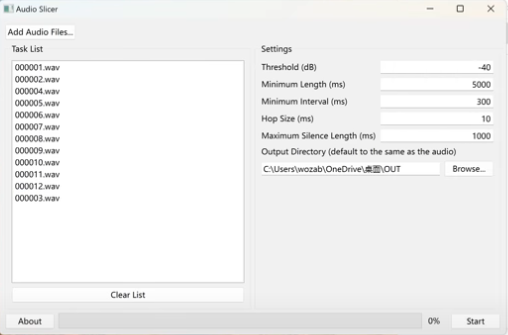
3. Check the sliced audio files. Ideally, each clip should be under 7 seconds long. If you find longer clips, adjust the parameters in the slicer and re-process until all files meet the length requirement.
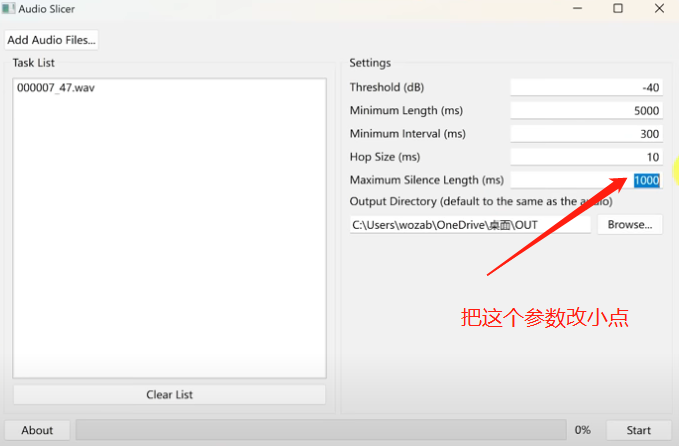
4. Extract the so-vits-svc package and move your “OUT” folder into the so-vits-svc\dataset_raw directory.
5. Navigate to the main directory and run “webui.bat”. This may take a few minutes as it initializes the environment. If the browser doesn’t open automatically, look for the IP and port in your terminal and paste it into your browser manually.
6. Go to the “Train – Identify Dataset” tab. It should detect your “OUT” folder automatically. Leave the default parameters as-is and click the data preprocessing button. This is computationally intensive; keep an eye on the progress bar and let it finish.
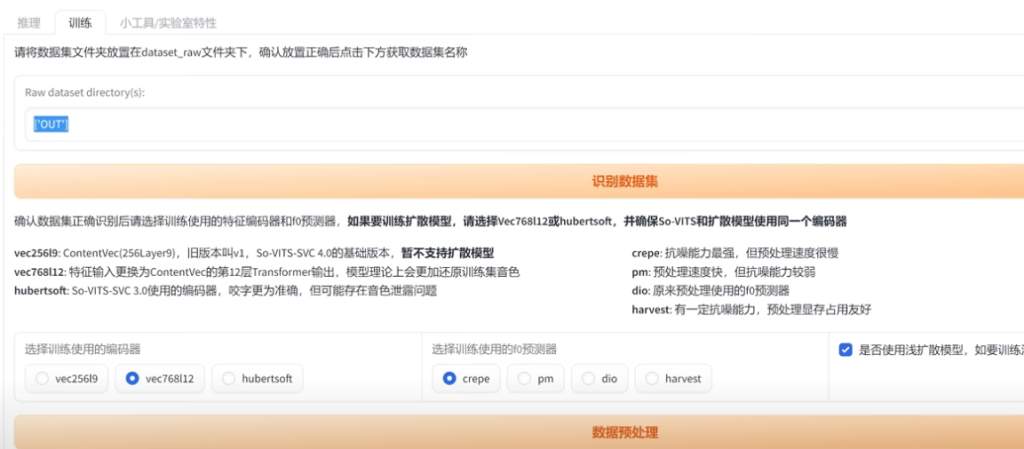
7. Once preprocessing is complete, clear the existing info if necessary. If you lack an NVIDIA GPU, you will be forced to use CPU training, which is extremely slow—be prepared for a long wait. Using CUDA with an NVIDIA GPU is highly recommended for performance. Follow the recommended settings for checkpoints and start the training process.
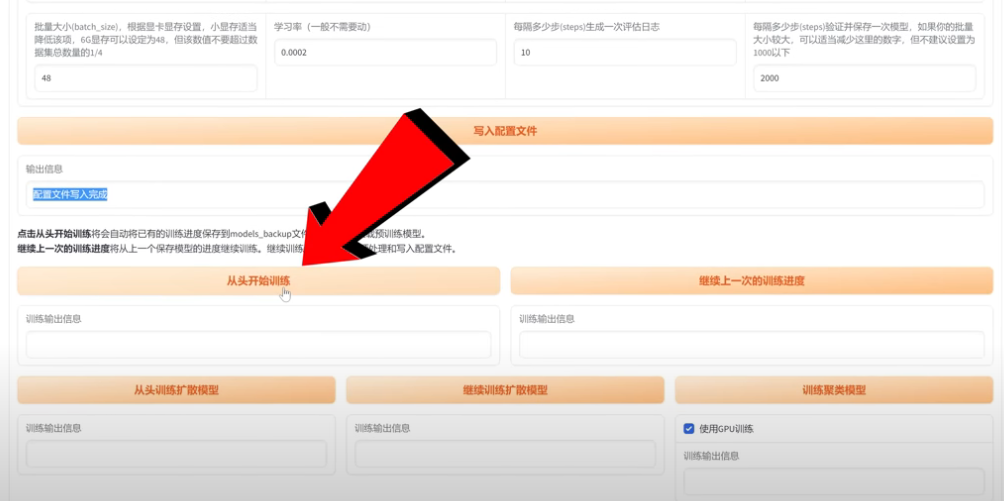
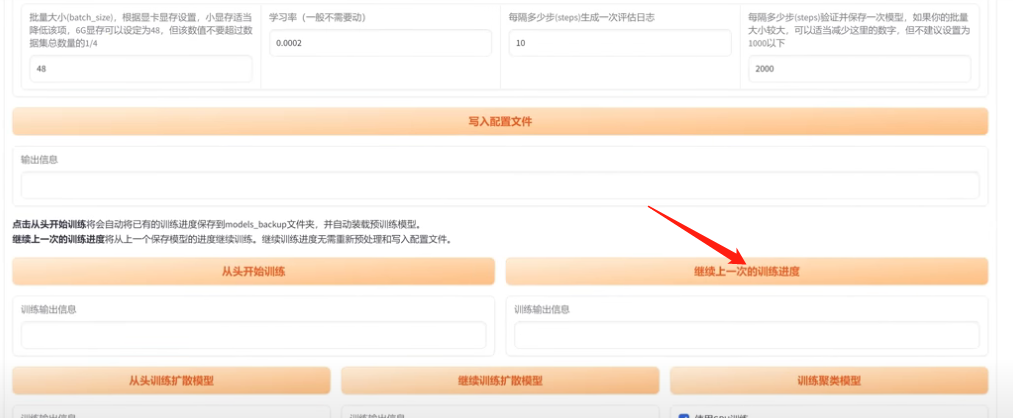
8. Training is a lengthy process. Depending on your GPU, expect it to take 2–4 days for optimal results. Don’t worry about power outages or crashes; you can restart training by clicking “Continue last training” in the web UI.
9. To track your progress, run “tensorboard.bat” from the main folder and open the displayed address in your browser. Under the “AUDIO” tab, you can listen to test samples to verify the model’s progress.
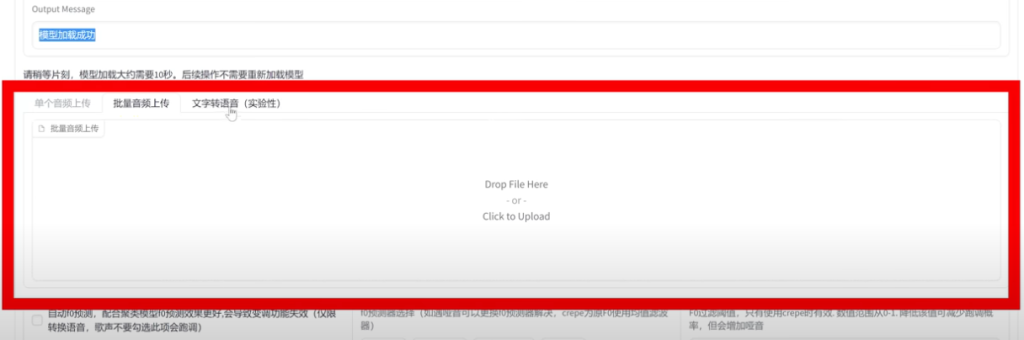
10. Once you’re satisfied with the results, stop the training. Navigate to the inference tab, load your model, keep the encoder as default, and select the appropriate config.json. Once loaded, you can upload any audio file to perform voice conversion.
Now that you have your own AI voice model, it’s up to you to decide how to put it to work!