

Introduction:
Why write this guide? Many enthusiasts with older hardware want to experience Windows 11, but the strict system requirements often leave them feeling stuck. While some give up, others resort to sketchy, “slimmed-down” custom ISOs—a practice I strongly advise against due to significant security risks and stability issues.
So in this article, I will walk you through a much simpler, user-friendly, and secure approach.
The Process:
1. Download the Official ISO
Head over to the official Microsoft website to download the latest Windows 11 ISO. [Official Download Page]. Select the edition, choose your language, and proceed with the download.
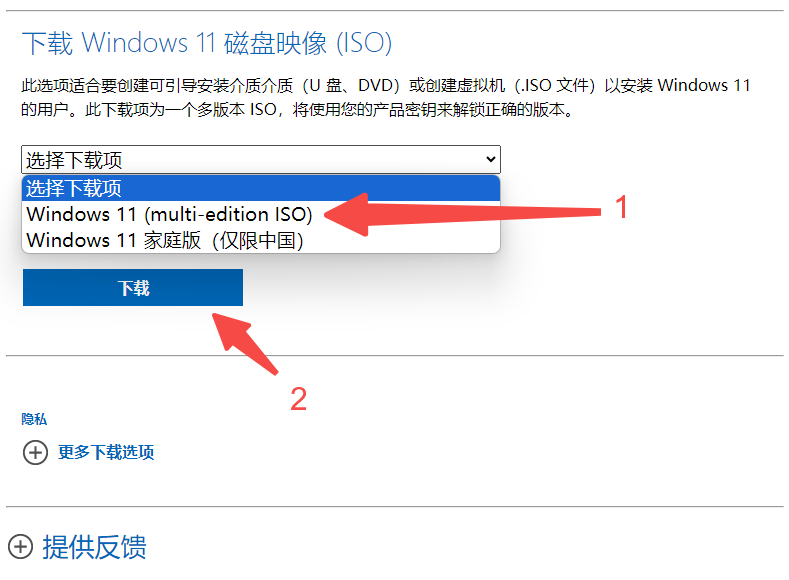
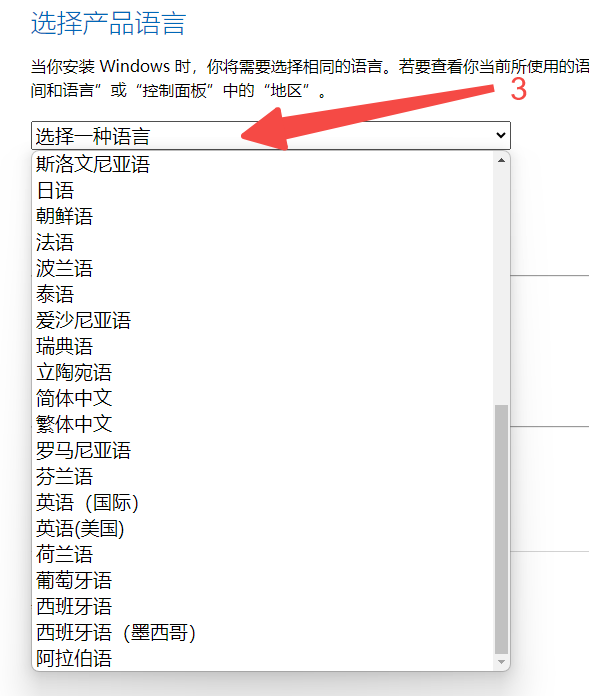
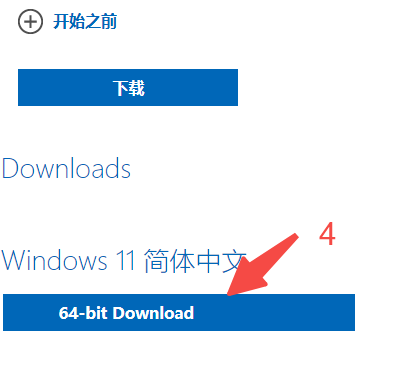
2. Create a Bootable USB Drive
Download the Rufus USB imaging tool [Download Here].
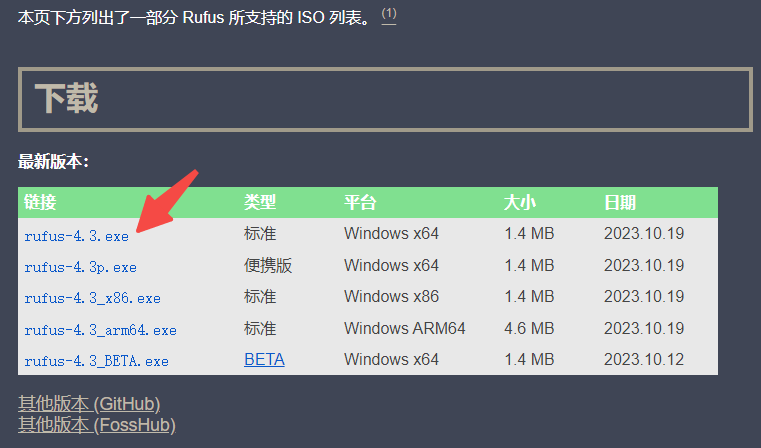
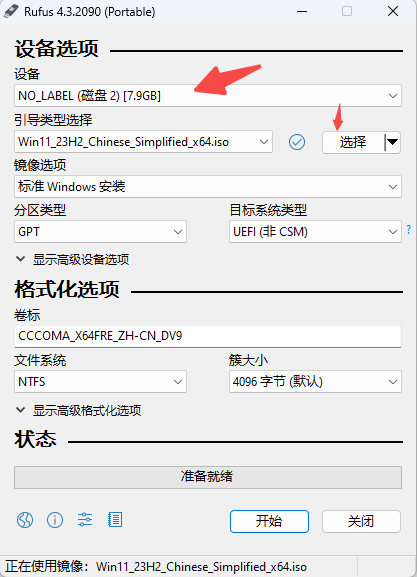
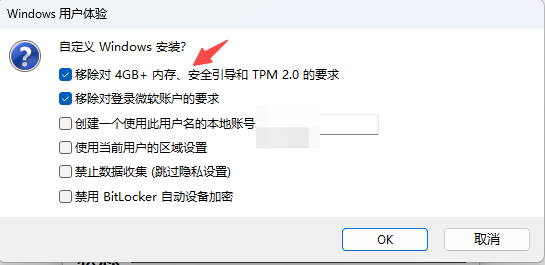
Insert a USB flash drive (at least 8GB). Run Rufus, verify that your USB device is selected, choose the ISO you just downloaded, and hit “Start.” You will see a dialog box—be sure to select the requirements you wish to bypass. Once confirmed, Rufus will do the heavy lifting. Warning: This process will format your USB drive, so back up any important data first!
3. Boot and Install
Plug the bootable USB into your target PC. Enter the BIOS/UEFI settings to change the boot order, or use your motherboard’s boot menu hotkey (this varies by manufacturer). Follow the on-screen prompts to complete the Windows installation.
Final Thoughts:
1. By using the official Microsoft ISO, you ensure your system remains secure and stable. Avoid modified “lite” versions floating around the web.
2. This is currently the most reliable and foolproof method for bypassing hardware checks. Give it a shot if you’re looking to modernize your older machine!