
Introduction:
Llama 3.1 is the latest, state-of-the-art open-source Large Language Model (LLM) family released by Meta. The lineup includes 8B (8 billion parameters), 70B (70 billion parameters), and the massive 405B (405 billion parameters) model—the largest one Meta has ever released.
Hardware Requirements: Please verify your hardware before starting to avoid wasting time.
Windows: NVIDIA RTX 3060 or better (8GB+ VRAM) + 16GB RAM, with at least 20GB of free disk space.
Mac: M1 or M2 chip with 16GB RAM and 20GB+ of disk space.
GPU requirements per model:
- llama3.1-8b: At least 8GB of VRAM.
- llama3.1-70b: Approximately 70-75 GB of VRAM.
- llama3.1-405b: Requires significant VRAM and resources, at least 400-450 GB of VRAM. Proceed with caution.
If your rig meets these requirements, let’s get started!
1. Downloading Ollama
Ollama is an open-source tool designed to manage LLMs locally, handling everything from deployment to monitoring. It simplifies the local management of models and integrates well with frameworks like TensorFlow and PyTorch. [Download from the official website] Choose the version that matches your OS.
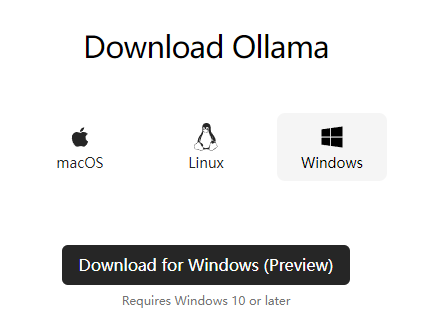
2. Installing and Running Ollama
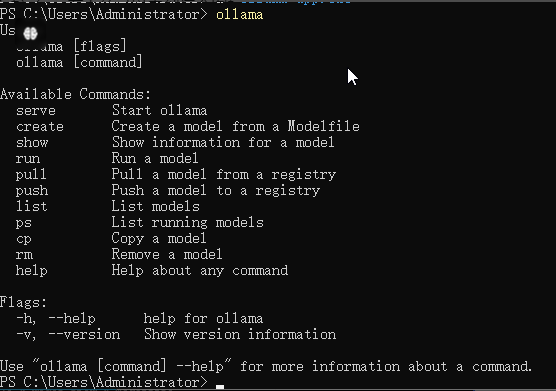
Run the installer (default installation is on your C: drive). Once finished, open Windows PowerShell or CMD and type ollama to see the help menu, confirming a successful installation.
3. Downloading the Llama 3.1 Model
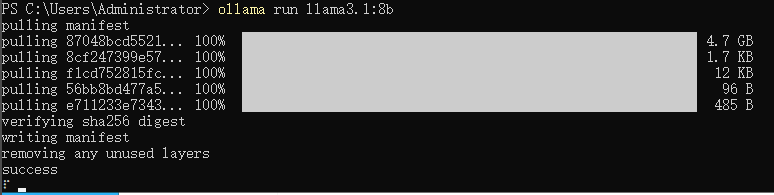
In your terminal, run the following command:
ollama run llama3.1:8bIf you have high-end hardware, you can also pull the 70B or 405B models:
ollama run llama3.1:70b
ollama run llama3.1:405b
Wait for the download to complete, and you’ll be dropped into a chat session to test the model.
4. Configuring Remote Access
By default, Ollama listens on http://127.0.0.1:11434. To access it remotely, you need to set the OLLAMA_HOST environment variable.
| Variable | Value | Description |
| OLLAMA_HOST | 0.0.0.0:8888 | Configures the listening IP and port |
| OLLAMA_ORIGINS | * | Enables CORS; specific domains can also be listed |
| OLLAMA_MODELS | C:\Users\Administrator\.ollama | Redirect model storage to a different drive |
How to set environment variables on Windows:
1. Quit the Ollama process entirely.
2. Right-click This PC > Properties > Advanced system settings > Environment Variables > User variables for Administrator > New. Add the three variables mentioned above.
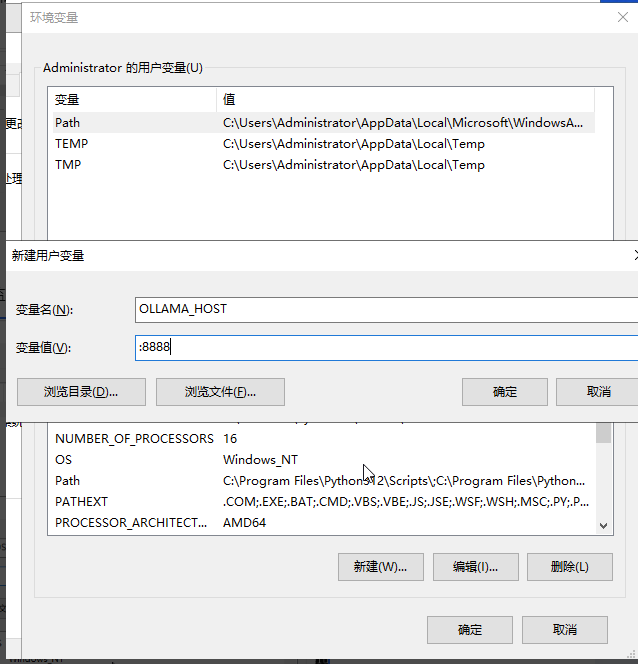
3. Restart the Ollama service.
4. You can now connect using a web-based UI. We highly recommend Open WebUI or LobeChat.
Open WebUI
- GitHub: https://github.com/open-webui/open-webui
- Documentation: https://docs.openwebui.com/
LobeChat
- GitHub: https://github.com/lobehub/lobe-chat
- Documentation: https://lobehub.com/zh/docs/self-hosting/start
Conclusion:
That’s it! While it looks like a lot of steps, it’s actually quite straightforward. I hope this guide helps you get your own local AI up and running!