

Recently, Black Forest Labs—founded by former Stability AI team members—dropped Flux.1, an open-source image generation model that has the entire community buzzing. It is no exaggeration to say that Flux.1 delivers jaw-dropping results, rivaling the quality of Midjourney V6. In this guide, I’ll walk you through how to deploy Flux.1 locally. Whether you’re a complete beginner or a seasoned enthusiast, you’ll be up and running in no time. If you run into any connection issues, I’ve bundled the Flux Schnell model and other essentials for download; check the link at the bottom of this post.
Flux Model Overview
Flux comes in three distinct versions: Flux Pro, Flux Dev, and Flux Schnell. Here is how they stack up:
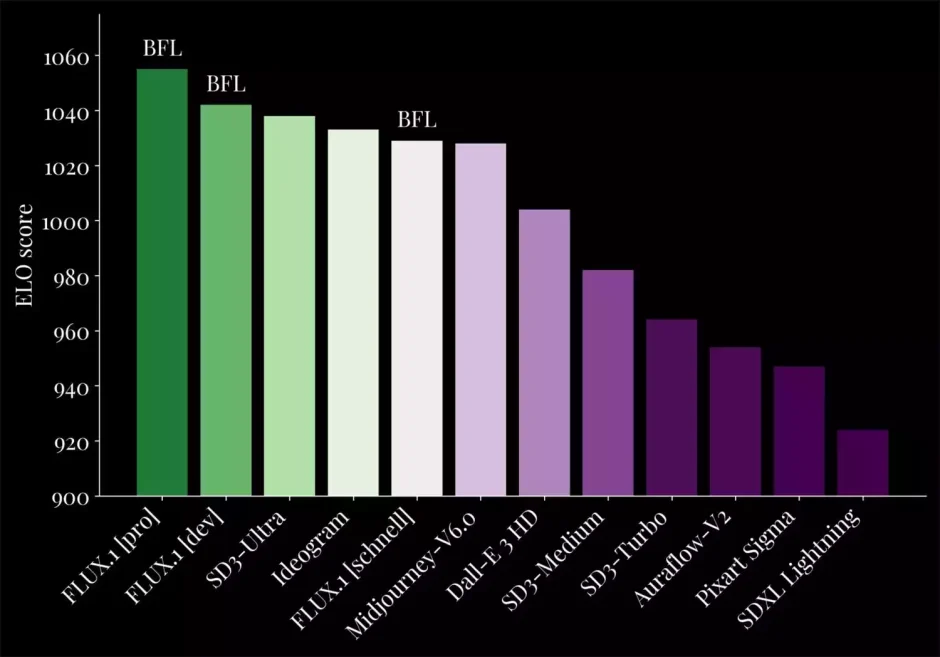
Flux Pro: The top-tier model, accessible only via API.
Flux Dev: Distilled from Flux Pro, it’s open-source (non-commercial) and matches Pro’s quality.
Flux Schnell: A 4-step distilled model that’s 10x faster than Dev, released under the Apache 2.0 license for commercial use.
ComfyUI now natively supports Flux; just ensure your installation is updated to the latest version.
Getting Started
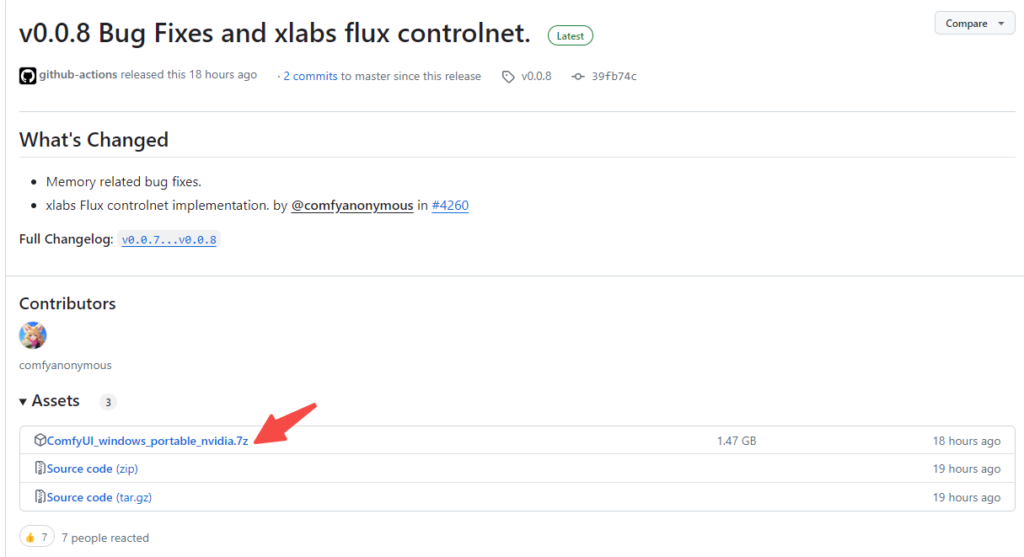
1. Download the Latest ComfyUI
First, grab the latest version of ComfyUI. [Download ComfyUI here]. Once downloaded, unzip the files and keep them ready.
2. Set Up Localization
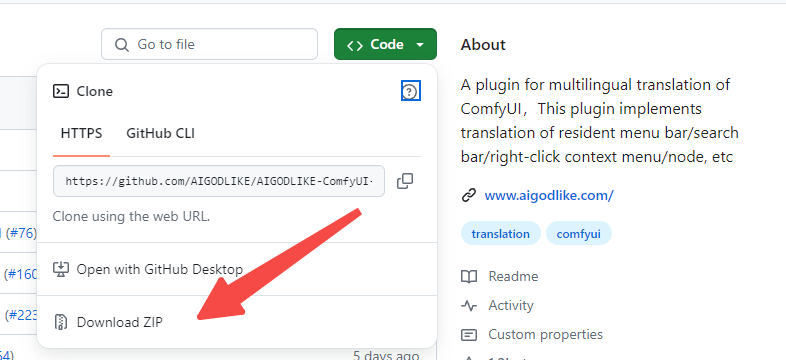
If you prefer a localized interface, you can download the language pack. Extract the ZIP contents into the ComfyUI/custom_nodes folder. Download: [Download Language Pack].
3. Download Flux Models
Select the model version that fits your GPU VRAM:
FLUX.1 [dev]: The full, uncompressed version. Requires at least 24GB VRAM. Download: Download FLUX.1 [dev].
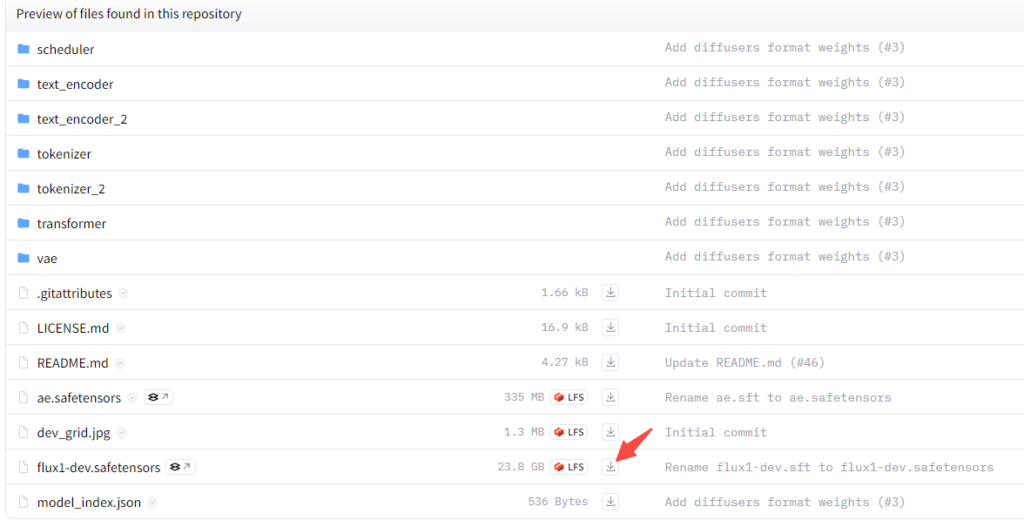
FLUX.1 [dev] fp8: An optimized version of the dev model. Requires at least 12GB VRAM. Recommended: Download FLUX.1 [dev] fp8.
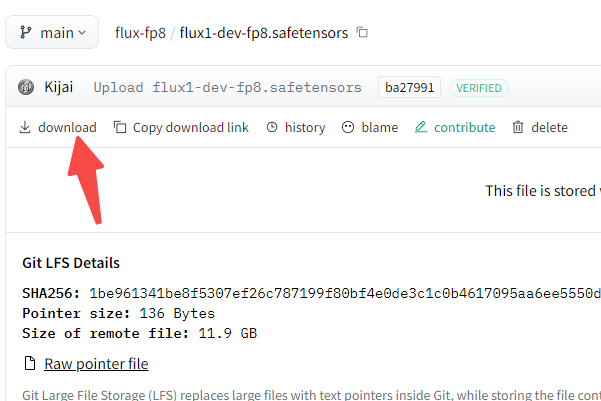
FLUX.1 [schnell]: A fast 4-step distilled model, compatible with most GPUs. Download: Download FLUX.1 [schnell].
FLUX.1 [schnell] fp8: Optimized for even lower GPU VRAM specs. Download: Download FLUX.1 [schnell] fp8.
Note: Regardless of which model you choose, place it in the ComfyUI/models/unet/ directory.
4. Download CLIP Models
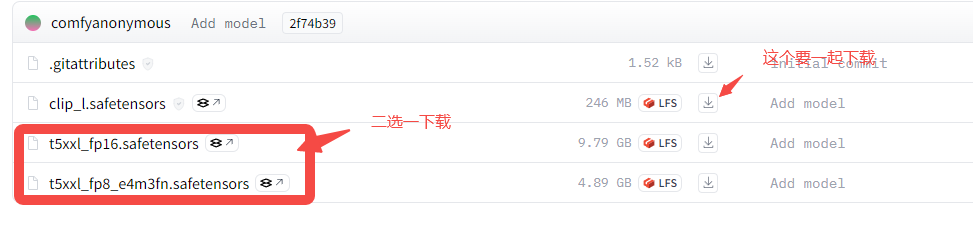
Next, you need the following CLIP models in your ComfyUI/models/clip/ directory:
Link: Download CLIP Models here.
Get t5xxl_fp16.safetensors or t5xxl_fp8_e4m3fn.safetensors (the fp8 version is generally recommended unless you have >32GB VRAM).
Don’t forget to download clip_l.safetensors as well.
5. Download VAE
Finally, download the VAE and place it in your ComfyUI/models/vae/ directory. Link: Download VAE Model.
6. Launch Flux.1
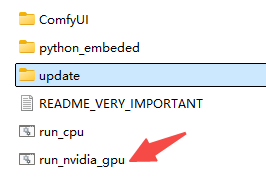
1. Run the .bat file in the ComfyUI folder. The first launch will install dependencies, so grab a coffee and be patient.
2. Configure Language
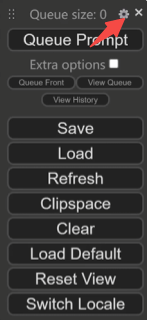
Click the gear icon in the top right of the ComfyUI interface to adjust language settings.
3. Running Flux
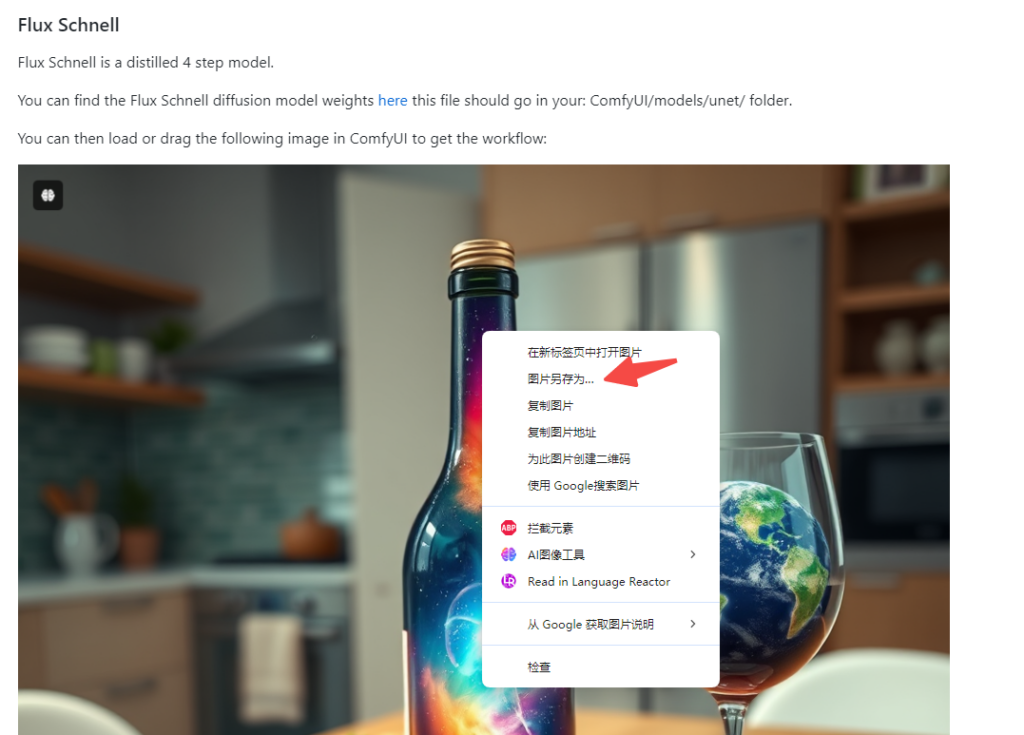
Start with the official flux_schnell_example:
Visit: https://comfyanonymous.github.io/ComfyUI_examples/flux/
Download the example image and simply drag-and-drop it into your ComfyUI window to load the workflow.
Conclusion
If you encounter download issues due to regional restrictions, I’ve uploaded the Flux Schnell model and the required files to a public cloud storage site for easier access. [Download via Cloud Link]
Flux.1 is a game-changer for open-source image generation. I hope this guide helps you get started and unleashes your creativity! If you found this useful, feel free to share it with your fellow tech enthusiasts. Let’s keep pushing the boundaries of AI together!