
Introduction:
LobeChat is a powerful, open-source AI chatbot framework featuring a sleek UI, speech synthesis, multimodal support, and an extensible plugin system (Function Call). It allows for seamless, one-click deployment of your own private ChatGPT/LLM web application.
Setup:
1. Open your Synology Docker Manager (Container Manager) and search for “LobeChat” in the Registry.

2. Once the image is downloaded, right-click it and select “Run”.

3. Configure the port and environment variables. You only need to set these two parameters; feel free to remove others using the “-” button.


OPENAI_API_KEY=sk-xxxx  # Enter your OpenAI API Key here
ACCESS_CODE=lobe66 # Set a password for access; use a strong one
4. If you cannot connect to OpenAI directly, you will need to set up a proxy and input the address into the OPENAI_PROXY_URL parameter.
5. Click Next to finish and start the container.
Basic Usage:
1. Access the interface by navigating to your Synology IP and the port you configured.
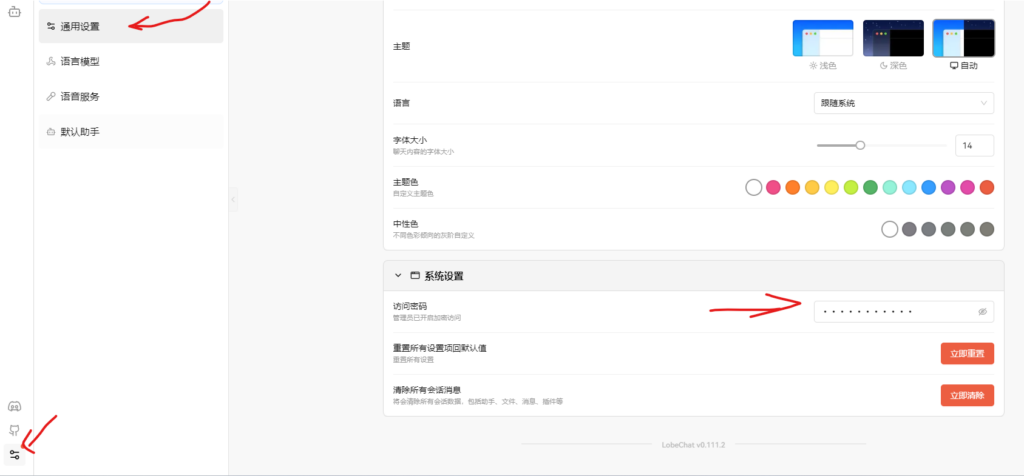
2. Go to Settings (bottom left) -> General -> System Settings, enter the access code you set during deployment, and then switch back to the chat mode in the top-left menu to start testing.
Advanced Usage:
1. Specialized Agents
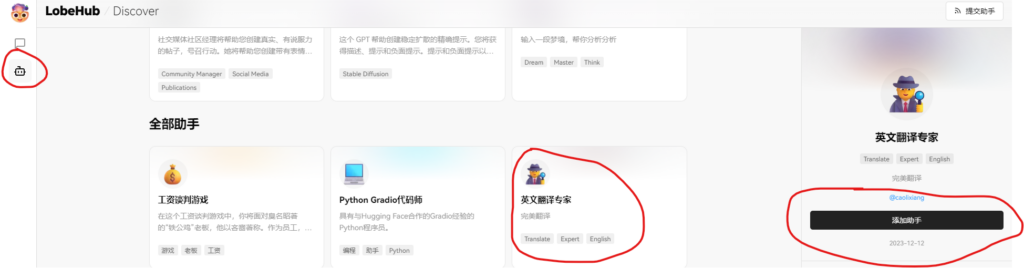
Click the “Discover” icon in the left sidebar to enter the “Find & Use The Best Agents” page. Select and add specialized AI agents tailored to specific tasks.
2. Model Switching
Click the gear icon above the chat input box to switch GPT models. For example, the “gpt-4-vision-preview” model enables image recognition, which will add an image upload button to your toolbar. Ensure your API key has GPT-4 access enabled, or you will receive an error.

3. Plugin Usage:
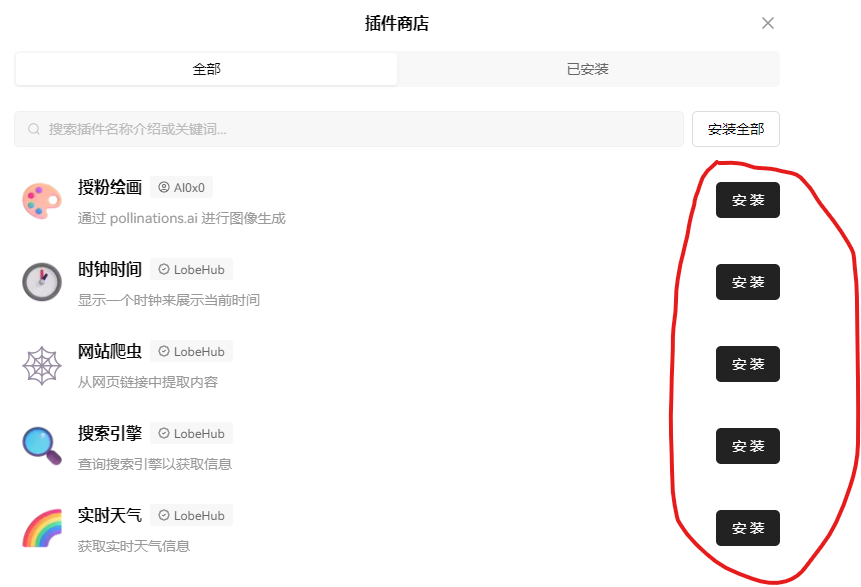
Click the plugin icon (pen and ruler) above the input box, then visit the “Plugin Store” to install any tools you need.

Conclusion:
LobeChat is a fantastic, feature-rich, private ChatGPT/LLM web application. It’s perfect for personal use or for sharing with family and friends.