
Today, we’re building on the foundation from ComfyUI Tutorial Part 1. We’ll dive deep into using LoRA fine-tuned models to inject artistic style into your generations and leverage AI upscaling to push your image quality to the next level. This guide provides clear, actionable steps to help you master these essential features.
1. Quick Start: Setting Up Your Workflow
If you’re staring at a blank canvas in ComfyUI, don’t worry. Here’s how to jumpstart your workspace:
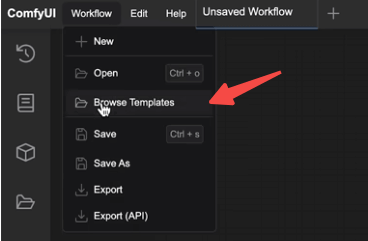
- Click the Workflow menu in the top-left corner.
- Select “Browse Templates.”
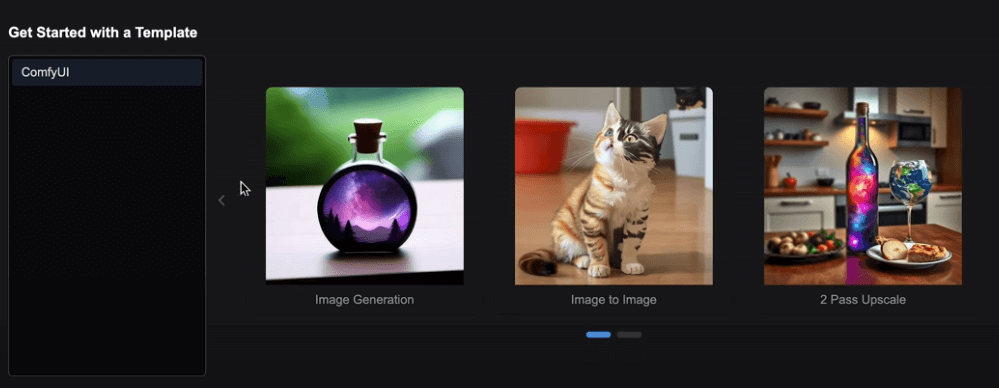
- Click “Image Generation.”
This will load a standard image generation pipeline, giving you a solid starting point for your experiments.
2. Understanding LoRA Fine-Tuning
In our previous article, we discussed full-scale Checkpoint models like Juggernaut and Animagine. While these are incredibly powerful, they are also massive, consuming significant VRAM and disk space.
Enter the LoRA (Low-Rank Adaptation) model. LoRAs allow you to inject specific artistic styles or details into your images—like turning a photo into a vector sticker—without needing a massive model file. The benefits include:
- Compact size: Easy to download and organize.
- Lower hardware barrier: Perfect for users with mid-range GPU setups.
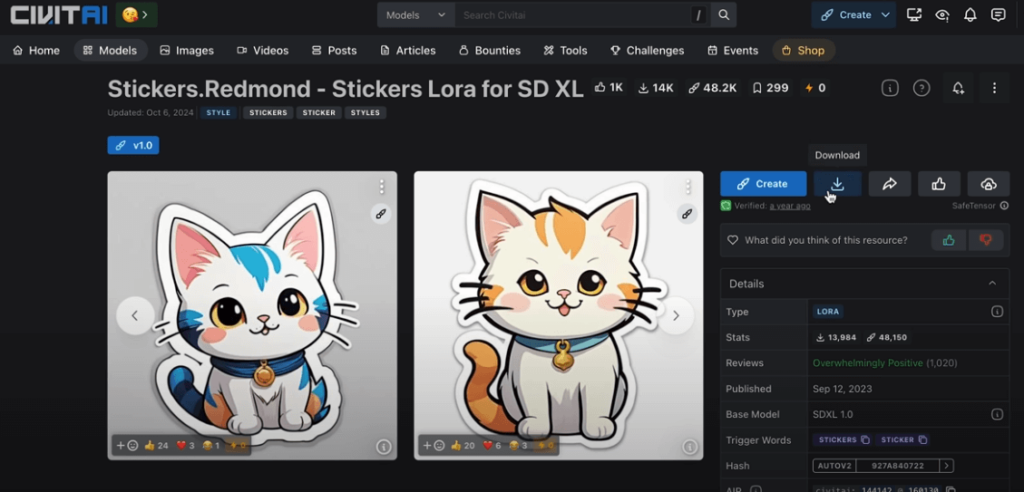
Example: The Stickers Redmond LoRA is excellent for generating high-quality cartoon-style stickers.
3. Installing and Using LoRA Models
Ready to get started? Here is the setup flow:
Installation Steps
- Download: Grab your favorite LoRA files from Civitai.
- Deployment: Drop the files into your ComfyUI
models/lorasdirectory. - Base Model: LoRAs generally require a compatible base model (like SDXL).
- Open the “Manager” dialog in the top right.
- Select “Model Manager.”
- Search for “SDXL,” click Install, and let it download.
- Refresh: Click the “Refresh” button in the bottom-left menu to register the new models.
Integrating into your workflow
- Disconnect the prompt conditioning lines from your Load Checkpoint node.
- Insert a “LoRA Loader” node between your Checkpoint and KSampler.
- Re-connect your text encoders (positive/negative prompts) through the LoRA node.
- Routing:
- The model output of the Load Checkpoint goes into the model input of the LoRA Loader.
- The model output of the LoRA Loader goes into the model input of the KSampler.

Prompting Tips
Most LoRAs have trigger keywords. For example, the Stickers Redmond LoRA requires the word “Sticker” in the prompt to work correctly.
- Add “Sticker” to your prompt.
- Ensure the Load Checkpoint node is set to your SDXL model.
- Hit “Queue Prompt” to generate your sticker-style artwork.
4. Processing External Images: Loading and Upscaling
ComfyUI isn’t just for generating new images; it’s a powerful image-processing pipeline.
Loading Images
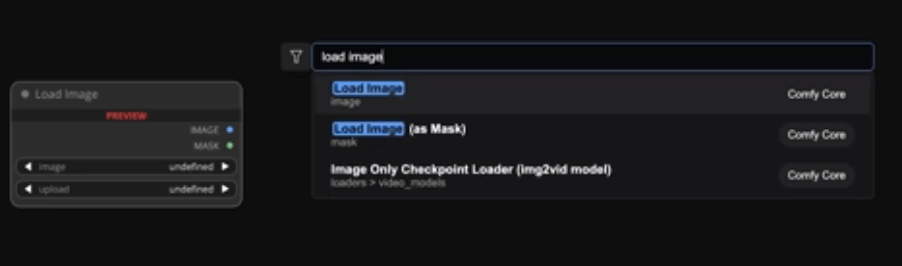
- Double-click on an empty area of the canvas.
- Search for and select “Load Image.”
- Click “Upload” to import your local file.
Simple Upscaling
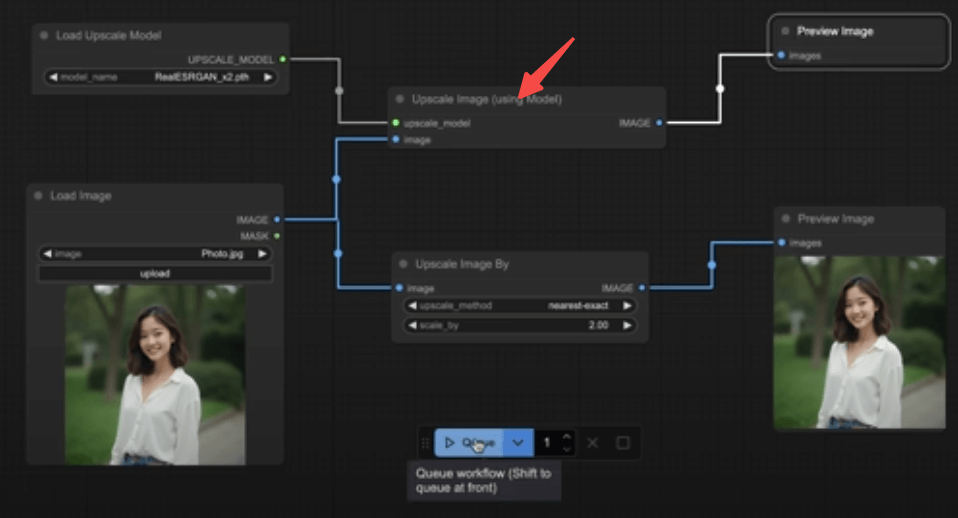
- Add the “Upscale Image” node.
- Set your desired scale factor (e.g., 2x).
- Connect to a “Preview Image” node to check results.
- Queue the prompt.

Note: Traditional interpolation just adds pixels; for real detail enhancement, use AI.
AI-Powered Upscaling
For sharper, cleaner results, use the RealESRGAN model:
- Install: Use the Manager to search for and install “RealESRGAN,” then click Refresh.
- Node Setup:
- Double-click the canvas and search for “Upscale Image (Using Model).”
- Add an “Upscale Model Loader” node and select your RealESRGAN file.
- Execution: Pipe your image into the upscaler, connect a Preview node, and run it.

5. Combining Generation and Upscaling
You can bake the upscaling process directly into your generation pipeline to automatically upscale your favorite outputs.
Workflow Organization
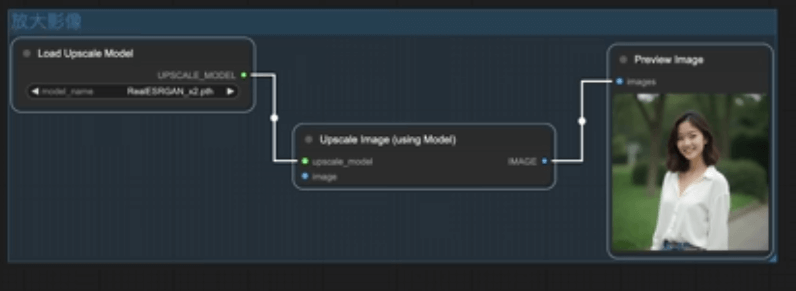
- Group your core generation nodes as “Generation.”
- Group your upscaling nodes as “Upscaling” and keep them disabled until needed.
Step-by-Step Execution
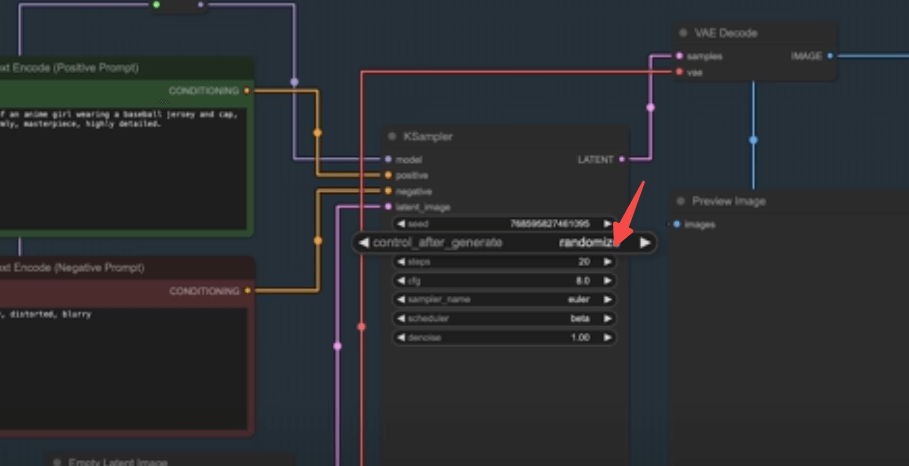
- Set Seed to “Random” and iterate until you find an image you love.
- Once satisfied, fix the Seed number.
- Enable your “Upscaling” group and run the workflow to generate the high-res version.
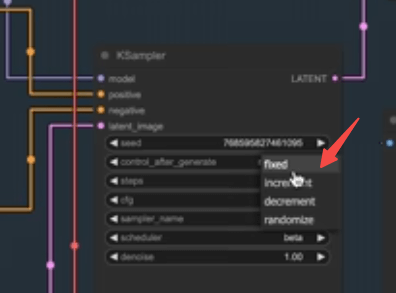
Pro Tip
- Switch node control states from “After” to “Before” to lock your seeds instantly for better workflow flexibility.
6. Summary
In this tutorial, we covered:
- How to integrate LoRA models for stylistic flair.
- Upscaling images with RealESRGAN to boost clarity.
- Creating modular, multi-step generation pipelines.