
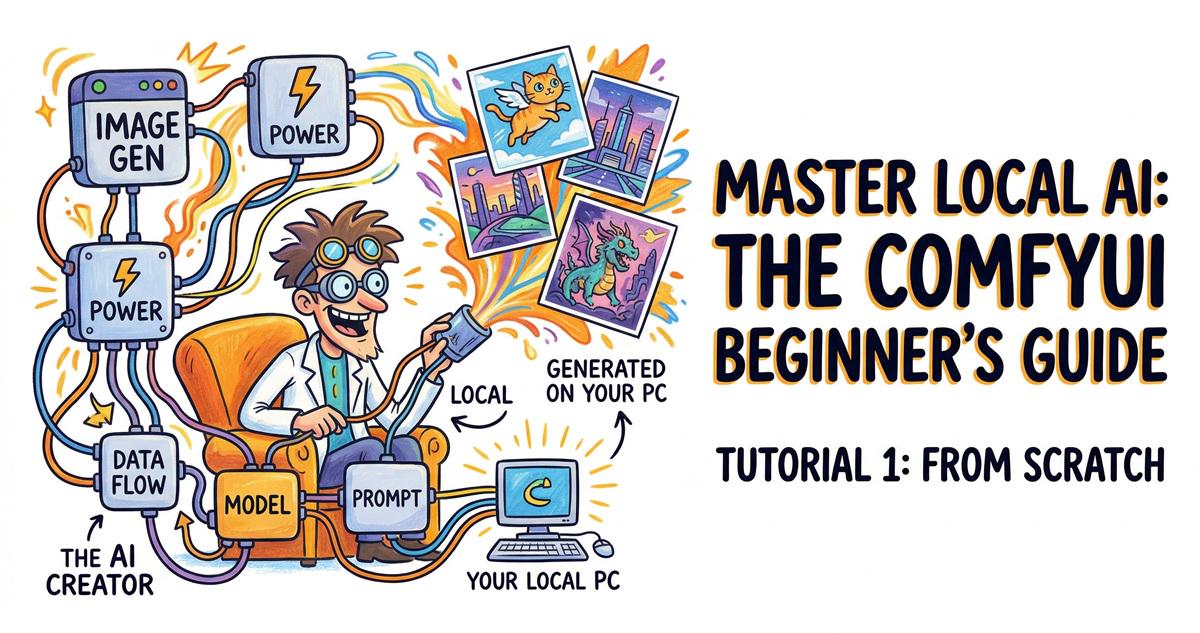
If you’re interested in AI image generation and want a free, powerful, and locally-hosted tool, ComfyUI is an absolute must-try! With its unique node-based interface, you can visually design your own image creation pipelines with ease. In this guide, we’ll walk you through everything from installation to generating your very first AI-powered image. Let’s get started!
What is ComfyUI?
ComfyUI is an open-source AI image generation tool built on the Stable Diffusion model. Its node-based UI allows you to control the entire generation process intuitively by dragging and connecting nodes. Here are its core advantages:
- Completely Free: No subscription fees; all features are accessible at no cost.
- Local Execution: All computation runs on your local machine, keeping your data private and independent of the cloud.
- High Flexibility: Easily tweak generation parameters by combining different nodes.
Since late 2024, the official ComfyUI desktop installer has made setup a breeze, allowing even complete beginners to get up and running quickly.
Step 1: Installing ComfyUI
Download & Installation: [Official Download Page]
1. Choose the right version: Download the installer from the official website based on your OS (Windows, Mac, or Linux).

2. Run the installer: Double-click the file, and ComfyUI will automatically configure the environment—no need to worry about manual Python or dependency management.
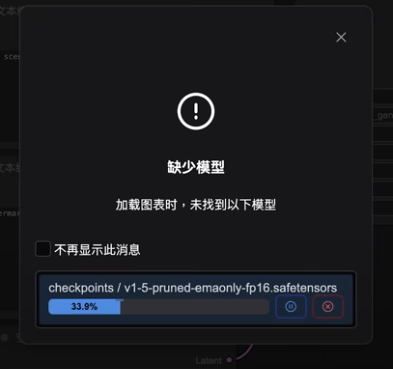
3. First launch: Upon opening for the first time, ComfyUI will prompt you to download the Stable Diffusion 1.5 model. This is a versatile general-purpose model used as the default.
Pro-tips:
- Make sure you have enough storage space (model files are typically 4–8GB).
- Keep your interface in English; since most tutorials and model documentation use English, it’s much easier to learn the professional terminology this way.
Step 2: Generate Your First Image
Once installed, let’s generate an image using the default settings to get a feel for the workflow:
1. Start ComfyUI: Launch the application and wait for the main canvas to load.
2. Run the default workflow: Click the “Queue Prompt” button in the menu, and ComfyUI will generate an image based on the pre-configured prompt.
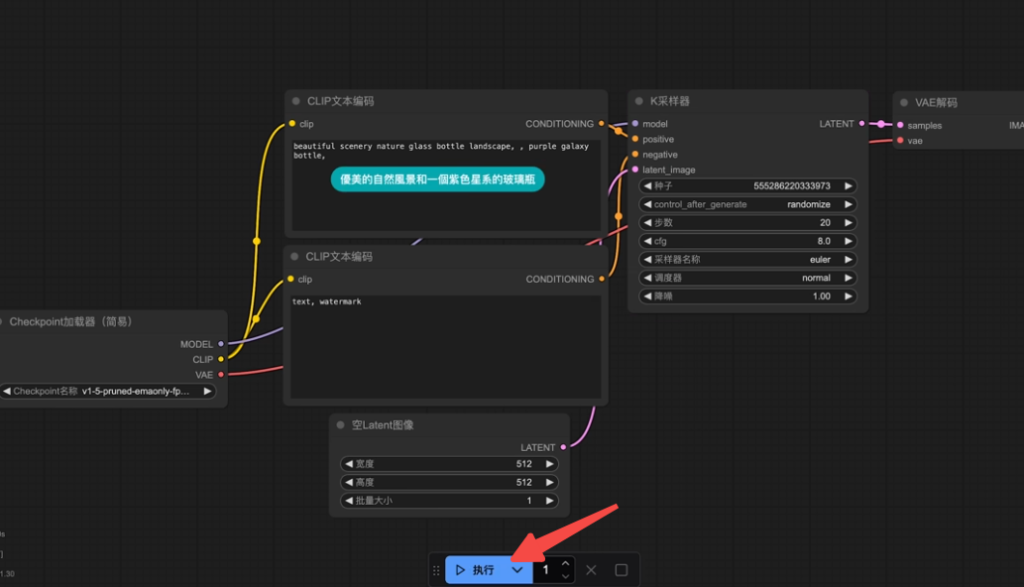
3. Check the results: Once the process finishes, you will see a beautifully rendered glass bottle image in the final node.
This is just the appetizer! Next, we’ll build a custom workflow from scratch to create something more interesting.
Step 3: Creating a Custom Workflow
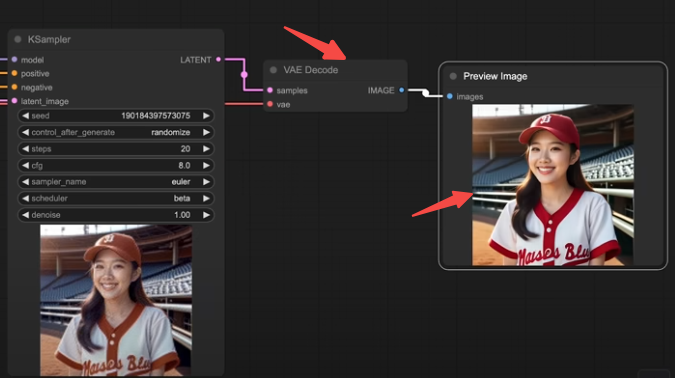
To better understand node operations, let’s build a workflow from scratch to generate an image of a “young woman in a baseball uniform.”
1. Add Text Encoder Nodes
- Function: Enter prompts to guide the AI’s output.
- Operations:
- Right-click on the canvas to open the menu.
- Select “Conditioning” > “CLIP Text Encode”.
- Enter your prompt into the node, e.g., “a young woman in a baseball uniform”.
- Duplicate nodes: Use Ctrl+C/Ctrl+V, or hold Alt and drag the node to duplicate it.
- Configure Positive/Negative prompts:
- One node named “Positive” for what you want to see.
- One node named “Negative” for what to avoid, e.g., “low quality, blurry, distorted”.
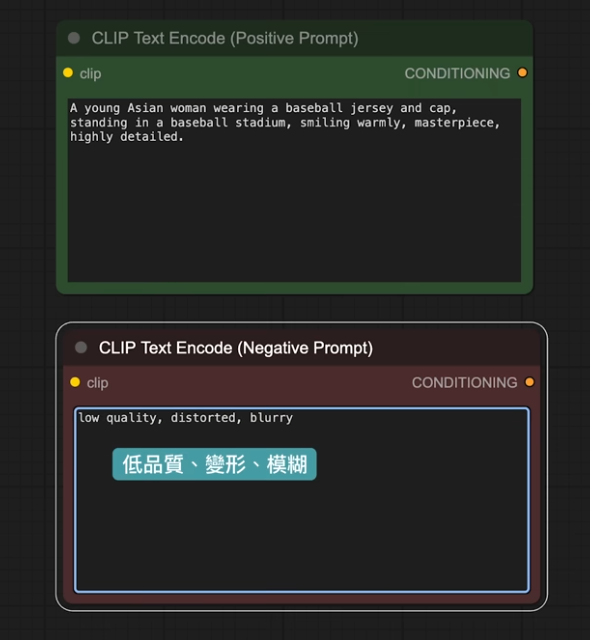
Pro-tip: Color-code your nodes (right-click menu) using green for positive and red for negative to keep your workflow organized.
2. Load Your AI Model
- Function: Loads the Stable Diffusion checkpoint for image generation.
- Operations:
- Double-click the canvas and search for “Load Checkpoint”.
- The node will default to the Stable Diffusion 1.5 model you downloaded.
- Connecting nodes: Link the yellow “Conditioning” outputs from your Positive and Negative nodes to the “Load Checkpoint” node.
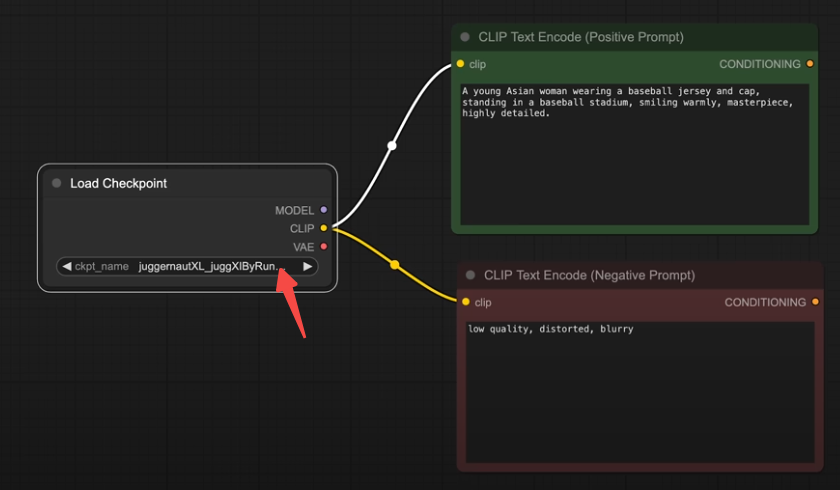
Term Breakdown:
- Checkpoint: Contains the Model, CLIP, and VAE.
- Model: The “painter” that performs generation.
- CLIP: Translates your prompts into concepts the AI understands.
- VAE: Decodes raw AI output into clean, viewable images.
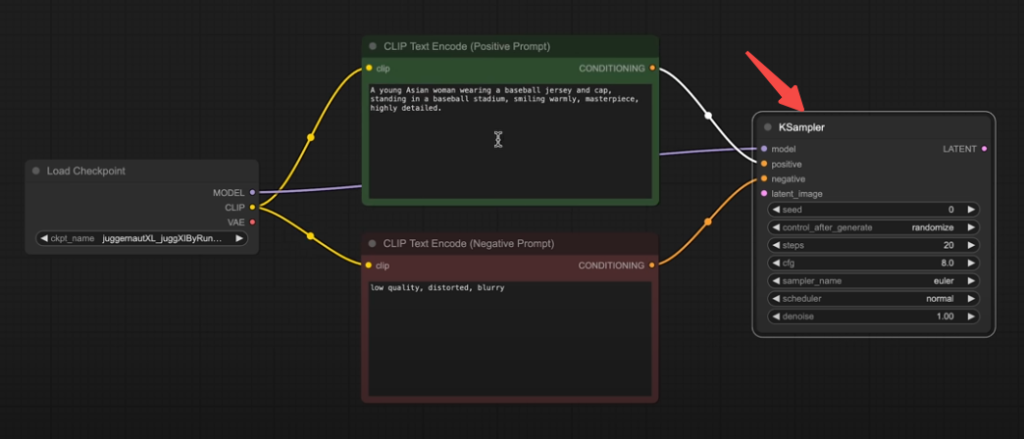
3. Configure the KSampler
- Function: Controls how the AI iteratively generates the image.
- Operations:
- Drag from the output of the positive node and search for “KSampler”.
- Connect the negative prompt node and the “model” interface from “Load Checkpoint” to the KSampler.
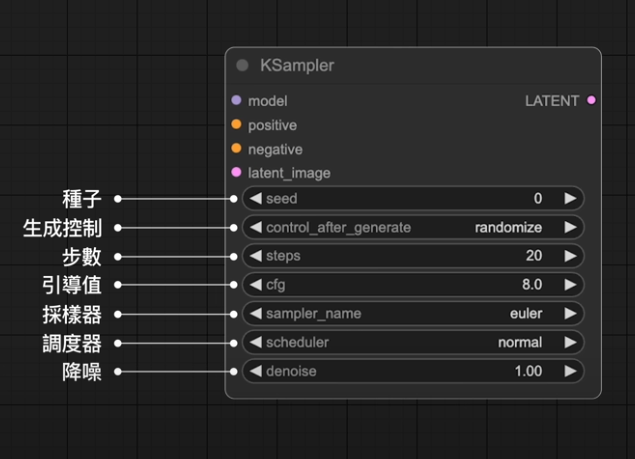
- Parameter Settings:
- Seed: Source of inspiration; set to “Randomize” for varied results.
- Steps: The number of sampling iterations; 20–50 is recommended for quality.
- CFG: Creative adherence; default is 7. Higher values follow the prompt more strictly.
- Sampler & Scheduler: Use “Euler + Normal” or “DPM++ 2M + Karras” for beginners.
4. Add Latent Image (The Canvas)
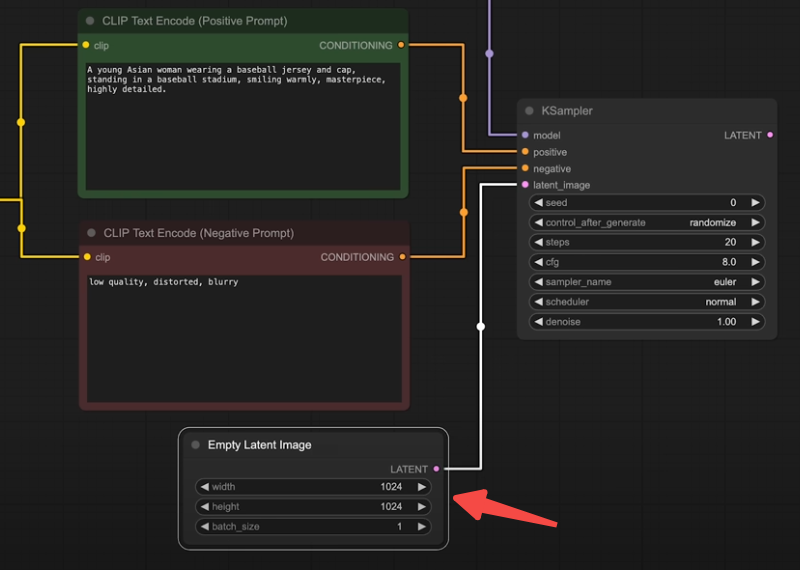
- Function: Provides the initial base for the AI to draw upon.
- Operations:
- Double-click the canvas and search for “Empty Latent Image”.
- Set dimensions to 1024×1024 (matching your model training resolution) and Batch Size to 1.
- Connect it to the “latent” input of the KSampler.
5. Decoding and Previewing
- Operations:
- Add a “VAE Decode” node, linking the output of KSampler to it and connecting the VAE from the “Load Checkpoint” node.
- From the “VAE Decode” output, add a “Save Image” or “Preview Image” node.
- Execution: Click the “Queue Prompt” button and wait for the generation.
- Saving: Right-click the thumbnail to save your creation.
Step 4: Optimization & Expansion
Downloading New Models
The default SD 1.5 is great, but you can use more powerful models by following these steps:
- Visit Civitai to download models like “Juggernaut XL” or “Animagine XL 4.0” (perfect for anime) [Visit Civitai].
- Place the model files in the “models/checkpoints” folder within your ComfyUI installation.
- Press “R” to refresh the UI and select the new model in the “Load Checkpoint” node.
Example: Generating anime-style images
- Update your prompt to “anime girl in a baseball uniform”.
- Use the Animagine XL 4.0 model and click “Queue Prompt” to generate your anime baseball character.
Saving Workflows
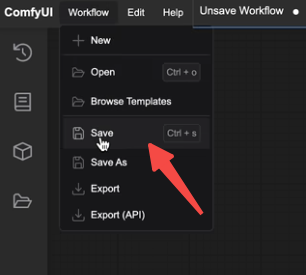
- Go to the “Workflow” menu and select “Save” to keep your setup.
- Load your saved workflows later using the folder icon in the sidebar.
Pro Tips:
- Canvas Management:
- Drag to pan, use the scroll wheel to zoom, and click “Fit View” in the corner to see your entire node graph.
- Organizing Nodes:
- Use “Reroute” nodes to keep your connection lines neat and tidy.
- Preview Settings:
- Choose the “Fast” preview mode to see the generation progress in real-time.
Conclusion
With this guide, you’ve mastered the essentials of ComfyUI, from installation to custom workflow creation. Whether you’re a beginner exploring AI art or a power user building complex pipelines, ComfyUI has the tools you need. Keep experimenting with new models and prompts to fully unlock your creativity!