
Introduction
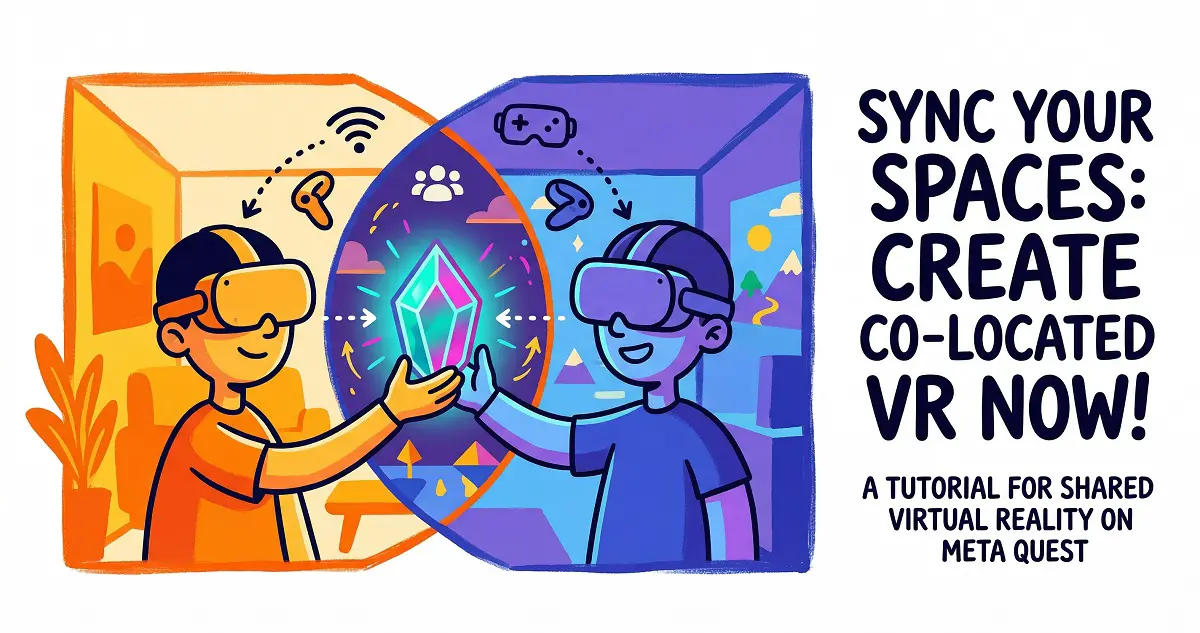
Advancements in virtual reality (VR) technology are making multi-user interactions more immersive than ever. With Meta Quest’s co-location feature, you can share a virtual space or enjoy local multiplayer modes with friends and family in the same physical room. Whether you’re gaming or exploring, co-location precisely aligns virtual avatars and objects for every participant, creating a truly synchronized experience.
This guide will walk you through setting up co-location on your Meta Quest headsets. We’ll cover how to get it running whether every user owns their own copy of the app or if you’re using shared app access. We’ve also included some troubleshooting tips to help you overcome common roadblocks. Let’s jump in!
What is Co-Location?
Co-location is a powerful Meta Quest feature that uses shared spatial anchors to ensure that virtual objects, game content, and avatars align correctly when multiple users are in the same physical space. When you move a virtual object, all participants see that change in real-time. This technology is perfect for local multiplayer gaming or collaborative experiences, making you and your friends feel like you’re truly inhabiting the same virtual environment.
Prerequisites: Enabling Shared Spatial Data
Before you begin, every participant’s headset must have “Shared Spatial Data” enabled. This is the foundation for successful co-location. Here is how to verify and toggle this setting:
- Press the
 Meta button or the
  Oculus button on your Touch controller to open the universal menu.
 - Select the clock on the left side of the menu to open “Quick Settings.”
- Tap the
 Settings gear, then navigate to “
 Privacy & Safety.”
 - Go to “Device Permissions” and check the toggle next to “Shared Spatial Data”:
- If the toggle is already on, you’re good to go.
- If it’s off, click the toggle to enable it.
- Ensure the app has been granted permission to access spatial data under “App Permissions.”
Pro tip: If you’re enabling this for the first time, we recommend restarting your headset to ensure the service initializes correctly.
Scenario 1: Each participant owns a copy of the app or game
If you and your friends all own the app or game you want to use, the setup is straightforward:
- Device and Account Prep:
- Each participant puts on their own Meta Quest headset.
- Ensure everyone is signed into their own account and has the same app or game installed.
- Room Setup:
- Go to “Settings,” select “Physical Space,” and click “Space Setup.”
- Scan your room. Some apps may prompt you to do this automatically.
- Enable Shared Spatial Data:
- Follow the steps above to ensure Shared Spatial Data is enabled.
- If prompted to allow the app access to spatial data, select “Allow.”
- Launch the Experience:
- Launch the app or game you intend to use.
- Complete the co-location steps within the app:
- Some apps require adding friends and sending invites.
- Some apps may require sharing a room code.
- Enjoy Multiplayer:
- Once configured, you’re ready to jump into the shared virtual space together!
Scenario 2: Only one participant owns the app or game
If only you own the game, you will need to utilize the App Sharing feature. Here is how:
- Primary Account Setup:
- The owner of the game must be the primary user on the headset (the account used during the initial setup).
- If necessary, you may need a factory reset to ensure the correct account is set as primary.
- Add a Secondary Account:
- On the secondary headset, add the other participant as a secondary user:
- Open the universal menu (press the Meta button).
- Go to “Quick Settings” > “ Settings” > “Accounts.”
- Invite the secondary user to join.
- Open the universal menu (press the
- On the secondary headset, add the other participant as a secondary user:
- Enable App Sharing:
- On the headset using the secondary account, ensure the primary user has enabled “App Sharing.”
- Make sure the app or game is downloaded.
- Note: Not all apps support App Sharing; check the store listing or developer notes.
- Log In and Verify:
- One person logs into the primary account, the other into the secondary.
- Verify that the app appears in the library for both users.
- Perform Space Setup:
- Similar to Scenario 1, perform the room scan to complete the space setup.
- Enable Shared Spatial Data:
- Ensure it is enabled on both devices and that the app has permissions.
- Launch the App:
- Open the game and follow the in-app prompts for co-location (invites or room codes).
Co-Location with Three or More Users
If you want to add more people, simply repeat the steps for each additional participant:
- If they own their own copy, use the Scenario 1 workflow.
- If you are sharing your license, add them as a secondary user per Scenario 2.
Note:
- Maximum participant counts vary by app.
- The more users you add, the more physical space you should clear to ensure safety and comfort.
Troubleshooting
You might hit a few bumps during your co-location setup. Here are some common fixes:
- Issue: Shared spatial data fails to sync after being enabled.
- Fix: Restarting both headsets usually resolves this.
- Issue: Secondary account cannot access the game.
- Fix: Confirm the app supports App Sharing and that you’ve enabled it in the settings.
- Issue: Virtual objects aren’t aligned.
- Fix: Make sure all participants have completed the room scan and have Shared Spatial Data enabled.
- Issue: Can’t invite friends to the session.
- Fix: Double-check your network connection and ensure both parties are logged in correctly.
Conclusion
Meta Quest’s co-location feature makes it incredibly easy to share a VR experience with friends in the same room. Whether you’re gearing up for a multiplayer session or exploring a virtual world, this guide should help you get everything synced up. As long as you have Shared Spatial Data enabled and follow the setup flow, you’ll be ready for seamless VR interaction in no time.
If you run into persistent issues, check the troubleshooting section again or visit the official Meta Quest support portal. Put on your headset and start your shared adventure today!