

Wan2.1 is an astonishing local text-to-video AI model released in 2025. It natively supports mixed Chinese and English prompts and is optimized for consumer-grade GPUs—meaning you can generate high-quality clips even on aging hardware like the NVIDIA RTX 2060. This tutorial will walk you through the installation and setup process so you can start creating your own cinematic sequences. Whether you’re a beginner or a seasoned pro, this guide has you covered.
Table of Contents
- About the Wan2.1 Model (#wan21-model-intro)
- Preparation (#preparation)
- Downloading Models & Workflows (#downloading-models-and-workflows)
- Text-to-Video Generation Workflow (#text-to-video-generation-process)
- Optimizing Generation Speed & Quality (#optimizing-speed-and-quality)
- Troubleshooting & FAQs (#faq)
- Summary & Recommendations (#summary-and-recommendations)
About the Wan2.1 Model: Official Page
Wan2.1 is the world’s first text-to-video model with native support for mixed Chinese and English prompts. Running on the ComfyUI platform, it offers four variants:
- T2V-1.3B: Supports 480P resolution; ideal for entry-level GPUs.
- T2V-14B: Supports both 480P and 720P resolutions.
- I2V-14B: Image-to-Video model; supports 480P and 720P resolutions.
Key Highlights:
- Low Hardware Threshold: The T2V-1.3B model requires only 8.19GB of VRAM. An RTX 4090 can generate a 5-second 480P video in about 4 minutes.
- Multilingual Prompts: Native English and Chinese support for greater creative freedom.
- Powerful Video Encoding: Supports encoding/decoding of arbitrary-length 1080P videos while maintaining temporal consistency.
This tutorial uses the T2V-1.3B model as our primary example to get you up and running.
Preparation
1. Check Your Hardware
- Minimum VRAM: 8GB (12GB+ highly recommended).
- Recommended GPU: NVIDIA RTX 2060 or better (e.g., RTX 4090).
- If you are working with limited VRAM (e.g., 8GB), ensure you add the –lowvram argument when launching ComfyUI to optimize memory usage.
2. Install/Update ComfyUI
Wan2.1 runs on ComfyUI. Please ensure you are running the latest version. For installation details, check my previous article: “ComfyUI Tutorial Part 1: Mastering AI Image Generation Tools from Scratch”
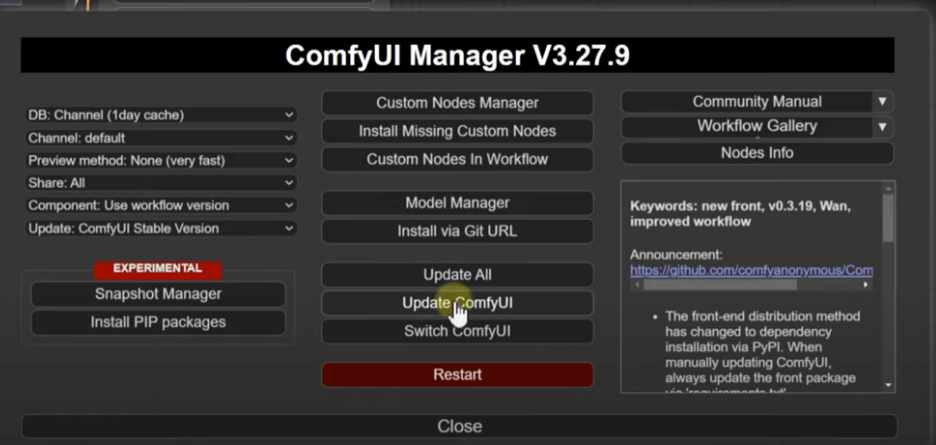
- Open the ComfyUI Manager.
- Click ‘Update ComfyUI’.
- Once the update finishes, click ‘Restart’ to apply changes.
Downloading Models & Workflows
1. Download the Models
Wan2.1 offers several versions. I recommend downloading the T2V-1.3B model from the official page:
- Visit the official Wan2.1 page.
- Download the following files:
- Diffusion Model (T2V-1.3B).
- Essential support files (e.g., VAE).
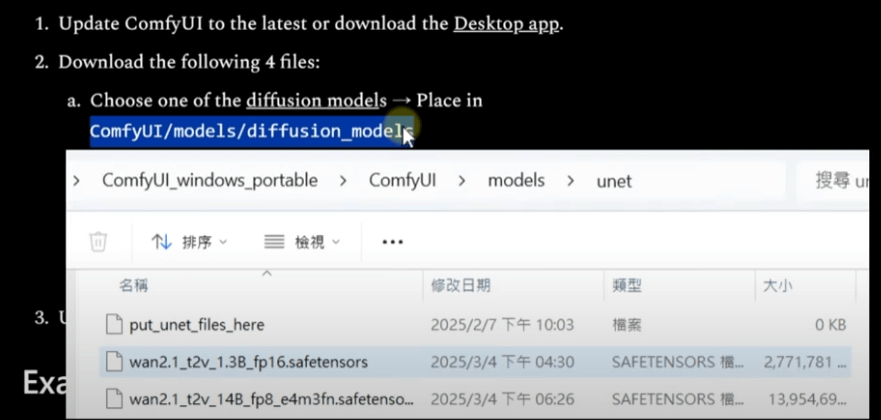
- Pathing matters:
- Move your model files into your ComfyUI models directory (usually ComfyUI/models/checkpoints or similar).
- Do not rely on default web paths; follow the directory structure in the image below to ensure the loader finds the files.
2. Download the Workflow
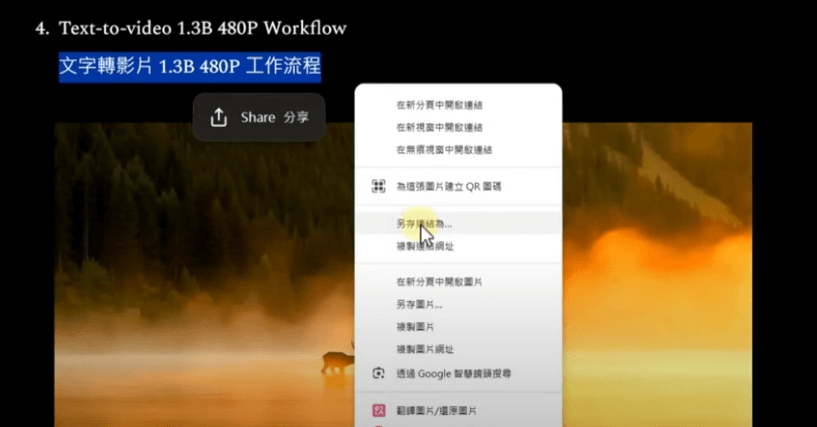
- Download the ‘Text-to-Video’ workflow (do not confuse it with the Image-to-Video version).
- Save the file:
- Right-click the link and ‘Save Link As’ (do not just save the image).
- Save to your local drive for later import into ComfyUI.
Text-to-Video Generation Process
1. Import the Workflow
- Open ComfyUI and drag the workflow file into the window, or use the ‘Load’ button.
- If you see ‘Missing Nodes’:
- Ensure you are running the latest version of ComfyUI.
- Restart ComfyUI and refresh your browser; the required nodes are usually native to the latest builds of ComfyUI.
2. Configure the Workflow
Wan2.1 workflows operate similarly to standard image generation:
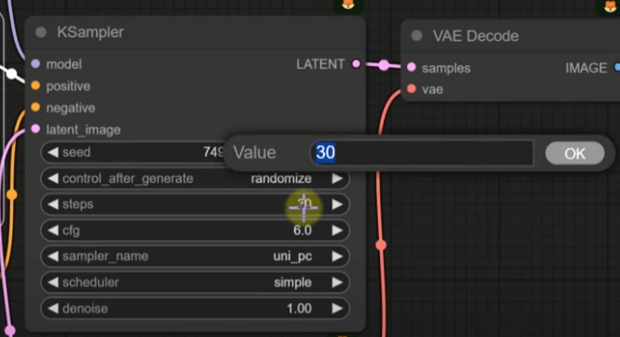
- KSampler: Controls generation speed and quality.
- Positive/Negative Prompts: Enter your mixed English and Chinese descriptions (e.g., “rainy glass window, water droplets sliding down, rising steam”).
- Model Loader: Point it to your T2V-1.3B model file.
- Output Node: Ensure you are set to ‘Video’ output.
3. Start Generating
- Enter your prompt.
- Keep default settings or adjust as needed (see below).
- Click ‘Queue Prompt’.
- Monitor VRAM usage (An RTX 2060 will use roughly 8GB; generating a 5-second 480P video takes about 365 seconds).
Results: You’ll be amazed by the detail in the water droplets on the glass and the organic movement of the steam.
Optimizing Generation Speed & Quality
Wan2.1 allows you to trade-off between speed and quality. Here are two main ways to tweak the results:
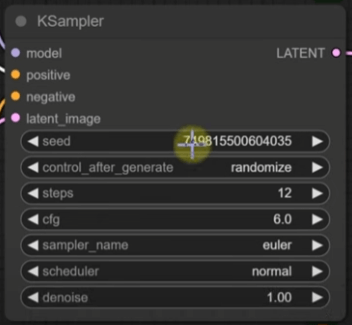
1. KSampler Tuning
- Sampling Steps:
- Default: 30 steps (best quality, ~365s per video).
- Optimized: Drop to 12 steps, using Euler sampler and Normal Scheduler. This reduces time to ~166s with acceptable quality loss.
- Recommended Range: 12-30 steps. Anything over 30 yields diminishing returns.
- Effect: At 12 steps, fine details like micro-droplets may soften, but at 20 steps (272s), you get a great balance.
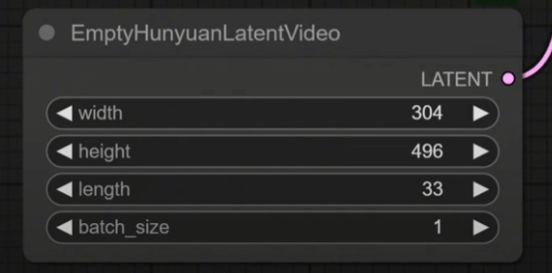
2. Resolution & Length
- Default: 480P, 5 seconds.
- Optimized: Reduce dimensions (e.g., 320×240) to slash generation time to ~50s.
- Note: Extremely low resolutions may lose important scene detail.
Troubleshooting & FAQs
- Missing Nodes:
- Update to the latest ComfyUI. Restarting and clearing the browser cache usually fixes it.
- Model Load Failures:
- Check your folder paths. Ensure your downloads were not corrupted.
- Out of VRAM:
- Use the –lowvram launch argument, or lower your resolution/steps.
- Slow Generation:
- Drop your sampling steps to 12-20 and lower your frame dimensions.
Summary & Recommendations
Wan2.1 is currently one of the most capable local video generation models. It outperforms predecessors like SVD or LTX-Video in its bilingual prompt support and efficiency on older hardware. Being able to run on an RTX 2060 with 12GB of VRAM is a massive win for the local AI community.
Who is this for?
- AI enthusiasts looking to experiment with video locally.
- Users with mid-range or aging hardware (RTX 2060+).
- Creatives requiring bilingual text-to-video capabilities.
Next Steps:
- Experiment with varied prompts to find your style.
- Upgrade to the 14B model for higher resolutions if your hardware allows.
- Follow my blog for more ComfyUI workflows and tips.
If you found this guide helpful, feel free to share it, give it a like, or leave a comment! Happy creating with Wan2.1!