

Introduction:
Previously, we covered a GUI-based wrapper for Windows File Recovery, known as WinFR. Click here to view our WinFR guide. If you found that tool lacking or not quite your style, here is another excellent alternative. It is free, incredibly lightweight, and highly effective. A quick reminder: the absolute golden rule for data recovery is to stop writing data to the drive immediately after an accidental deletion or format to prevent overwriting the sectors, which would lead to permanent data loss.
Main Content:
1. Download and Installation:
1. Download Link: https://portableapps.com/apps/utilities/rcvportable. IMPORTANT: Do not download or extract this tool to the same partition where your lost data resides.
2. Run the installer and pay close attention to the installation path. Again, do not install it on the drive you are attempting to recover data from.
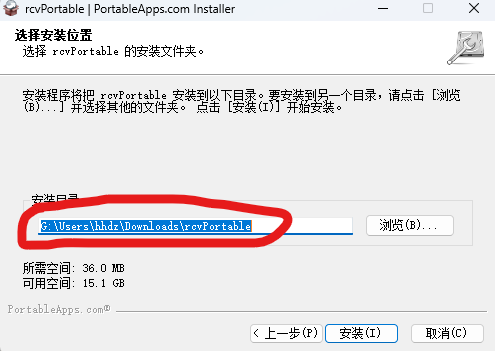
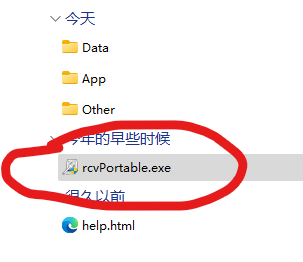
3. Once installed, launch rcvPortable.exe from the installation directory.
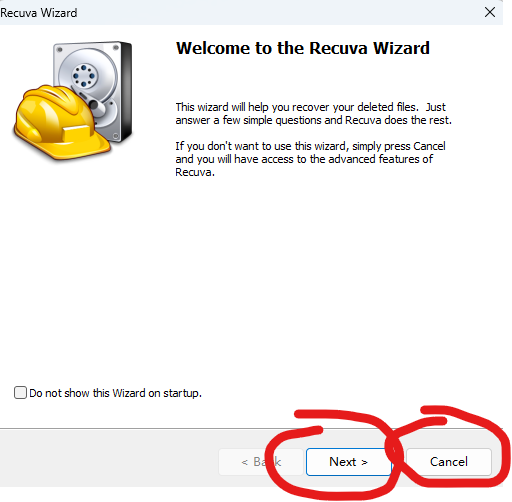
4. You can follow the startup wizard by clicking “Next,” or simply click “Cancel” to jump straight into the main interface.
2. Usage Guide:
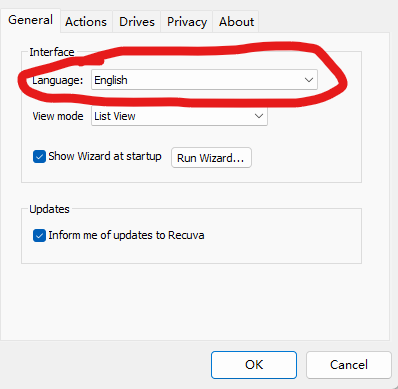
1. After launching, click “Options” in the top left corner to configure your language settings. Everything else can be left at the default settings.

2. Use the top bar to select the drive partition you need to recover files from and choose the file type. Click “Scan,” and the software will list all recoverable files.
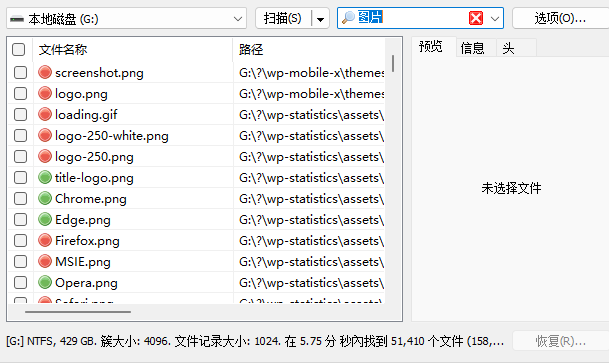
3. Check the box for the files you want to recover, then click the “Recover” button at the bottom right.
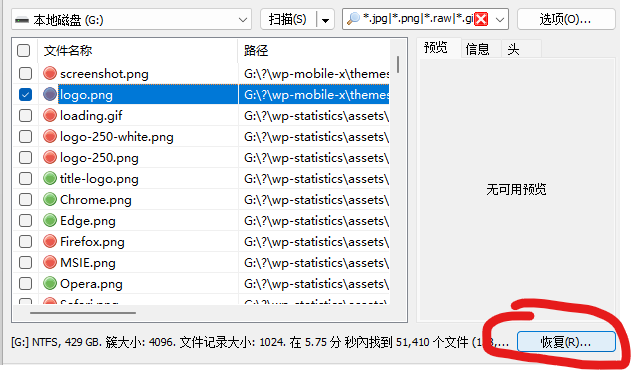
4. Select a destination partition or folder to save your recovered files. Do NOT choose the same drive/partition you are recovering from, as this will lead to data overwriting and failed recovery.

5. Confirm your choice. Once the process is finished, the software will provide a recovery report, and you can find your files in the destination directory.
Summary:
- Advantages: Unlimited file recovery, support for formatted partitions, completely free, and a very user-friendly interface.
- Important Reminder: To maximize your success rate, stop all operations on the affected drive immediately to avoid overwriting data. This is crucial for successful recovery!