

Dealing with annoying stick drift on your Meta Quest 3 controllers? Before you look into replacements, you can often resolve the issue quickly using the built-in controller calibration tool.
Step-by-Step Guide:
- Open Settings from your Quest headset menu.
- Navigate to the Devices tab.
- Select Controllers.
- Scroll to the bottom and select Thumbstick range and dead zone.
- Choose the specific controller that is experiencing the drift.
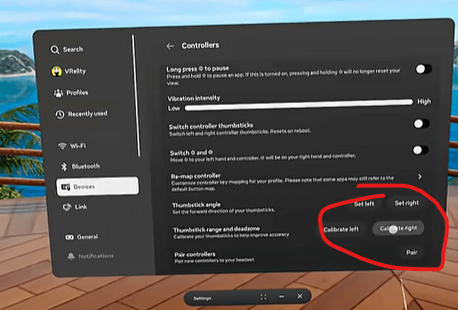
6. Tap Calibrate.
7. Follow the on-screen instructions to rotate the thumbstick three times.
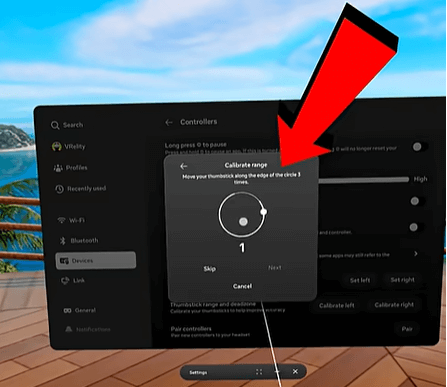

8. Once finished, click Next.
9. In the final interface, adjust the dead zone slider until the gray area completely covers the erratic drift movement.
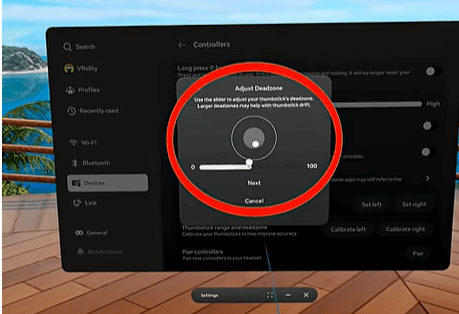
That’s it! Your stick drift issues should now be resolved, and you can get back to gaming.