
Introduction: Unleash Your Productivity with n8n
In our fast-paced modern lives, repetitive tasks often eat up the bulk of our day. Imagine having a 24/7 “personal assistant” that automatically organizes your schedule, sends emails, or even curates news. That’s the power of n8n!
n8n is an incredibly practical and robust automation tool. It integrates various web services to eliminate tedious manual work, making your workflows smarter and more efficient. As noted in the tutorial video, n8n is like a “mission-critical, always-on” AI assistant that works exclusively for you.
This guide focuses on core automation flows and application integration, taking you from zero to hero. For beginners, I recommend starting with n8n’s official cloud service, which offers a 14-day free trial. It’s easy to get started without complex configuration. Once you’re comfortable, you can look into self-hosting or other third-party managed solutions. Ready to save 80% of your time? Let’s dive in!
Getting Started with n8n: The Dashboard and Workflow Creation
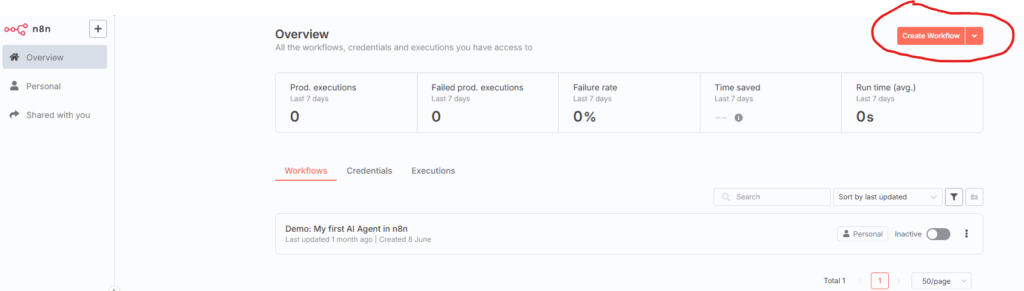
Once you’ve registered and logged into n8n, you’ll land on the main dashboard. This is your command center for creating and managing your automation workflows. The interface is intuitive: nodes are on the left, your workflow canvas is on the right, and there’s a prominent “Add Workflow” button in the top right corner.
Creating Your First Workflow
Click “Add Workflow” to enter the blank canvas. Workflows are composed of nodes; each node represents an action or service, and the connecting lines define the data flow.
Triggers: The Switch for Automation
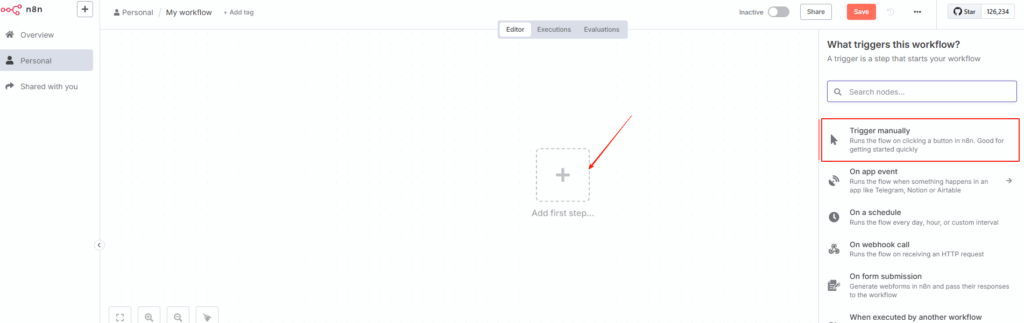
A Trigger is the starting point of your workflow—the switch that kicks off subsequent nodes in sequence.
Setting Up a Manual Trigger
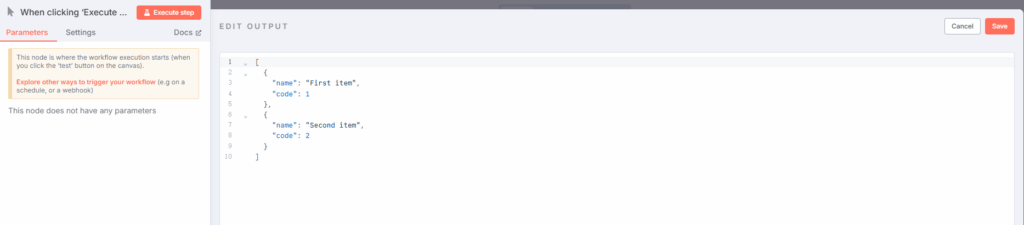
For beginners, let’s start with a “Manual Trigger.” Double-click the trigger node to open the settings. Since there is no input data yet, click “Set Mock Data” to generate test payloads.
This data is presented in JSON format. JSON is a key-value pair data structure that serves as the foundation for data passing within n8n.
For example:
json
[
  {
    "name": "Task 1",
    "value": "Test data 1"
  },
  {
    "name": "Task 2",
    "value": "Test data 2"
  }
]
After saving, n8n locks in this test data, ensuring consistent behavior during testing. Click the “Execute” button to see the JSON data pass through.
Building Your First Automation: Sending Gmail
Adding the Gmail Node
Now, let’s send that test data to your Gmail inbox. Click the “+” button on the canvas, search for “Gmail,” and select the “Send a Message” node.
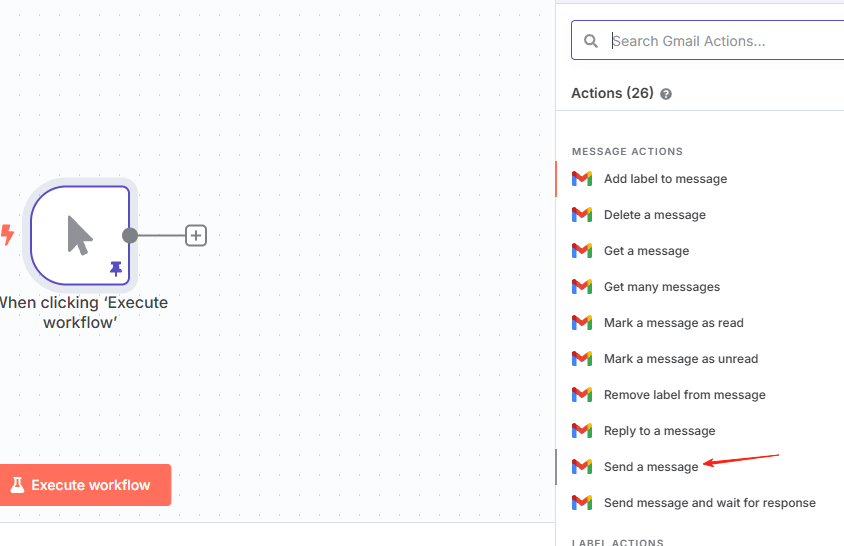
Node Configuration: Input vs. Output
In the Gmail node settings, the left side displays the Input (the JSON data from the trigger), and the right side displays the Output (the result of the node’s action).
Authentication and Authorization
Before sending emails, you’ll need to link your Gmail account and grant n8n permission to manage your emails. Follow the prompts to complete the OAuth handshake.
Customizing Email Content
Enter your email address in the “To” field. For the “Subject” and “Body,” you can use static text or drag and drop values from the Input area (like name or value) to make your content dynamic.
For example:
- Subject: Task: {{ $json.name }}
- Body: Details: {{ $json.value }}
If you get stuck on settings, click the “Docs” button in the top right for official documentation.
Execution and Verification
Click “Execute Step.” n8n will process the JSON data and fire off the email. Check your Gmail inbox to verify it arrived correctly.
Advanced Use Case: Daily Google Calendar Briefing
Let’s upgrade this to something more useful: automatically emailing a summary of your Google Calendar events every morning.
Removing Mock Data
To use real data, go back to the trigger node and clear the mock data lock. This allows the workflow to pull actual events from your Google Calendar.
Adding the Google Calendar Node
Click the “+” button between your nodes, search for “Google Calendar,” and select “Get Many Events.” Authorize access to your calendar.
Configuring the Time Range
In the node settings, select your calendar and adjust the time range. By default, it fetches 50 events over a week. To limit this to just today, you can change the setting from a week to a day:
javascript
{
  "timeMin": "now",
  "timeMax": "1 day"
}Click “Execute Step” to see your scheduled events.
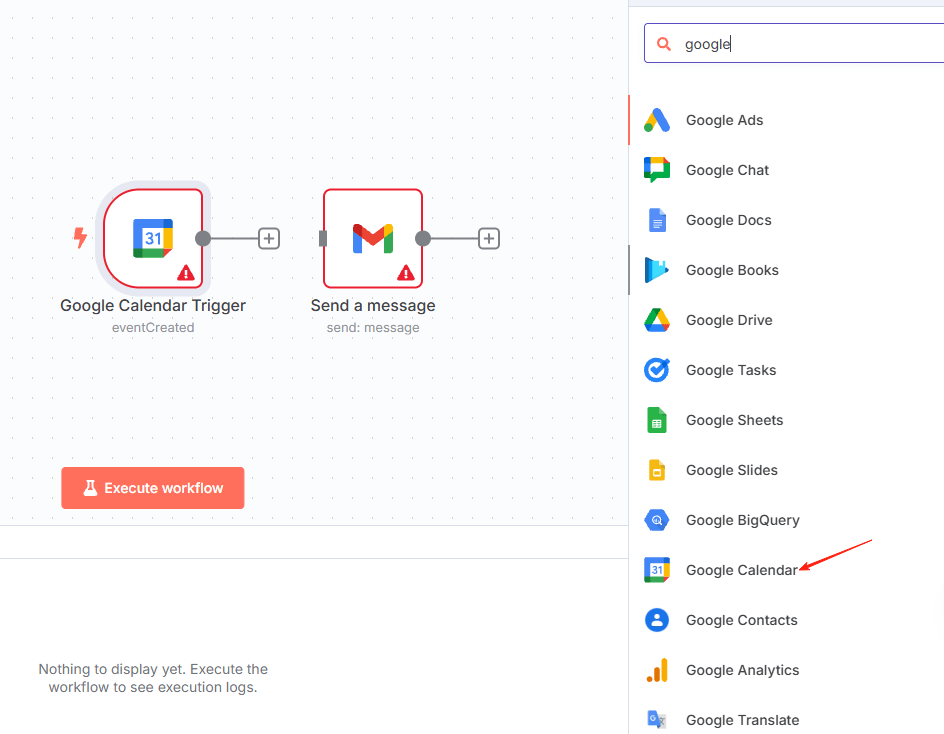
Data Formatting: Date & Time
Google Calendar returns dates in ISO 8601 format, which isn’t very human-readable. Let’s fix that.
Adding the Date & Time Node
Add a “Date & Time” node after the Google Calendar node. Drag the “dateTime” tag into the conversion field, select “Custom Format,” and enter a pattern like this:
javascript
YYYY-MM-DD HH:mm aThis transforms the timestamp into a readable format like “2025-07-31 09:00 AM.” Rename the field to “Start Time” and hit execute.
Renaming Nodes
For better workflow clarity, double-click the node to rename it to something descriptive like “Format Time.”
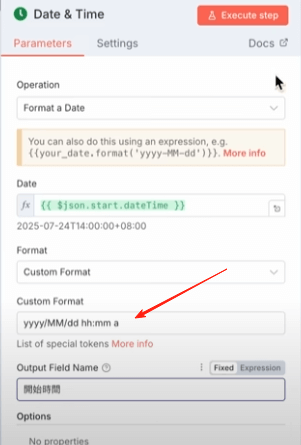
Data Cleaning: Edit Fields Node
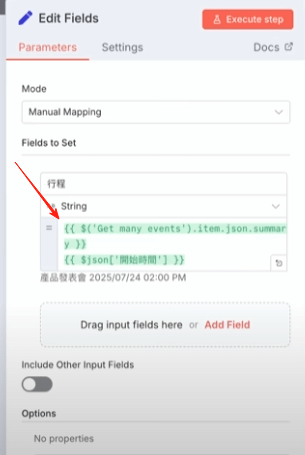
The API returns a lot of redundant info. Let’s add an “Edit Fields” node to extract just the “Event Name” and “Start Time”:
javascript
{
  "Event": "{{ $json.summary }}",
  "Start Time": "{{ $json['Start Time'] }}"
}Execute the node to see your cleaned data.
Optimizing Email: The Aggregate Node
If you don’t aggregate, you’ll get an email for every single calendar event. Add an “Aggregate” node to combine all items into a single list before sending.
Refining the Gmail Node
Set your Gmail subject to “Today’s Schedule” and the email type to “Text.” In the body, use the join syntax to format the list with double line breaks:
javascript
{{ $json['Event'].join('\n\n') }}Execute this, and check your email for the consolidated list.
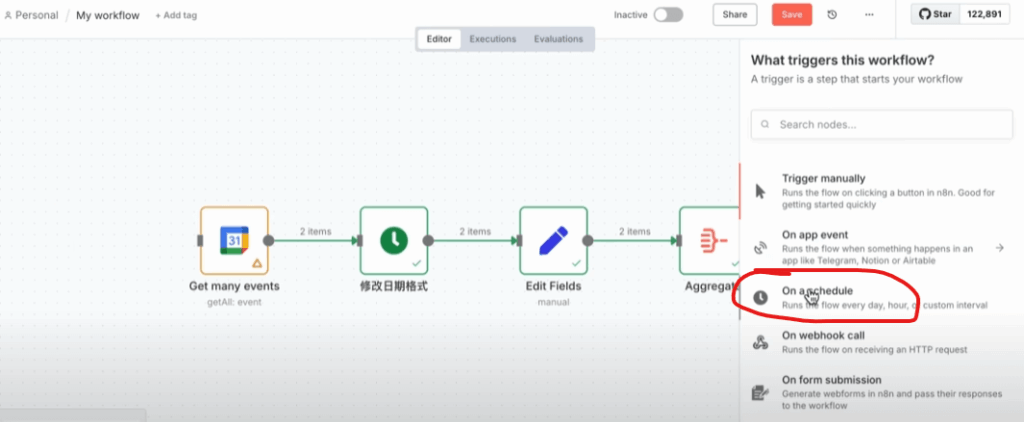
Scheduled Trigger: On a Schedule Node
To run this every morning, delete the manual trigger and add an “On a Schedule” node. Set it to run daily at 7:30 AM:
javascript
{
  "time": "07:30",
  "interval": "daily"
}Connect it, save, and activate the workflow. Name it something descriptive, like “Daily Calendar Summary.”
Leveling Up: AI News Summarization with ChatGPT
Let’s take it a step further: fetch TechCrunch AI news, translate it, and append it to your daily summary email.
Adding the RSS Node
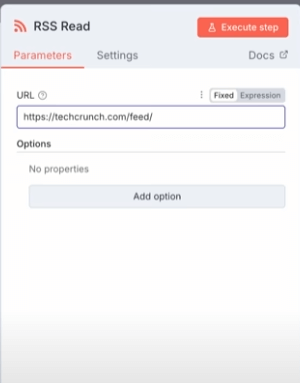
Grab the RSS URL from TechCrunch. In n8n, add a new branch with an “RSS” node, paste the URL, and execute to see the latest articles.
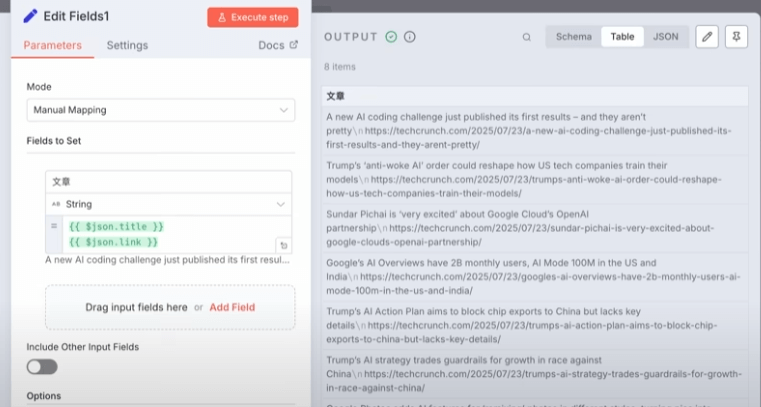
Filter Node
Only interested in AI? Use a “Filter” node to check if the “categories” field contains “AI”:
javascript
{
  "conditions": [
    {
      "field": "categories",
      "operation": "contains",
      "value": "AI"
    }
  ]
}Merge and Aggregate
Use a “Merge” node to combine your Calendar data and filtered RSS news. Then, use an “Aggregate” node again to bundle everything into one clean package.
ChatGPT – Message a Model
Add a “Message a Model” node using GPT-4o. Use your OpenAI API key to translate the news and format the final email as pretty HTML.
Prompting
- System Prompt: Define the AI’s role (categorizing into “Schedule” and “Articles” with CSS styling).
- User Prompt: Feed it the aggregated data and request translation and formatting.
Finally, set the Gmail node to “HTML” mode, map the AI output, and watch your perfectly formatted summary email arrive.
Conclusion
In this tutorial, we’ve covered:
- Creating basic automated workflows from manual to scheduled.
- Integrating Google Calendar and Gmail for daily summaries.
- Adding RSS and AI-powered translation for enriched content.
- Mastering nodes like Date & Time, Edit Fields, Aggregate, and Merge.
Start building today—the possibilities with n8n are endless!