
Installing unofficial apps (APK files) on your Meta Quest VR headset used to be a real headache, usually requiring a PC and enabling Developer Mode. Now, a clever new tool makes the process incredibly straightforward. This guide breaks down the latest, simplest method to get it done.
Why use this method?
- No Developer Mode required: Manage everything directly on your Quest.
- No PC needed: Download and install apps using the built-in browser.
- Streamlined: Perfect for beginners, and works great for popular tools like SideQuest or QuestCraft.
- Pro Tip: Meta might pull these tools from the store, so it’s wise to have a backup file manager ready.
This method utilizes the “VR File Manager” developed by Anagan78. Essentially, it unlocks access to the Quest’s hidden Android system file manager, allowing you to bypass Meta’s restrictions and install third-party APKs directly.
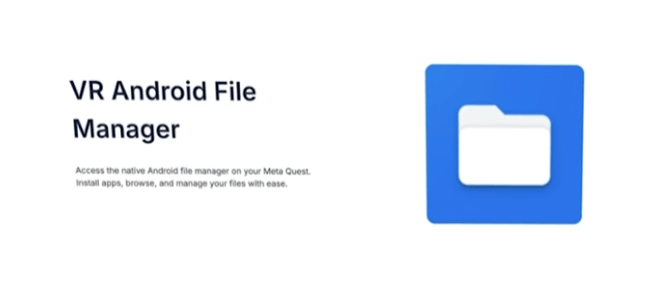
Getting Started
- Ensure your Meta Quest is connected to Wi-Fi.
- Open the Horizon Store on your Quest home screen.
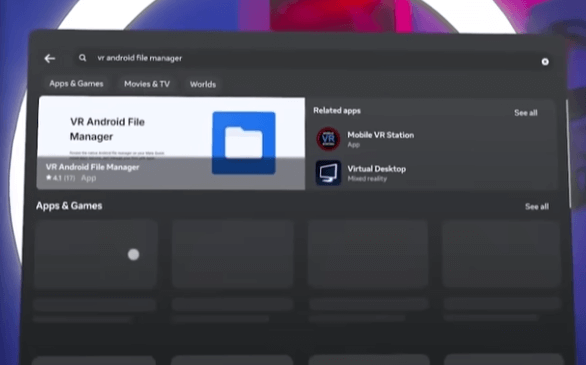
Step 1: Download and install VR File Manager
- Search for “VR File Manager” in the Horizon Store.
- Click “Get” to download it for free.
- Once finished, launch the app. It will open the standard Android file management interface.
Note: This app could be delisted by Meta at any time, so grab it while it’s available.
Step 2: Installing SideQuest
- Open the browser on your Quest and search for “SideQuest APK GitHub.”
- Navigate to the GitHub releases page and download the “app-release.apk” file.
- Once the download finishes, open VR File Manager.
- Locate your downloaded APK file and click to install (it will prompt for an update if you’ve installed it before).
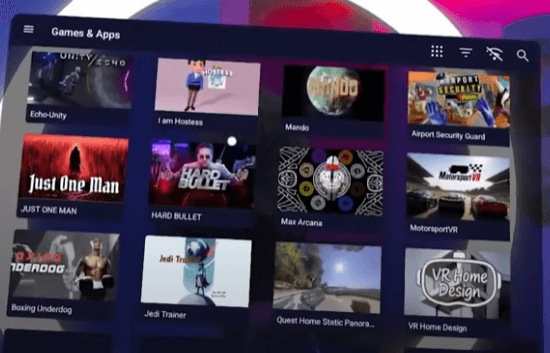
- After installation, you can launch SideQuest from your “Unknown Sources” library.
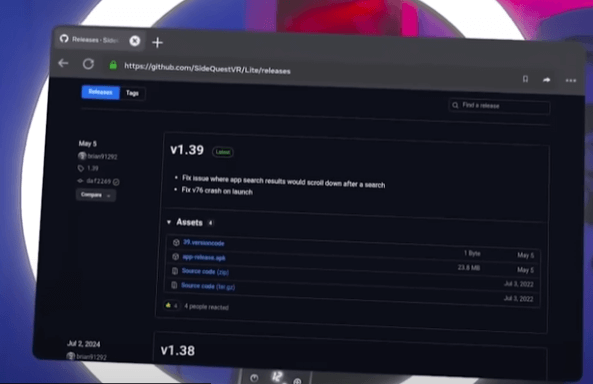
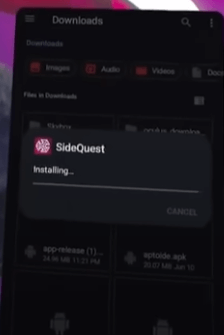
Validation: Head into your Quest settings and double-check; you can disable Developer Mode entirely, and SideQuest will still function perfectly.
Step 3: Installing apps like QuestCraft via SideQuest
- Launch your newly installed SideQuest app.
- Search for and install QuestCraft or any other application you prefer.
- Launch them directly from your “Unknown Sources” library.
Expanding your library: SideQuest opens the door to a massive array of community VR titles and performance-tweaking tools.
Step 4: Backup File Manager (Meta Proofing)
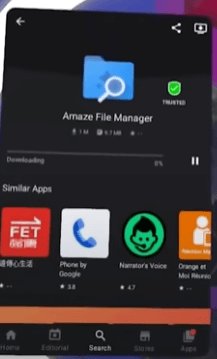
If Meta pulls VR File Manager, it’s great to have a backup like Amaze File Manager ready to go.
- Search for “Amaze File Manager GitHub” in the browser.
- Grab the latest APK release.
- Use the current file manager to install it.
- Once installed, Amaze can act as your permanent, local file manager for future APK installs.
Alternative Sources:
- Aptoide: A third-party app store for Android (be wary of spam).
- APK Mirror or APK Pure: Great for stable APKs like Spotify (Avoid APK bundles, as they often require specific installers).
Installing Spotify Example:
- Search for “Spotify APK APK Pure” in your browser.
- Download the APK.
- Install via your File Manager.
- Launch from “Unknown Sources”; it works great for background music while gaming.
Important Considerations
- Stay Safe: Only download from reputable sources like GitHub or APK Mirror to avoid sketchy files.
- Compatibility: Note that some apps rely on Google Play Services and may not work on the Quest’s restricted Android environment.
- Maintenance: Check back periodically for app updates.
- Legal/Policy: Sideloading is done at your own risk; ensure you abide by Meta’s terms of service.
This method has made sideloading APKs on the Meta Quest easier than ever before. If you’re looking to dive into titles like QuestCraft or just want to squeeze more utility out of your headset, this is a must-try. Run into issues? Drop a comment below! If you found this helpful, please share it and subscribe for more Quest tips.