
If you’re tired of the bloatware, invasive telemetry, and cluttered UI slowing down your Windows 11 or 10 experience, the Win11Debloat PowerShell script is your go-to solution. This lightweight, user-friendly tool helps you strip out unwanted apps, disable telemetry, and optimize your system for a cleaner, snappier machine. This guide will walk you through everything you need to know, whether you’re a novice user or a seasoned pro.
What is Win11Debloat?
Win11Debloat is an open-source PowerShell script designed to streamline Windows 10 and 11 by providing the following capabilities:
- Remove pre-installed bloatware (like Candy Crush or Xbox apps).
- Disable telemetry and data collection to enhance your privacy.
- Clean up intrusive features like Bing in search, Copilot, or unwanted widgets.
- Optimize system performance by trimming unnecessary services.
The script is safe, reversible, and highly customizable, making it perfect for both average users and sysadmins. It is hosted on GitHub and boasts over 22,000 stars, a testament to its reliability.
Why Should You Debloat Windows?
Bloatware and telemetry can be detrimental to your experience by:
- Dragging down system performance and hogging resources.
- Invading privacy through constant background data tracking.
- Creating a cluttered interface filled with apps and features you never use.
Optimizing your system gives you better performance, tighter privacy, and total control. Win11Debloat simplifies this, saving you from the headache of manual registry tweaks.
Prerequisites
Before running Win11Debloat, ensure you have:
- A copy of Windows 10 or 11 (any edition).
- Administrative privileges to execute the PowerShell script.
- A System Restore point (highly recommended for safety).
- Basic familiarity with PowerShell (helpful, but not mandatory).
Step-by-Step Guide to Using Win11Debloat
We will cover three methods: Automatic, Manual, and Advanced.
Method 1: Automatic Download and Run via PowerShell (Easiest)
- Open PowerShell as Administrator:
- Press Win + S, type “PowerShell,” right-click, and select “Run as Administrator.”
2. Run the execution command:
- Copy and paste this command into the PowerShell window:
& ([scriptblock]::Create((irm "https://debloat.raphi.re/")))
3. Hit Enter. The script will download to %temp%/Win11Debloat and launch automatically.
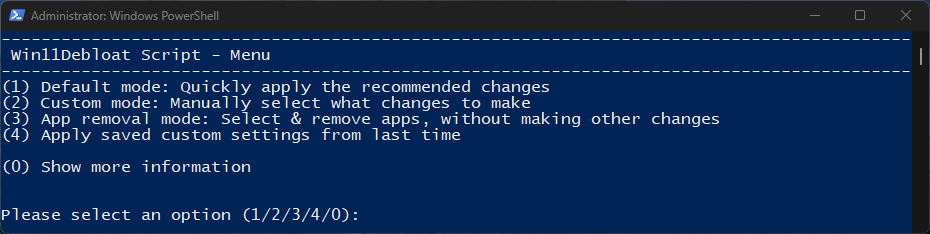
4. Follow the on-screen prompts:
- The script will ask you to select options (e.g., removing specific apps, disabling telemetry).
- Choose the default settings for a balanced approach, or customize them as you see fit.
- Once finished, the script will clean up its own files.
5. Reboot your system:
- Restart your computer to ensure all changes take effect.
Pro Tip: Use parameters like -RunDefaults -Silent for a hands-off, automated execution:
& ([scriptblock]::Create((irm "https://debloat.raphi.re/"))) -RunDefaults -Silent
Method 2: Manual Download and Run
- Download the script:
- Visit the Win11Debloat GitHub page.
- Click the green Code button and select “Download ZIP.”
- Extract the ZIP file to a folder (e.g., C:\Win11Debloat).
- Execute the script:
- Open the extracted folder and double-click Run.bat.
- Accept the Windows UAC prompt to run with admin rights.
- Follow the prompts to choose your optimization settings.
- Reboot your PC when done.
Method 3: Advanced PowerShell Execution
- Download and extract as shown in Method 2.
- Enable script execution:
- Run:
Set-ExecutionPolicy Unrestricted -Scope Process -Force
- Run:
- Navigate to the folder:
cd C:\Win11Debloat
- Run the script with custom parameters:
.\Win11Debloat.ps1 -DisableBing -DisableCopilot
Key Features
- Bloatware Removal: Uninstall Xbox, News, Solitaire, and more.
- Telemetry Disabling: Block Microsoft’s data collection.
- UI Cleanup: Kill Bing in search, hide widgets, and disable Copilot.
- Advanced Support: Includes audit mode and multi-user profile support.
- Reversibility: Most apps can be reinstalled via the Microsoft Store, and the Win11Debloat Wiki has recovery guides.
Safety Tips
- Create Restore Points: The script handles this automatically if you haven’t made one recently, but you can do it manually via “Create a restore point” in your search menu.
- Review Changes: Read prompts carefully so you don’t accidentally uninstall something you use.
- Test First: Always verify on a non-critical machine if you’re unsure.
- Report Issues: Head to the GitHub Issues page if you hit a snag.
FAQs
Is Win11Debloat safe?
Yes, it is designed to be non-destructive. However, always have a restore point handy just in case.
Will it improve performance?
It reduces resource overhead and cleans up the UI, though raw performance gains depend on your hardware. The biggest improvements are in privacy and user experience.
Does it support Windows 10?
Absolutely! It works seamlessly on both Windows 10 and 11.
Conclusion
Win11Debloat is a powerful, must-have tool for any Windows power user. Whether you want to reclaim disk space or stop unwanted telemetry, this script provides an easy, community-vetted way to get it done. Dive in, clean up your OS, and enjoy a faster, more private Windows experience!