
In our previous guide (Wan2.1: The Ultimate 2025 Local Text-to-Video Model Guide), we walked through setting up Wan2.1 to generate high-quality videos from simple text prompts. Today, we’re shifting gears to focus on its most exciting core feature: Image-to-Video. We’ll show you how to breathe life into your static images! This guide follows the same clear, step-by-step format to get you up and running in no time.
Introduction to Wan2.1 Image-to-Video
Wan2.1’s Image-to-Video functionality allows you to animate static images with support for 480P and 720P resolutions. It is surprisingly efficient, remaining compatible with consumer-grade GPUs—even aging workhorses like the NVIDIA RTX 2060. With just a few tweaks to your prompts, you can make subjects move naturally, like turning a photo of someone making a heart gesture into a dynamic, fluid animation!
Hardware Requirements
- 480P Model: Recommended for NVIDIA GPUs with 8GB to 12GB of VRAM (e.g., RTX 2060).
- 720P Model: Requires 16GB or more of VRAM.
- High-End GPUs (e.g., RTX 4090/5090): Can run FP16 precision, requiring 32GB of VRAM.
Key Features
- Full support for mixed-language (Chinese/English) prompts.
- Easily convert your existing Text-to-Video workflows by adding just a few new nodes.
- Impressive motion quality even on older, mid-range hardware.
Preparation and Model Selection
1. Prerequisites
- ComfyUI Installed: Ensure your ComfyUI is updated to the latest version (refer to our previous guide).
- Base Files Downloaded: If you completed our previous T2V tutorial, most shared assets (like VAEs) are already in place.
2. Choosing Your Model
Select the model variant that matches your VRAM capacity:
- 8GB-12GB VRAM: Use the 480P Image-to-Video model (FP8 format).
- 16GB+ VRAM: Use the 720P model (FP8 format).
- 32GB+ VRAM (e.g., RTX 4090): Use the FP16 format model.
Downloading Models and Workflows
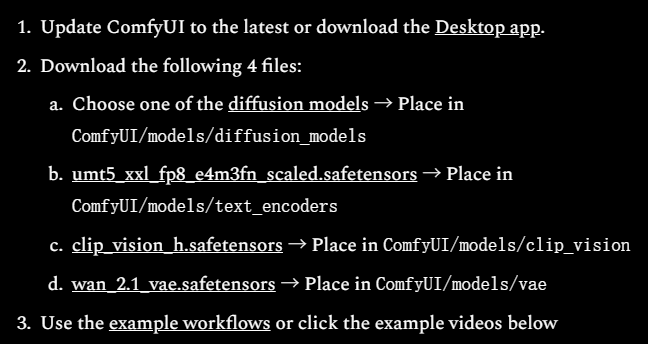
1. Downloading Models (4 Files)
- Visit the official Wan2.1 repository.
- Download the Image-to-Video model:
- Select 480P if you have 8GB-12GB of VRAM.
- Select 720P for higher VRAM configurations.
- Pathing matters:
- Do not rely on web-default download paths, as this often leads to loading errors.
- Place files in your
ComfyUI/models/unetdirectory as outlined in our previous post.
- If you already downloaded the T2V model files, you can skip re-downloading core dependencies like the VAE.
2. Downloading the Workflow
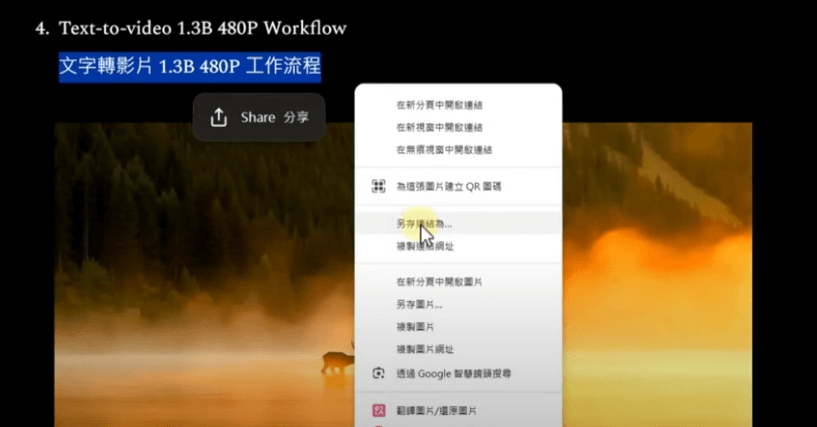
- Get the Image-to-Video workflow from the official source: Hugging Face repository (ensure you choose the correct 480P or 720P file).
- Right-click the link and select “Save Link As” to download the JSON workflow file.
- Load the file into ComfyUI.
Quick Tip: The 480P and 720P workflows share the same logic; the primary differences are the model weights, output dimensions, and frame durations.
The Image-to-Video Process
1. Load the Workflow
- Open ComfyUI and drag the downloaded
.jsonworkflow file into the browser window. - Arrange the nodes to ensure your workflow is tidy and readable.
2. Understanding the Workflow
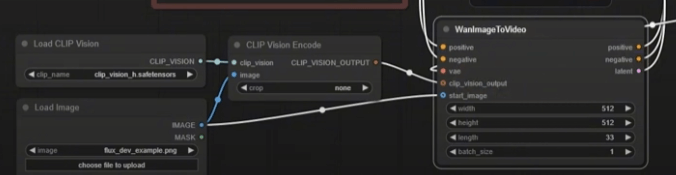
The Wan2.1 Image-to-Video workflow builds upon the T2V structure but adds three essential nodes:
- Load Image: The entry point for your source image.
- Crop Image: Resizes your input to meet model requirements.
- Wan Image-to-Video Node: Placed between the prompts and KSampler to guide the animation process.
3. Configure and Generate
- Load Model: Select the appropriate Image-to-Video checkpoint.
- Load Image: Upload your desired starting frame.
- Prompts: Enter a descriptive prompt (e.g., “Girl making a heart gesture, warm background, natural motion”).
- Default Settings: Start with 30 KSampler steps and standard sampling methods.
- Click “Queue Prompt” to render your animation.
4. Performance Metrics:
- RTX 2060 (12GB VRAM): A 5-second 480P video takes roughly 824 seconds (approx. 13 mins 43 secs).
- VRAM Usage: Hovers around 11GB.
Optimizing Speed and Quality
Just like in our previous guide, you can find a sweet spot between rendering speed and output fidelity:
1. KSampler Tweaks
- High-Quality Default: 30 steps (824 seconds).
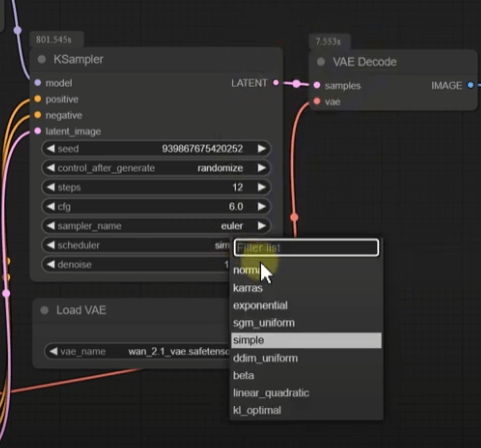
- Optimized Setup:
- Steps: Lower to 12.
- Sampler: Euler.
- Scheduler: Normal.
- Result: Times drop to ~350 seconds (5 mins 50 secs) with only a minor dip in quality.
2. Resolution Adjustments
- Default: 480P.
- Optimization: Reduce dimensions (e.g., 320×240) for faster throughput.
- Note: VRAM usage typically remains consistent even when scaling resolution down.
Troubleshooting Common Issues
- Model Loading Failures:
- Verify that the model file path matches the directory structures in your ComfyUI settings.
- Check that the model download completed successfully without corruption.
- Out of Memory (OOM) Errors:
- Ensure the model size matches your available VRAM.
- Close background applications, browsers, or other AI tools to free up VRAM.
- Unexpected Output:
- Refine your prompts; clarity is key.
- Swap samplers or adjust step counts to see how the animation behavior changes.
- Slow Renders:
- Drop your sampling steps to the 12-20 range.
- Scale down your output resolution.
Conclusion
Wan2.1’s Image-to-Video feature is a massive leap forward for local creative workflows. Being able to animate a still image on an entry-level RTX 2060 in under 15 minutes is a game changer. Whether you are a hobbyist or an experimenter, Wan2.1 stands as one of the most powerful local AI video tools in 2025.
Who Should Try This?
- Creatives looking to add dynamic motion to their portfolio.
- Users with mid-range GPUs looking to squeeze out pro-grade performance.
- Anyone interested in the cutting edge of local AI video synthesis.
What’s next?
- Experiment with varied inputs and prompt styles.
- Scale up to the 720P model if your hardware permits!
We hope this guide helps you unlock the full potential of Wan2.1. If you found this tutorial helpful, feel free to share it, like the post, or drop a comment below. Let’s get creative with Wan2.1!