
In this third installment, we’re diving into an indispensable tool: ControlNet. It allows you to maintain precise control over your AI generations by preserving the structure or pose of a reference image, ensuring the final output perfectly matches your vision. Whether you’re crafting a martial arts master or transforming a mountain landscape across seasons, this straightforward tutorial will walk you through the process. Let’s get started!
ComfyUI Tutorial Part 1: Getting Started with AI Image Generation
ComfyUI Tutorial Part 2: Practical Tips for LoRA Models and Upscaling
What is ControlNet?
ControlNet is an advanced technology that lets AI generate images based on specific reference inputs. It’s perfect for maintaining strict composition or specific poses, such as:
- Having a martial artist mimic a specific dynamic pose.
- Converting a spring mountain scene into a winter landscape.
In this tutorial, you will learn how to configure and use ControlNet within ComfyUI to bring your creative vision to life.
Getting Started: Setting Up Your Workflow
1. Load the Workflow
First, open ComfyUI and load a base workflow. You can download the JSON file below and drag it directly into the interface. For this tutorial, we will be generating an image of a “Martial Arts Master.”
2. Edit Prompts
Your prompt is the key to guiding the AI. For example:
- Prompt: A martial arts master in traditional robes standing in a bamboo forest.
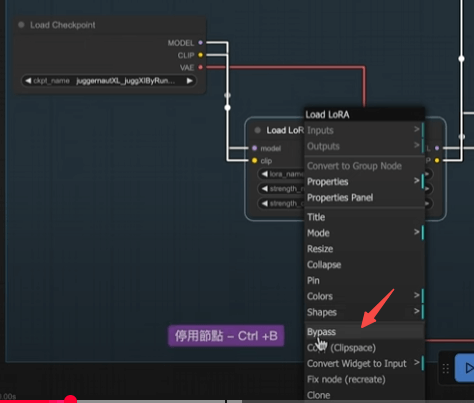
- If your workflow includes a LoRA model (like one for sticker styles) that you don’t need, simply right-click the node and select “Bypass.” You can toggle it back on anytime.
Installing ControlNet Resources
3. Download ControlNet Models
ControlNet requires specific AI models to analyze images. Follow these steps:
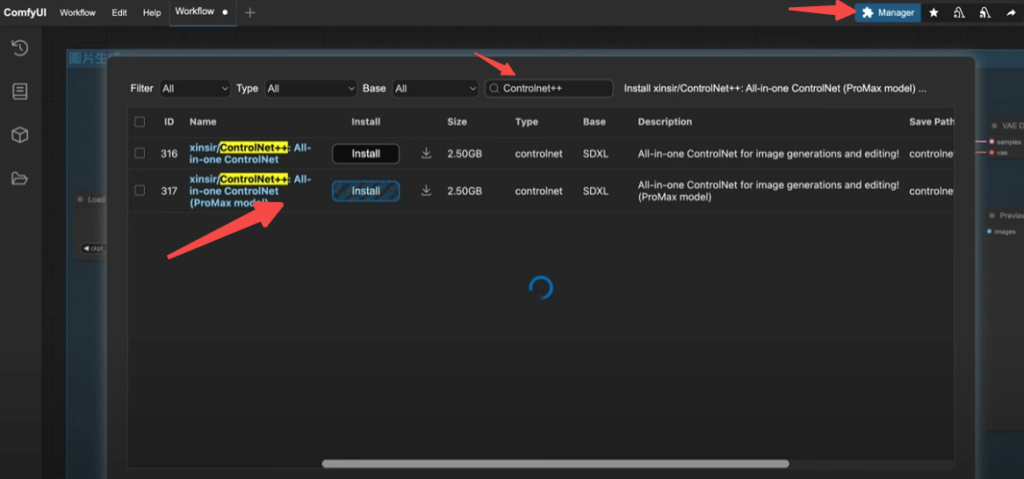
- Click the “Manager” button in the top right to open the Model Manager.
- Search for “Controlnet++” and find the “ProMax” model (this integrates multiple functions, saving you from downloading individual models).
- Click Install. Once finished, click “Refresh” in the bottom left corner to update the interface.
4. Install Custom Nodes
ControlNet requires an additional custom node set for expanded functionality:
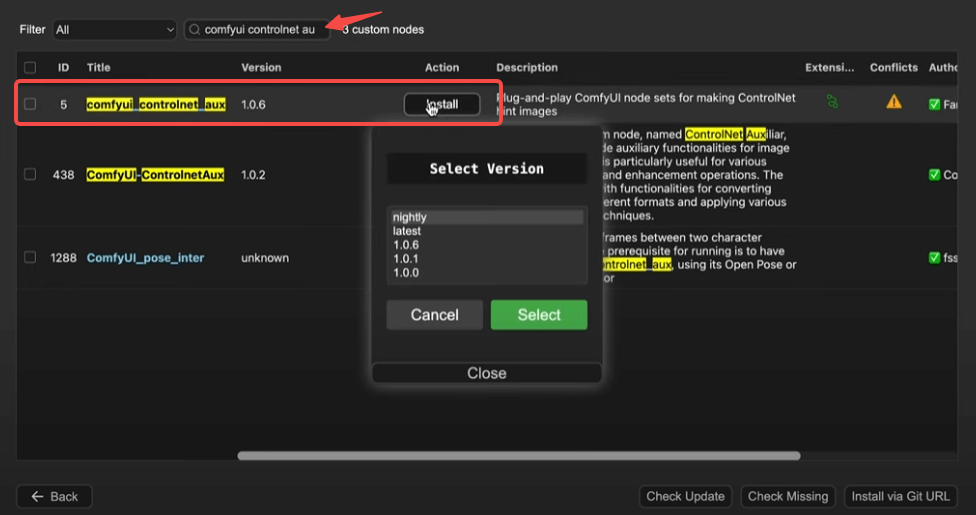
- In the ComfyUI interface, click the menu button to enter Custom Node installation.
- Search for and install “ComfyUI ControlNet Aux.” Restart ComfyUI afterward so the system can load the new nodes.
Configuring the ControlNet Workflow
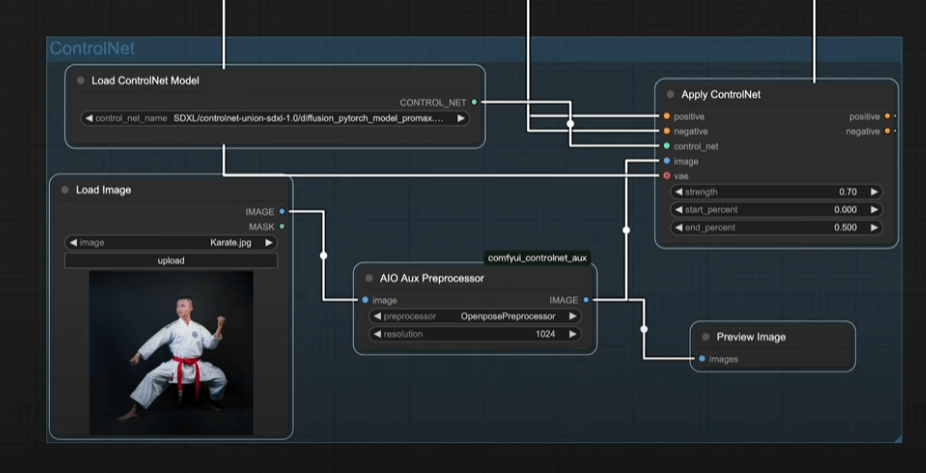
5. Create the ControlNet Node
- Double-click on the empty canvas and search for “Apply ControlNet” to add the node.
- It features two sets of orange sockets:
- Left: Accepts the prompt to define the subject.
- Right: Feeds the processing results into the KSampler to start generation.
6. Load the ControlNet Model
- Drag a wire from the green socket of the “Apply ControlNet” node and add a “ControlNet Loader” node.
- Select the ProMax model you just downloaded to complete the setup.
7. Upload Reference Image
- Double-click the canvas and add a “Load Image” node.
- Upload a reference image (e.g., a martial artist’s pose) that ControlNet will analyze for composition or skeletal structure.
8. Analyze the Image
- ControlNet decouples “application” from “analysis.” Add the “ComfyUI ControlNet Aux” node:
- Select “Openpose” to analyze the figure’s pose.
- Set the resolution to match your reference image (e.g., 1024×1024).
- Connect the analysis output to the “Apply ControlNet” node.
9. Preview Analysis
- Add a “Preview Image” node to verify the skeletal pose generated by the preprocessor.
10. Connect VAE
- Connect the red VAE socket from the “Load Checkpoint” node to the “Apply ControlNet” node.
- The VAE encodes images into a format the AI understands, decoding them back into pixel space once generation is complete.
Adjusting ControlNet Parameters
11. Set Strength and Timing
The “Apply ControlNet” node includes three key parameters:
- Strength: A higher value increases the influence of the reference image (range 0–1).
- Start & End: Controls the timing of the influence. Setting these to 0 and 0.5 means the AI relies heavily on the reference image during the early steps and follows your prompt freely in the later steps.
12. Group Management
- Hold Ctrl and drag to select your nodes, then press Ctrl+G to create a group.
- Right-click the group to change its background color for better organization.
Generating the Image
13. Execute the Workflow
- Click the “Queue Prompt” button. ComfyUI will:
- Generate a pose skeleton based on your reference.
- Combine the skeletal data with your prompt via KSampler to produce the final image.
- The Result: A perfectly posed martial arts master matching your original input!
Advanced Application: Generating Seasonal Mountain Landscapes
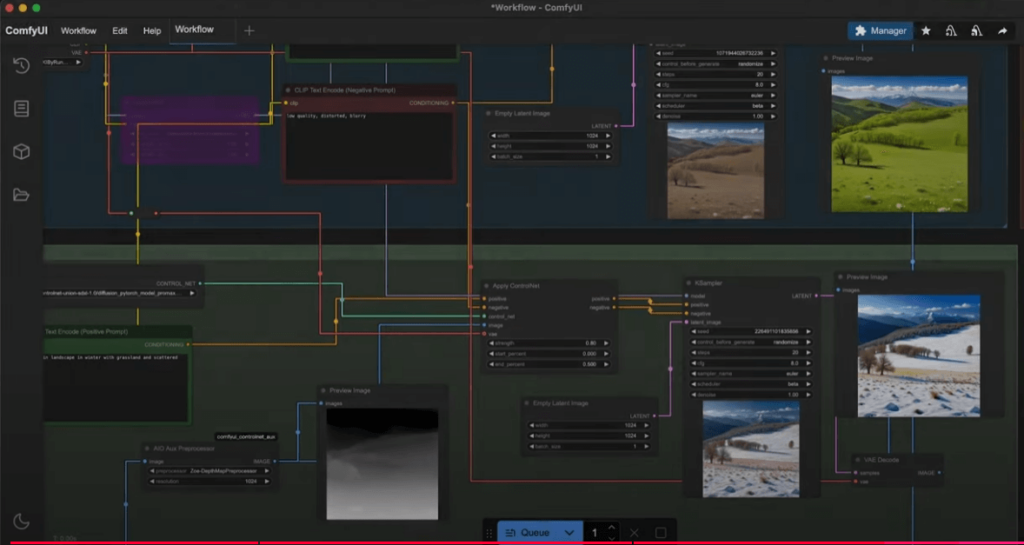
14. Generate Spring Landscape
- Prompt: A vibrant spring mountain landscape.
- Connect to the KSampler and click “Queue Prompt” to generate your spring artwork.
15. Transform to Winter
- Drag a “Reroute” node from the VAE Decode output to feed the spring image into ControlNet.
- Remove the original reference and replace it with your spring image.
- Set the ComfyUI ControlNet Aux to “Depth Map” for structural analysis.
- Update the prompt: “A snowy winter mountain range” and link it to Apply ControlNet.
- Execute the workflow again to generate your winter version.
Summary
Through this tutorial, you’ve learned how to harness ControlNet in ComfyUI to achieve precise, reliable image generation—from mastering poses to seasonal landscape transformations. Your creative control just got a massive upgrade.