
NVIDIA has rolled out a unified app, replacing both the legacy GeForce Experience and the aging NVIDIA Control Panel. While you might have already encountered this shift—or been forced to switch after a driver update—it isn’t all bad news. In fact, with the right configuration, the new NVIDIA app can truly unlock more GPU performance and net you a noticeable FPS boost in-game. Plus, we get to skip the mandatory login, which is a major win! In this guide, we’ll walk you through how to properly set up the NVIDIA app to optimize your gaming rig, even if you’re new to the process. Best of all? It’s a free performance uplift!
Quick Tip: If this guide helped improve your gaming experience, please drop a like and consider subscribing for more tech content!
Navigating the New NVIDIA App: Step-by-Step
Let’s dive into the NVIDIA app and explore the key settings: Official NVIDIA Drivers
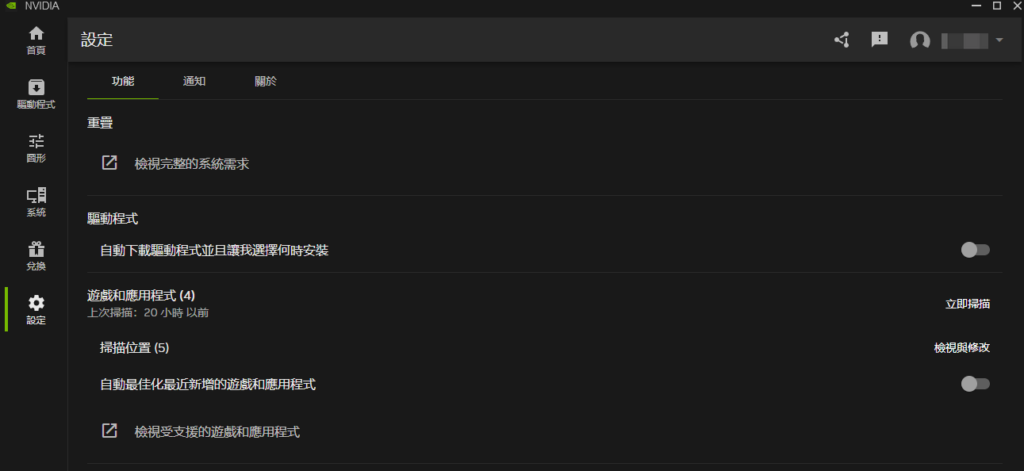
1. Settings Tab:
- In-Game Overlay: If you use NVIDIA’s overlay to record clips or take screenshots, keep it enabled; otherwise, turn it off to save system resources.
- Game Filters and Photo Mode: Feel free to toggle this off if you don’t like the aesthetic or features.
- Drivers: Uncheck “Automatically install drivers.” Manual updates give you much better control over your system stability.
- Automatically optimize newly added games: Definitely uncheck this! These automated profiles are rarely as good as a custom, manual tweak.
- Notifications: Uncheck “Rewards” notifications—it’s essentially spam. You can keep driver update notifications enabled if you prefer.
- About: If you prioritize stability, disable “Early Access.” Turn off data sharing to improve privacy and reduce background overhead.
- Redeem: This is for freebies and rewards, but we’re focusing on performance optimization today. Let’s get to the good stuff.
2. System Settings:
- G-Sync: Toggle this based on your monitor specs. If you consistently push frames well beyond your monitor’s refresh rate, disabling G-Sync can reduce input latency—critical for competitive gamers.
- Display Settings: Ensure your refresh rate is set to the maximum available, and adjust your resolution as needed.
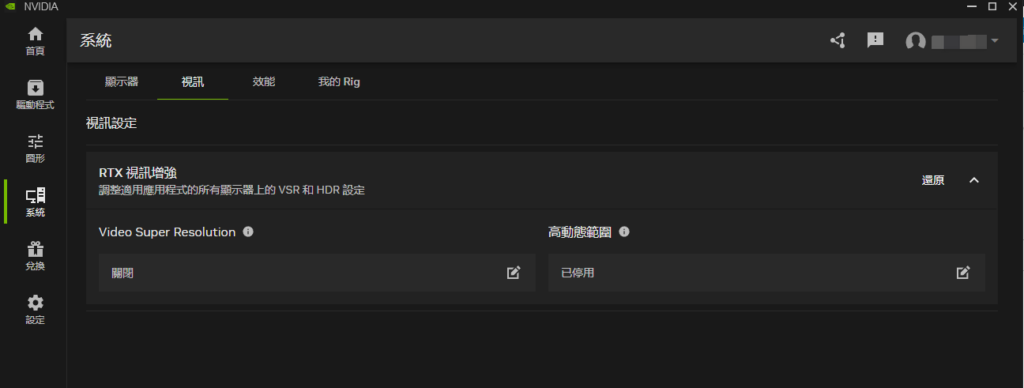
3. Video Settings:
- RTX Video Enhancement and HDR: Feel free to experiment with these for media playback, but note that they can increase power consumption. If you don’t like the look, leave them off!
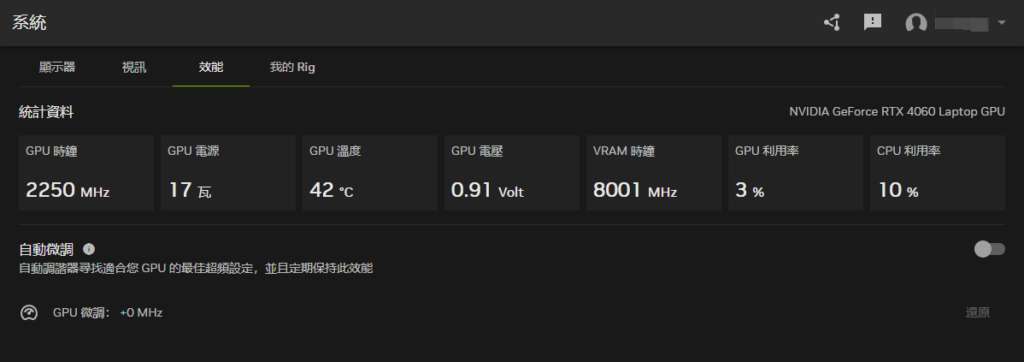
4. Performance Settings:
- Overclocking Options: Honestly, the NVIDIA app’s OC tools are limited compared to MSI Afterburner. Stick to Afterburner for manual overclocking or undervolting.
- Automatic Tuning: This is similar to the Curve Optimizer in Afterburner but is often unstable. It’s better to perform manual tuning.
5. My Rig Tab:
- A quick, clean overview of your current hardware specs.
6. Graphics Settings: The Heart of Optimization
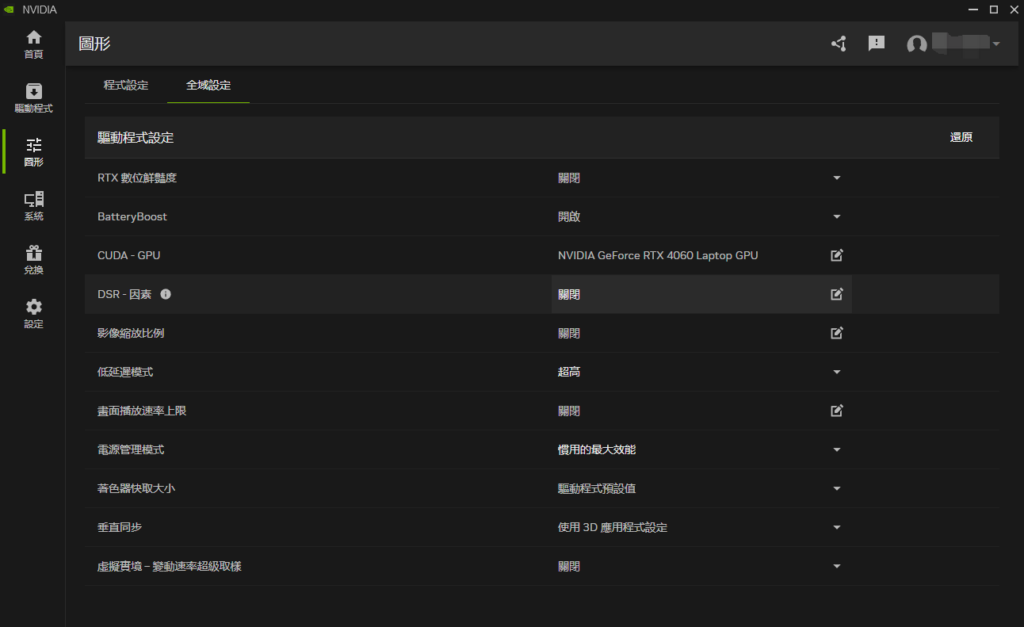
- Global Settings: These apply to every game. Here are the recommended tweaks for competitive performance and maximum FPS:
- Ray Tracing (RT): Off.
- GPU: Select your dedicated graphics card.
- DSR: Off.
- Image Scaling: Off.
- Low Latency Mode: Set to “Ultra” or “On” if you experience any input lag.
- Max Frame Rate: Off—it’s best to set frame caps within the game engine itself.
- Monitor Technology: Choose “Fixed Refresh” if you find yourself exceeding your max refresh rate regularly.
- Power Management Mode: Set to “Prefer maximum performance.”
- Shader Cache Size: Driver default is fine (setting to “Unlimited” can help in some titles, but it may cause system hitches).
- Vertical Sync: Off, unless you specifically need it for G-Sync consistency in certain titles.
- Virtual Reality Variable Rate Super Sampling: Off.
- Program Settings:
- Avoid clicking “Optimize”! Just like the global settings, auto-optimization is inconsistent.
- Adjusting settings directly inside your games gives you more granular control and better results. Note that some settings changed here may not reflect correctly in-game, so use the in-game menu as your primary source of truth.
Game-Specific Tweaks:
Use the global settings as your foundation, then fine-tune individual titles to your liking. Most enthusiasts agree that specific in-game graphics settings have a significantly larger impact on performance than the global overrides in the NVIDIA app.
The Bottom Line
The new NVIDIA app centralizes key settings into a single, cohesive hub, making it much easier to squeeze extra performance out of your GPU. By taking the time to dial in these settings, you can improve your frame rates and ensure a smoother, more responsive gaming experience.
Whether you’re looking for that competitive edge or just want your hardware to perform at its peak, optimizing your NVIDIA app setup is well worth the time.