
Want to turn your Windows 11 desktop into a fully immersive workspace? With the Meta Quest 3 or 3S and Microsoft’s Mixed Reality Link app, you can transform your VR headset into a natural, high-fidelity extension of your PC. In this guide, we’ll walk you through the setup process to get your immersive remote desktop up and running.
Prerequisites:
Before you dive in, ensure you have the following gear and software ready:
- Meta Quest 3 or 3S Headset
- A PC running Windows 11, version 22H2 or higher
- Microsoft Mixed Reality Link app (available via the Microsoft Store)
Setup Steps:
The configuration process is straightforward and involves a few quick steps on both your PC and your Quest:
PC Side:
- Verify Windows Version: Confirm your system is running Windows 11 version 22H2 or later.
- Install the App: Search for and install “Mixed Reality Link” from the Microsoft Store. Keep your PC logged in and unlocked during the setup.
Quest Side:
- Enable Experimental Features: Pop on your headset, head into the Settings menu, navigate to Advanced Settings, and toggle on “Pair with PC using Microsoft Mixed Reality Link.”
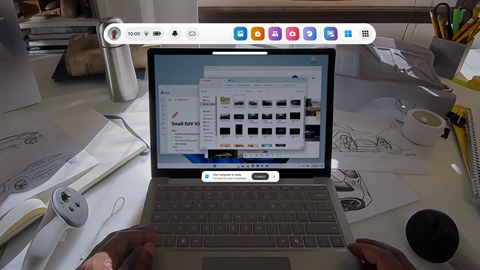
- Automatic Pairing (Recommended): The Quest will scan for nearby PCs. If yours is detected, you should see a floating pairing prompt appear just above your physical keyboard.
- Manual Pairing: If the auto-prompt doesn’t appear, you can initiate pairing manually via these methods:
- Open the “Remote Desktop” app from your library.
- Navigate to Quick Settings > Remote Desktop and select “Add new device.”
- Complete Pairing: Follow the on-screen prompts until your headset and PC are successfully paired.
Connecting to Your PC:
Once paired, reconnecting is a breeze using these methods:
- Look at your PC and tap the “Connect” button floating above the keyboard.
- Go to Quick Settings > Remote Desktop.
The Immersive Desktop Experience:
Once connected, you can step into your Windows 11 desktop in a virtual environment. This unlocks new workflows and entertainment possibilities:
- Expansive Screen Real Estate: Use multiple virtual monitors in VR to boost your productivity.
- Deep Immersion: Enjoy a focused environment that pulls you deeper into your work or media.
- Wireless Freedom: Untether yourself and move freely without worrying about cables.
Conclusion:
The collaboration between Meta and Microsoft brings deep Windows 11 integration to the Quest 3/3S, offering a glimpse into the future of computing. While currently an experimental feature, this setup is already a game-changer for those looking to redefine their desktop experience.