
If you just picked up a Meta Quest VR headset and find the visuals a bit soft or blurry, don’t sweat it! This guide will show you how to push your headset’s graphical fidelity to the next level—without needing to spend a dime on new games.
Method 1: Using SideQuest (Free)
SideQuest is an essential, free tool that lets you sideload content and tweak system settings on your Meta Quest. We’ll use it to unlock higher rendering resolutions.
- Download and install the SideQuest app. [Official Download]; make sure to grab the Advanced Installer version.
- Download and install the official ADB drivers. [Official Download]
- Connect your Meta Quest to your PC and ensure Developer Mode is enabled.
- Within the SideQuest app, navigate to the “Device Settings & Tools” tab to access the graphics performance toggles.
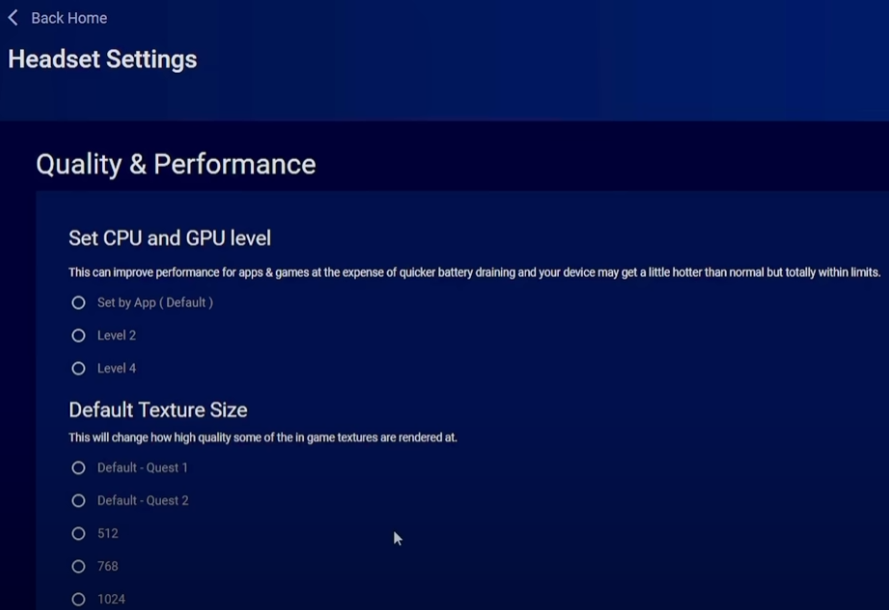
- From here, you can push the CPU/GPU performance levels higher and manually set the render resolution and texture filtering rates.

Method 2: Quest Games Optimizer (Paid)
Quest Games Optimizer (QGO) is a fantastic paid utility that allows you to create per-game, custom graphics profiles to ensure the absolute best experience for every title in your library.
- Purchase and download the Quest Games Optimizer app. [Official Store Page]
- Ensure your ADB drivers are installed correctly.
- Connect your Meta Quest to your PC and confirm Developer Mode is active.
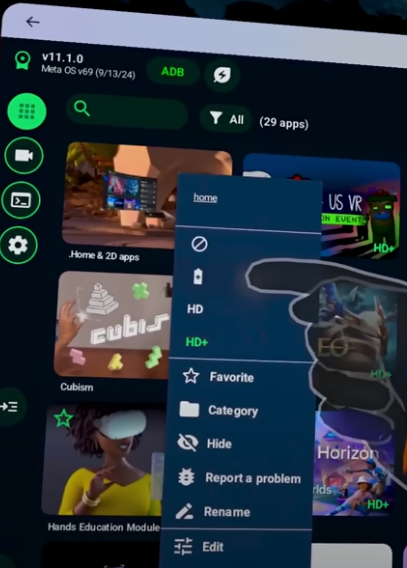
- Inside the QGO interface, you can generate specific graphics presets and performance optimizations for your favorite games.
Important Considerations
* Increasing graphics settings will drain your battery significantly faster. Use these tweaks with caution.
* Some titles may not play nice with aggressive custom profiles, so test them out one by one.
* Manipulating system settings via ADB and Developer Mode carries minor risks; proceed with care.
Conclusion
Unlocking the full potential of your Meta Quest is surprisingly easy. Whether you use the free utility of SideQuest or the granular control offered by Quest Games Optimizer, you’ll be able to sharpen those visuals and make your VR sessions look significantly more immersive.