
Introduction:
With the widespread adoption of Windows 11, more users are finding that the setup process insists on a mandatory Microsoft Account login. For those who prioritize privacy or simply prefer the traditional local account workflow, this requirement can be a significant annoyance. Fortunately, there are several straightforward methods to bypass this and set up Windows 11 with a local account instead.
Method 1: The Domain Join Bypass
Available on Pro and other enterprise-ready versions of Windows 11, this method is highly intuitive:
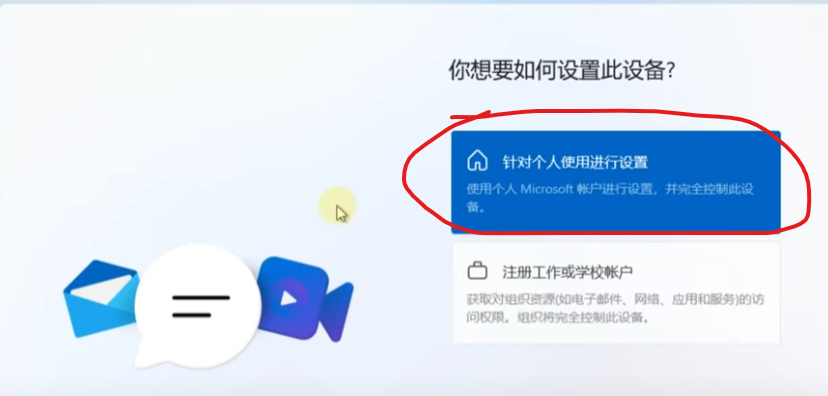
1. During the setup process, when you reach the “Sign in with Microsoft” screen, look for the option to set up with a work or school account.

2. Click “Next.” On the following screen, leave all fields blank and click “Sign-in options.”
3. Select “Domain join instead” (or similar terminology) to bypass the Microsoft account requirement.
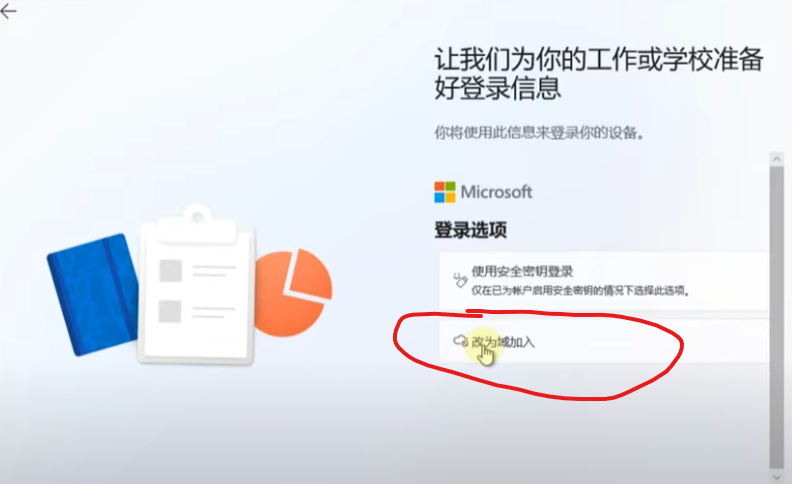
4. You can now enter your desired username and set a password (or leave it blank).
5. Proceed through the terms, and the installer will continue without ever needing to connect to a Microsoft Account.
Method 2: The “Fake Account” Trick
For versions like Windows 11 Home, where the domain join option may be hidden, try this common workaround:
1. When prompted to sign in with a Microsoft account, proceed to the sign-in screen.
2. Enter a deliberately incorrect email address, such as “[email protected]” or simply “test.”
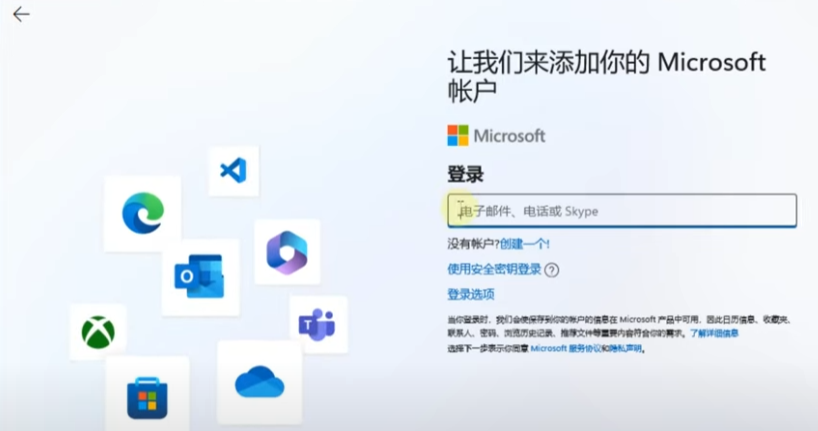
3. Enter any random password (e.g., “123”).
4. Attempt to sign in. The system will trigger an “Oops, something went wrong” error. Click “Next.”
5. You have now bypassed the live validation and can create a local user account.
6. Enter your name, set your password, and finish the installation.
Method 3: The Command Line Network Bypass
Use this if the “I don’t have internet” option is missing from the network connection screen:
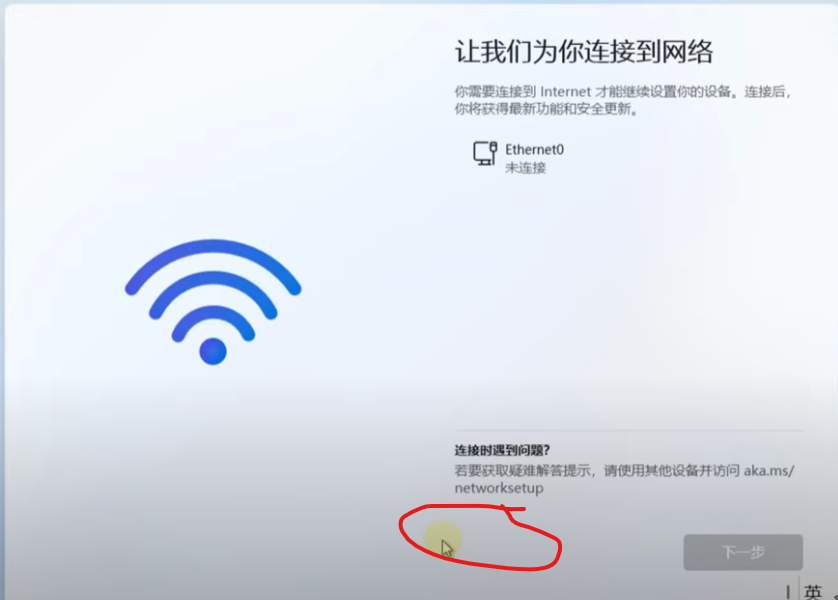
1. Ensure you are disconnected from the internet. Press Shift + F10 on your keyboard to open the Command Prompt. (Note: On some laptops, you may need to use Shift + Fn + F10).
2. Type the following command and hit Enter: oobe\bypassnro
3. Your system will reboot automatically. Once back at the network screen, you will now see an “I don’t have internet” option. Click it to continue with a local account setup.

By using these methods, you retain full control over your machine without the mandatory cloud-sync requirements of a Microsoft Account. Once your PC is up and running, you can easily verify your local administrator status in the Settings app.
Final Thoughts
Bypassing the forced login is a quick win for privacy and system management. Whether you’re an IT pro setting up multiple machines or a home user who prefers a local login, these methods ensure a smooth, clutter-free installation of Windows 11.