

If you own a Meta Quest 3 or Quest 3S, you want to keep your hardware in tip-top shape for the ultimate immersive VR experience. Here are 15 common mistakes you must avoid to protect your headset and ensure peak performance. These VR tips are straightforward and perfect for beginners.
1. Avoid Direct Sunlight
Never leave your Quest 3 or 3S in direct sunlight. The lenses act like magnifying glasses, and sunlight can leave permanent burn marks on your display. Always store your headset in a protective case or use a dedicated lens cover when not in use.
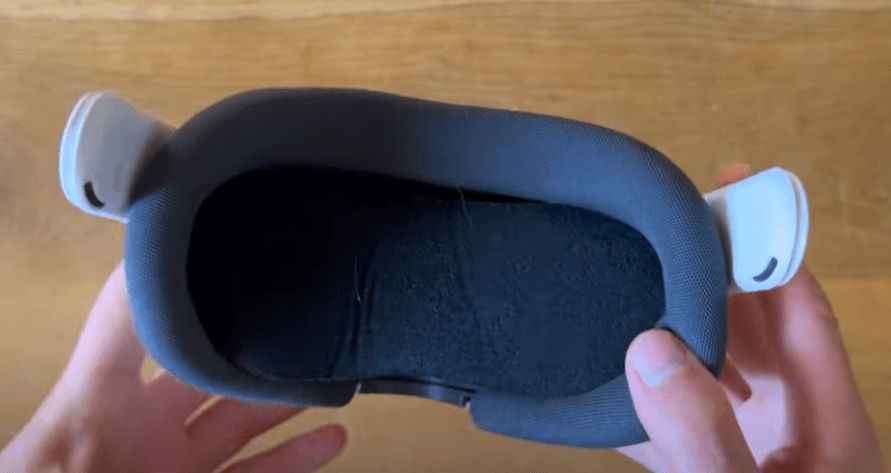
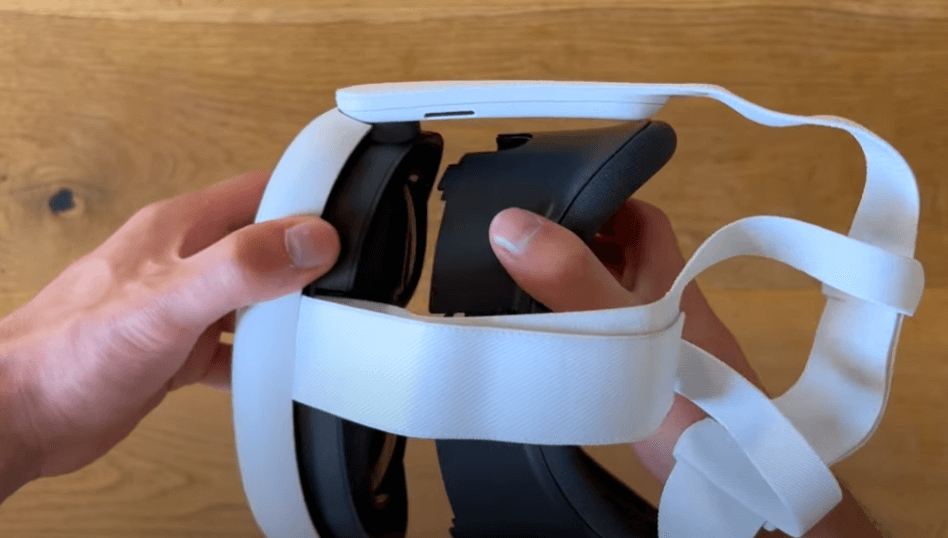
2. Be Careful Removing the Facial Interface
Cleaning your headset is important, but removing the facial interface improperly can break the plastic clips. Official replacements aren’t cheap, so gently pull it off with both hands from the top to avoid damaging the delicate connection mechanism.
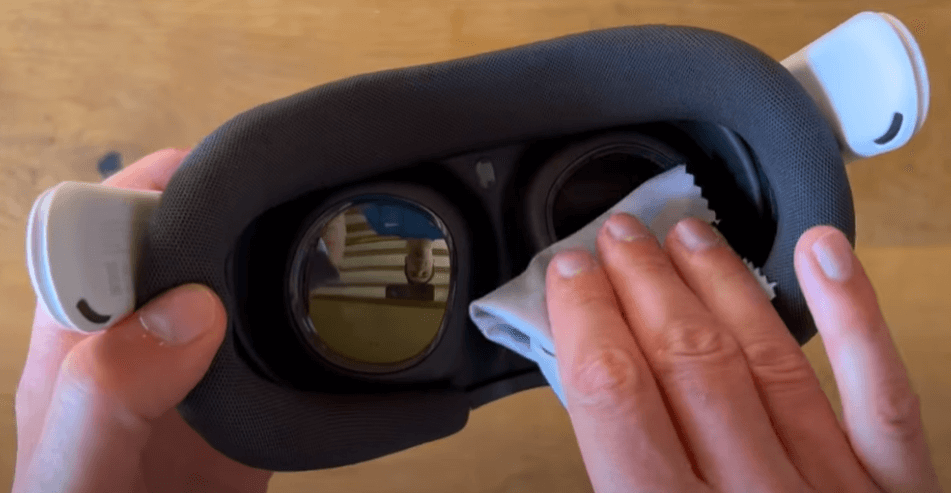
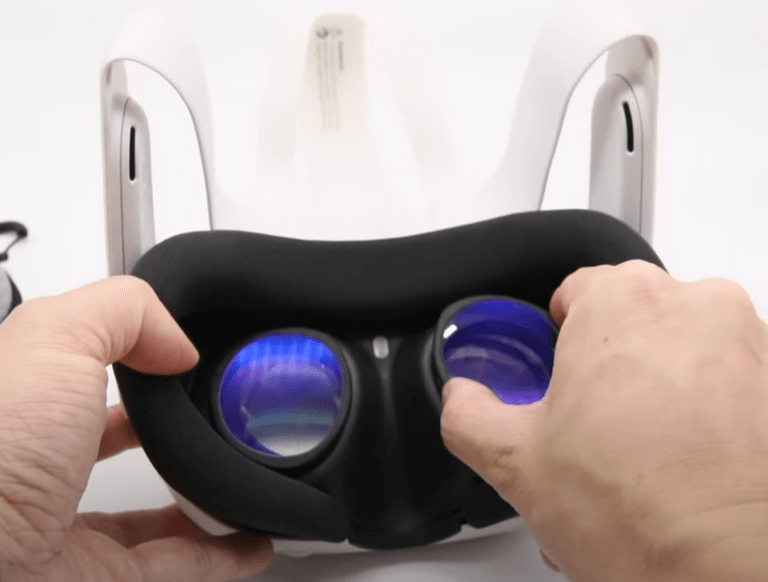
3. Prevent Lens Scratches
Scratched lenses are a major headache. Skip the T-shirt or paper towels; use only a clean microfiber cloth. Since the Quest 3’s pancake lenses are difficult to repair, I highly recommend using lens inserts or protectors—especially if you wear glasses.
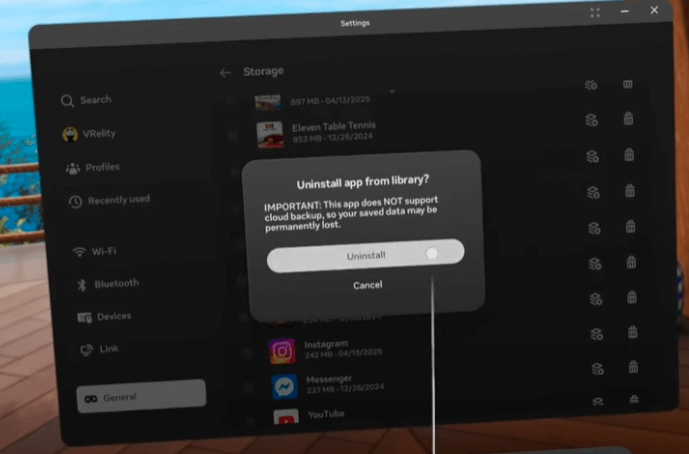
4. Don’t Fill Up Your Storage
Installing every game in the store can lead to performance dips, app crashes, or failed updates. Regularly check your storage settings and purge games you aren’t playing to keep the OS running smoothly.
5. Avoid Bluetooth Headphones
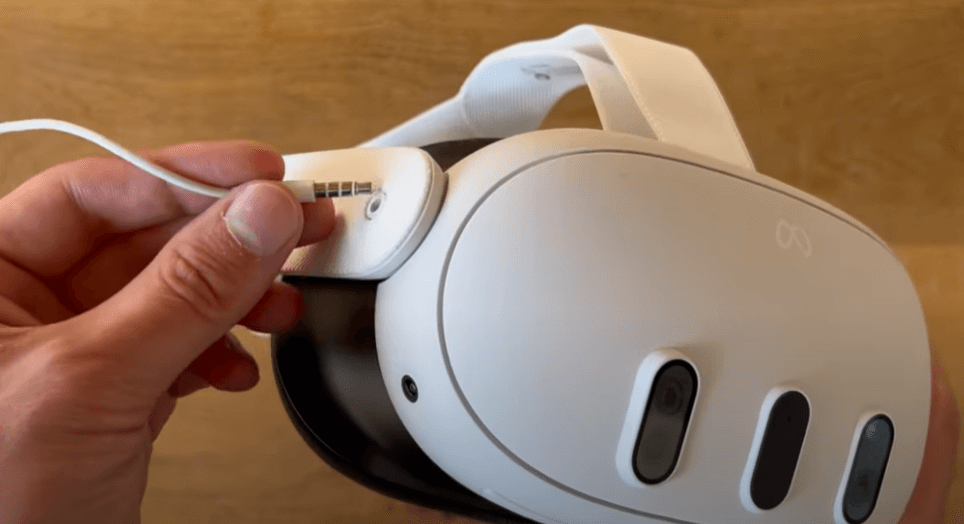
Bluetooth audio latency will ruin your immersion in fast-paced VR games. Stick to the built-in spatial audio or use wired headphones. If you really want wireless, use a dedicated 2.4GHz headset with a low-latency USB-C adapter.
6. Manage Your Controller Batteries
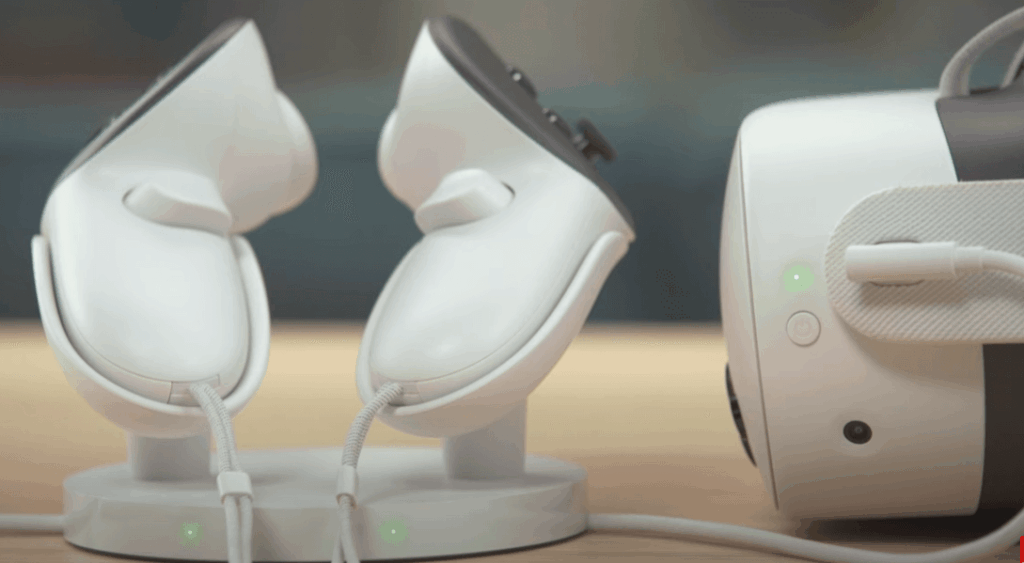
Dead batteries are an instant session-killer. The Meta Touch Plus controllers use standard AA batteries, so keep spares on hand or switch to rechargeable batteries. Charging docks are a great convenience upgrade if you want to splurge.
7. Avoid Overcharging
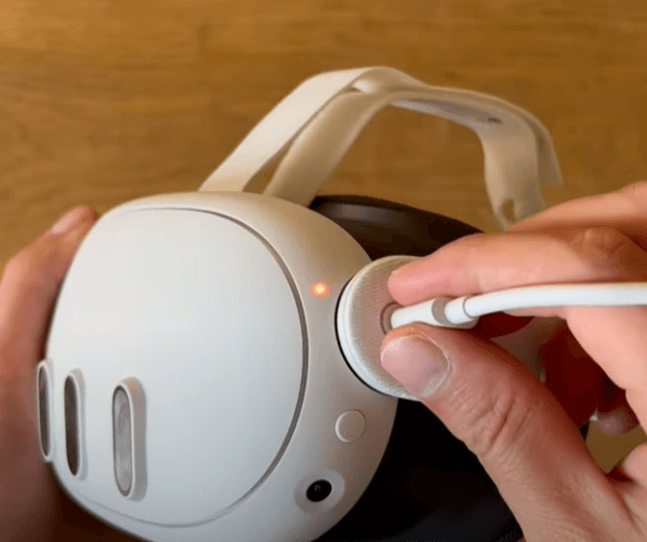
Constantly leaving your headset on the charger can degrade long-term battery health and cause unnecessary heat buildup. Use quality cables and unplug the device once it hits 100%, especially if you’re leaving the house for a while.
8. Ease Into VR to Prevent Motion Sickness
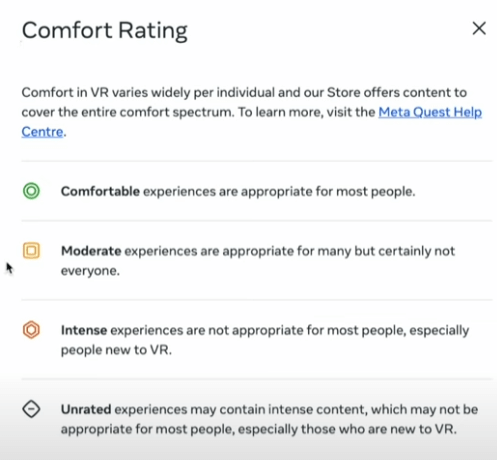
Newbies often get hit with motion sickness early on. Stick to games rated “Comfortable” in the Meta Store and take regular breaks. A small desk fan pointing at you while you play can help significantly with spatial awareness and nausea.
9. Configure Your Boundary Correctly
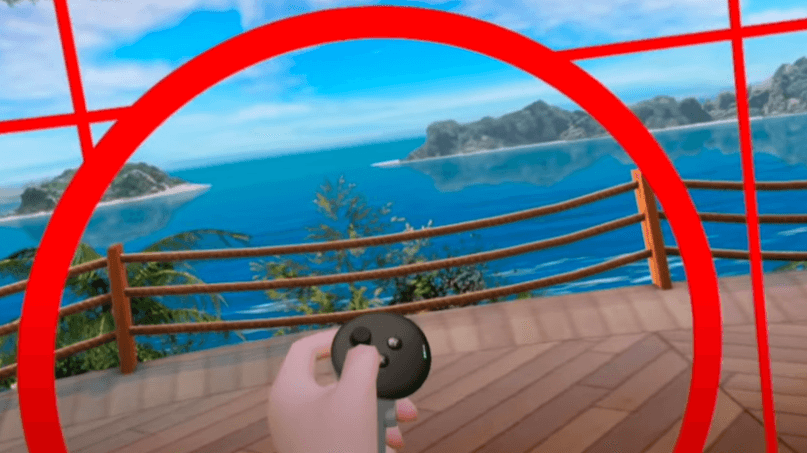
A poorly set Guardian boundary is a one-way ticket to punching your wall or furniture. Calibrate your space carefully, especially in smaller rooms. If your playspace is super tight, look into specialized play rugs or VR treadmill mats to keep your orientation centered.
10. Don’t Pre-order VR Games
Pre-ordering VR titles can be risky—remember the “Hitman VR” launch? It’s usually better to wait for the official release and check community reviews before committing your cash.
11. Prevent Controller Stick Drift
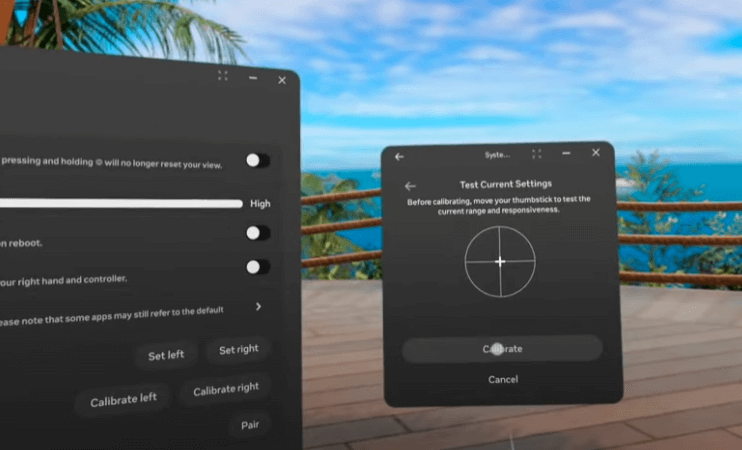
Heavy use leads to dust buildup in the joystick mechanisms, which causes drift. Regular cleaning with compressed air can prevent this. If you do get drift, try recalibrating your dead zones in the settings menu.
12. Play in a Well-Lit Room
Playing in the dark kills tracking accuracy and will trigger constant warning messages. Keep the lights on to ensure your inside-out tracking sensors have enough data to track your controllers perfectly.
13. Power Down Completely
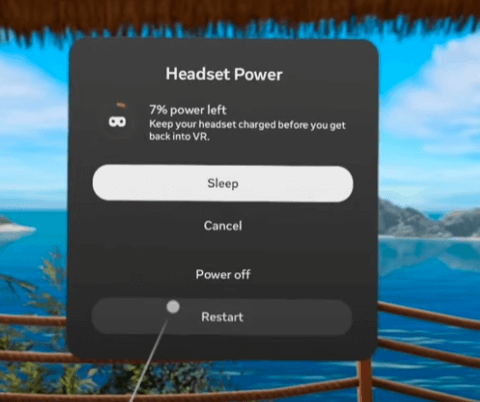
Leaving your headset in standby mode drains the battery and can lead to performance glitches. Power it off completely when not in use for long periods, and perform a full reboot occasionally to keep things snappy.
14. Unlock the Quest’s True Potential
Out-of-the-box settings don’t always push the hardware to its limit. Tools like the Quest Game Optimizer can significantly improve your resolution, texture quality, and frame rates. Check out the latest guides to get the most out of your hardware.

15. Unlock SideQuest for More Content
Don’t miss out on the SideQuest ecosystem. It opens the door to free titles, indie experiments, and custom home environments that aren’t available in the official Meta store. It’s an essential setup for any serious Quest owner.

Conclusion
By avoiding these 15 mistakes, you’ll keep your Meta Quest 3 or 3S in pristine condition and maximize your VR experience while avoiding costly repairs. Got your own VR tips? Drop them in the comments below!